How to Fix Sahara Fail/QSaharaServer Fail/Process Fail Error in QFIL Tool
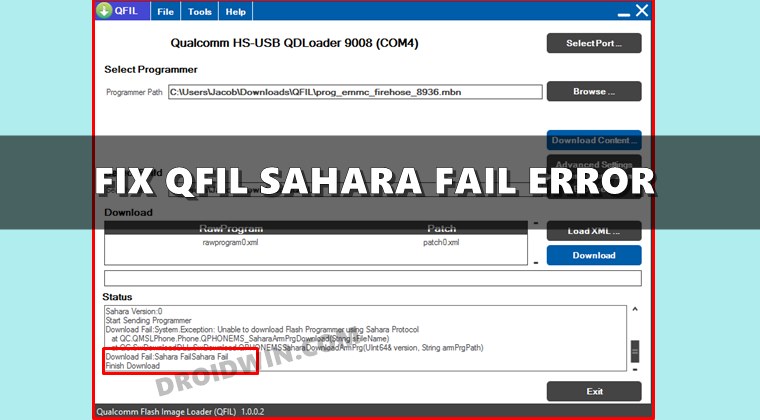
In this guide, we will show you the steps to fix the Sahara Fail/QSaharaServer Fail/Process Fail Error in the QFIL Tool. Qualcomm Flash Image Loader is a software program that is used for flashing the firmware file to the devices with the Qualcomm chipset. However, its main usage comes into the picture when we talk about unbricking a device. While there are a plethora of tools that claim to achieve the said tasks, in our testing, QFIL was the standout performer.
All that you need to do is boot your device to EDL Mode and then flash the associated firmware using this tool. For the unaware, Emergency Download Mode is a special kind of download mode present only in Qualcomm devices that helps you force-flash the firmware when your device is unable to boot to the OS. Making use of this mode and the Image Loader tool, you could easily unbrick your device without much issue.
However, the tool is known to face quite a few errors, most of which stems out from the user side. In this regard, one of the most common ones is the Sahara Fail error. If you are also getting bugged with this issue, then this guide shall help you out. Given here are the various methods to fix the Sahara Fail/QSaharaServer Fail/Process Fail Error in QFIL Tool. Follow along.
Table of Contents
How to Fix Sahara Fail/QSaharaServer Fail/Process Fail Error in QFIL Tool
There isn’t any universal fix as such. You will have to try out each of the below-mentioned workarounds until one of them spells out success. So without further ado, let’s get started.
Fix 1: Enter EDL Mode at the Right Time
EDL Timeout is one of the most common reasons for this error. The thing is that you shouldn’t keep your device lying idle in the EDL mode for too long. What many users do is that they boot the device to EDL and then start setting up the tool. Rather, the reverse should be done.
You should first set up the tool, load the firmware and at the last step, boot your device to EDL mode and connect it to PC to flash the firmware. Try out this advice and see if it fixes the Sahara Fail/QSaharaServer Fail/Process Fail Error in QFIL Tool.
Fix 2: Use the Correct Firmware
Make sure that the firmware that you have loaded to the tool matches your device and also the region.
Fix 3: Use Latest QFIL Version (Standalone or QFIL+QPST)
Using an old our outdated tool could lead to quite a few issues. Therefore, it is always recommended that you use the latest version of the QFIL Tool. Moreover, this tool comes in two variants: a standalone version and the one that is bundled with QPST Tool. So you could also try switching the builds.
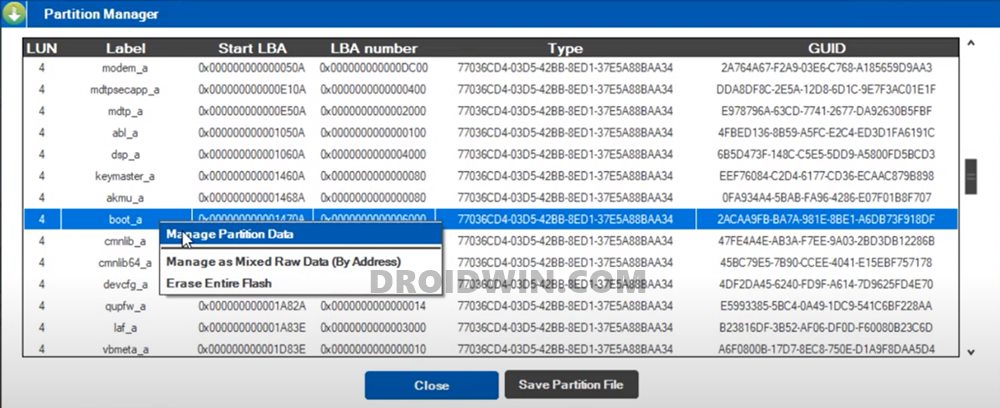
QFIL Tool in action!
For example, if you are using the standalone one, then switch over to the one that comes bundled with QPST. Or if you are already using the bundled one, then switch over to the standalone version. Try out these tweaks and see if they are able to fix the Sahara Fail/QSaharaServer Fail/Process Fail Error in QFIL Tool.
Fix 4: Reverify the Programmer Firehose File
If you have loaded the programmer firehose file, then make sure that it is explicitly for your device and chipset. Loading an incorrect firehose file could lead to disastrous consequences.
Fix 5: Check Installation Directory
Double-check the folder path where you have installed the QFIL Tool and make sure that there are no spaces between the file name.
- For example, below is an example of an incorrect installation directory:
- The corresponding correct file path will be:
- So check the installation directory and if there are any spaces, make sure to remove them. You may also shift the tool to any other location that doesn’t have spaces between its name.
Try out these renaming tweaks and see if it is able to fix the Sahara Fail/QSaharaServer Fail/Process Fail Error in QFIL Tool.
Fix 6: Disable Driver Signature Enforcement
Windows OS doesn’t allow the installation of unsigned drivers. Unfortunately, most of the tools that we deal with it in the Android Custom Development usually have unsigned drivers.
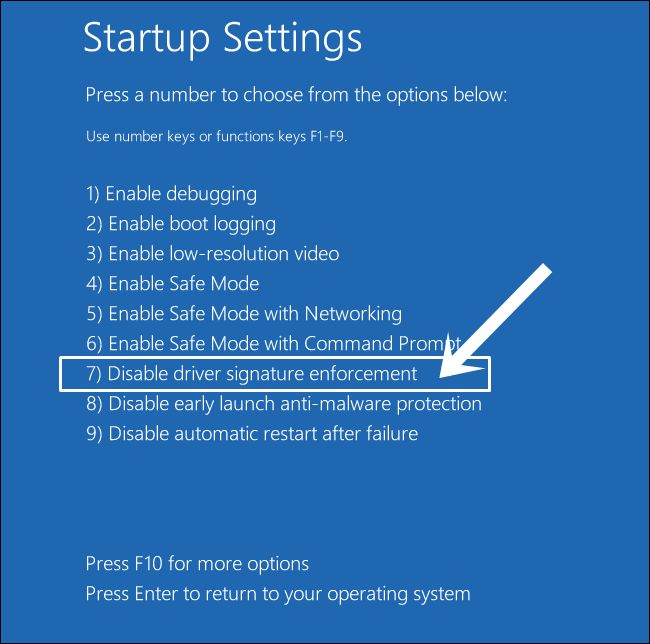
Therefore, before you proceed ahead with the installation of any such tool, make sure to disable the driver signature enforcement on your Windows 10 PC. To do so, please refer to our detailed guide: How to Disable Driver Signature Verification on Windows 10.
Fix 7: Use Official USB Cable | USB 2.0 Port
It is recommended that you only use the USB cable that came shipped with your device (or any other Android device for that matter). You should not use any standalone USB cable as they don’t support executing ADB and Fastboot, let alone supporting EDL Mode.
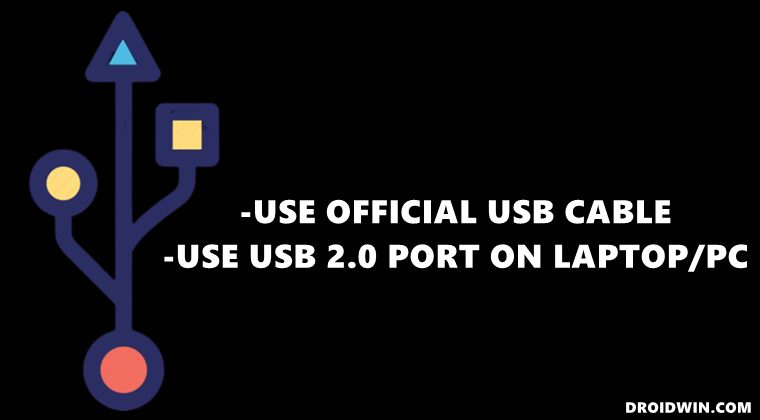
Moreover, make sure to plug in the cable to the USB 2.0 Port on your PC. While the newer USB 3.0 Port are faster, but they more often than not ends up conflicting with the flashing and other related tasks. So use the official USB cable and USB 2.0 Port and see if it is able to fix the Sahara fail error in QFIL Tool.
Fix 8: Install Qualcomm HS-USB QDLoader 9008
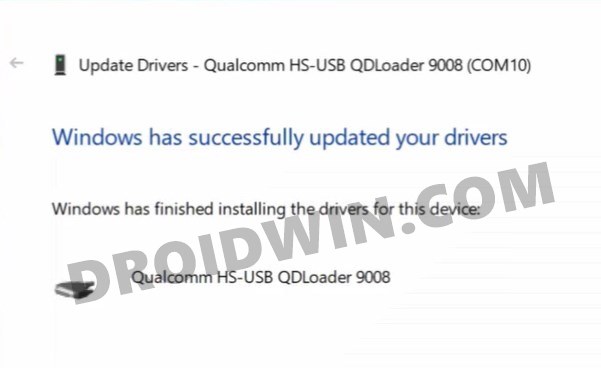
As soon as you boot the device to EDL and connect it to PC, your device should be recognized as Qualcomm HS-USB QDLoader 9008 under Device Manager. However, if it is listed as QHUSB_BULK or Other Device, then it’s due to missing Qualcomm drivers. So head over to our guide and refer to the detailed instructions (with screenshots) to Download and Install the latest Qualcomm HS-USB QDLoader 9008 Drivers.
With this, we conclude the guide on how to fix the Sahara Fail/QSaharaServer Fail/Process Fail Error in the QFIL Tool. We have shared eight different types of fixes, do let us know in the comments which one worked out for you. Likewise, if you were able to rectify the issue using any other workaround, then keep us informed via the comments section.
About Chief Editor
Sadique Hassan
A technical geek by birth, he always has a keen interest in the Android platform right since the birth of the HTC Dream. The open-source environment always seems to intrigue him with the plethora of options available at his fingertips. “MBA by profession, blogger by choice!”
How To Fix Sahara Fail Error In Qfil
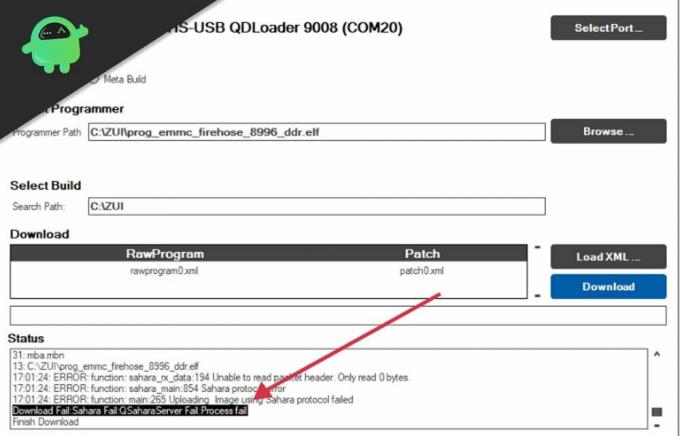
QFIL is a flashing tool specially designed for Qualcomm smartphones. It’s an amazing tool designed to flash firmware files right from the comfort of your home. However if not operated with care, it can cause your device to brick and may cause several errors. One recent error users are facing is the Sahara Fail error on QFIL software.
The error may appear on your screen in a different context depending on the software version of QFIL. Some of the prefixes of error messages are -Download Fail, Sahara Fail, QSaharaServer Fail, Process fail error respectively. This issue is very common and there could be many reasons behind this serious trouble. If you are facing a similar issue, then here is a troubleshooting guide to fix the problem with QFIL flashing software.
How to Flash Firmware using the QPST Flash Tool
How to Fix Sahara Fail Error in QFIL#
Qualcomm Flash Image Loader, better known as QFIL is a free-to-use tool made specifically for Qualcomm smartphones. It has been very popular with the Android developer community as it’s easy to flash software in Qualcomm smartphones with QFIL. Here are some basic troubleshooting steps which you can take to get rid of the Sahara Fail Error in QFIL.
Update QFIL version#
QFIL is still in the beta version and has many issues, but it gets frequent updates from time to time. If you try to use an old QFIL version flash with the latest-gen Qualcomm smartphone, it may show a Sahara Fail error on your screen. So the best way is to make sure you’re using the latest version of QFIL software.
Download QFil Flash Tool
USB cable issues#
If the USB cable you’re using to flash firmware files to your Qualcomm is of either cheap quality or damaged, then it may create problems in the flashing process. In the worst-case scenario is it can even damage or your device or may arise Sahara Fail Error in QFIL. So make sure to use a good-quality USB transfer cable.
Incompatible programmer file#
Each firmware bundle comes with a different set of programmer files intended for use with multiple tools. Tools such as SP flash tool, Img flasher, and QFIL uses a different set of instructions to flash programmer file. So make sure to choose the compatible programmer file.
How To Exit Qualcomm CrashDump Mode in OnePlus Devices
Issues with File path#
File-path is very important when it comes to flashing firmware files using QFIL software. If the file path is not mentioned correctly, the flashing process will not begin or it will terminate automatically giving your Sahara flashing error.
Note: Programmer files compatible with QFIL often have QFIL or Qualcomm in their name. For eg. prog_emmc_qfil_qualcomm_8996_ddr.elf
Corrupt Firmware Files#
It is important to download correct firmware files in order to flash these files successfully onto your device. If the firmware files you downloaded from the internet have integrity issues or corrupted, then they will show various QFIL errors on the log screen.
Eg of a bad file path: C:\Users\Rah Ver\Desktop\Flash files\QFIL Qualcomm
Eg of a correct file path: C:\Users\Rah_Ver\Desktop\Flash_files\QFIL Qualcomm
Make sure to Download Firmware files for QFIL from official sources. Also, cross-check their “checksum” before flashing them with the QFIL tool.
EDL problems#
Putting the device in EDL mode way before the flashing process can lead to Sahara Fail Error in QFIL because of timeout issues. For a good and successful flashing experience, you should put the device in EDL mode right before the flashing process is about to start.
Corrupt Qualcomm driver#
Since the QFIL tool is specifically designed to work with Qualcomm smartphones only, you should make sure to download the correct driver for your particular model. Install the wrong drivers or incompatible drivers will lead to a failed flashing and errors.
Download Qualcomm USB Drivers
Disable Driver Signature Enforcement#
Driver signature enforcement is a special feature in Windows which prohibits users from installing third-party unverified drivers. This is essential to protect people from any malware or virus attack. But install drivers is important for the QFIL tool to work correctly. Here is how you can disable driver signature enforcement in Windows 10.
Open command prompt in Administrator mode.
Type these commands and press enter
bcdedit.exe -set loadoptions DDISABLE_INTEGRITY_CHECKS
bcdedit.exe -set TESTSIGNING ON
Restart your PC and use the QFIL tool normally.
Conclusion#
QFIL is just a flashing tool and it can yield Sahara error or other types of error if you don’t handle it with care. I suggest you make sure to use a good quality transfer cable and correct firmware files. If you do, you will not face Sahara Fail Error in QFIL. For any questions or queries about the QFIL tool, comment down below.
How to fix Sahara fail error in QFIL
Qualcomm Flash Image Loader (QFIL) is a free tool for flashing Qualcomm-based Android devices. QFIL-flashable firmware come in either Flat or Meta build and require the device in Emergency Download Mode (EDL) / Qualcomm HS-USB QDLoader 9008 for flashing.
What’s the difference between Flat build and Meta build?
The difference is in the content of the firmware and folder structure. Flat build contains patch.xml in the same folder with other files while Meta build contains contents.xml in the root of the folder.
For those who are new to using this tool for flashing, here’s a crash course
We also have a course on Qualcomm Software Repairs so check it out at https://www.hovatek.com/training
Sahara Fail error in QFIL
With QFIL, one error you’ll eventually encounter is the Download Fail:Sahara Fail: QSaharaServer Fail: Process fail error .
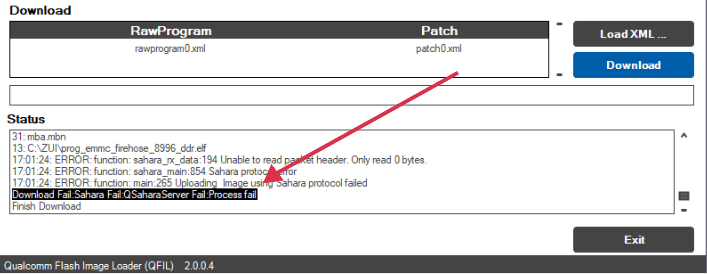
There are a number of reasons you might get this error so lets dive into them plus their fixes.
Как исправить ошибку Sahara Fail в QFIL
QFIL — это инструмент для прошивки, специально разработанный для смартфонов Qualcomm. Это потрясающий инструмент, предназначенный для прошивки файлов прошивки прямо у вас дома. Однако при неосторожном обращении это может привести к блокировке устройства и возникновению нескольких ошибок. Одна из недавних ошибок, с которыми сталкиваются пользователи, — это ошибка Sahara Fail в программном обеспечении QFIL.
Ошибка может появиться на вашем экране в другом контексте в зависимости от версии программного обеспечения QFIL. Некоторые из префиксов сообщений об ошибках: -Download Fail, Sahara Fail, QSaharaServer Fail, Process fail error соответственно. Эта проблема очень распространена и может быть вызвана множеством причин. Если вы столкнулись с подобной проблемой, то вот руководство по устранению неполадок, чтобы решить проблему с программным обеспечением для перепрошивки QFIL.
- Как исправить ошибку Sahara Fail в QFIL
- Обновить версию QFIL
- Проблемы с USB-кабелем
- Несовместимый файл программатора
Как исправить ошибку Sahara Fail в QFIL
Загрузчик изображений Qualcomm Flash, более известный как QFIL, представляет собой бесплатный инструмент, созданный специально для смартфонов Qualcomm. Он был очень популярен в сообществе разработчиков Android, поскольку с помощью QFIL можно легко прошить программное обеспечение на смартфонах Qualcomm. Вот несколько основных шагов по устранению неполадок, которые вы можете предпринять, чтобы избавиться от ошибки Sahara Fail Error в QFIL.
Обновить версию QFIL
QFIL все еще находится в бета-версии и имеет много проблем, но время от времени получает частые обновления. Если вы попытаетесь использовать флэш-память старой версии QFIL со смартфоном Qualcomm последнего поколения, на вашем экране может появиться сообщение об ошибке Sahara Fail. Поэтому лучше всего убедиться, что вы используете последнюю версию программного обеспечения QFIL.
Скачать QFil Flash Tool
Проблемы с USB-кабелем
Если USB-кабель, который вы используете для прошивки файлов прошивки на Qualcomm, дешевого качества или поврежден, это может создать проблемы в процессе прошивки. В худшем случае это может даже повредить ваше устройство или может возникнуть ошибка Sahara Fail Error в QFIL. Поэтому обязательно используйте качественный USB-кабель для передачи данных.
Несовместимый файл программатора
Каждый комплект прошивки поставляется с отдельным набором файлов программатора, предназначенных для использования с несколькими инструментами. Такие инструменты, как SP flash tool, Img flasher и QFIL, используют другой набор инструкций для прошивки файла программатора. Поэтому убедитесь, что выбрали совместимый файл программатора.
Примечание: Файлы программатора, совместимые с QFIL, часто содержат в своем имени QFIL или Qualcomm. Например, prog_emmc_qfil_qualcomm_8996_ddr.elf
Проблемы с путем к файлу
Путь к файлу очень важен, когда дело доходит до прошивки файлов прошивки с помощью программного обеспечения QFIL. Если путь к файлу указан неправильно, процесс перепрошивки не начнется или автоматически завершится, что приведет к ошибке перепрошивки Sahara.
Например, неверный путь к файлу: C: \ Users \ Rah Ver \ Desktop \ Flash files \ QFIL Qualcomm
Например, правильный путь к файлу: C: \ Users \ Rah_Ver \ Desktop \ Flash_files \ QFIL Qualcomm
Поврежденные файлы прошивки
Важно загрузить правильные файлы прошивки, чтобы успешно прошить эти файлы на ваше устройство. Если файлы прошивки, загруженные из Интернета, имеют проблемы с целостностью или повреждены, они будут отображать различные ошибки QFIL на экране журнала.
Обязательно загрузите файлы прошивки для QFIL из официальных источников. Кроме того, перепроверьте их «контрольную сумму» перед их прошивкой с помощью инструмента QFIL.
EDL проблемы
Перевод устройства в режим EDL до процесса перепрошивки может привести к ошибке Sahara Fail Error в QFIL из-за проблем с тайм-аутом. Для хорошей и успешной прошивки вы должны перевести устройство в режим EDL прямо перед началом процесса прошивки.
Поврежденный драйвер Qualcomm
Поскольку инструмент QFIL специально разработан для работы только со смартфонами Qualcomm, вы должны обязательно загрузить правильный драйвер для вашей конкретной модели. Установка неправильных драйверов или несовместимых драйверов приведет к неудачной перепрошивке и ошибкам.
Скачать драйверы Qualcomm USB
Отключить принудительное использование подписи драйверов
Принудительное использование подписи драйверов — это специальная функция Windows, которая запрещает пользователям устанавливать сторонние непроверенные драйверы. Это важно для защиты людей от любых вредоносных программ или вирусных атак. Но установка драйверов важна для правильной работы инструмента QFIL. Вот как вы можете отключить принудительное использование подписи драйверов в Windows 10.
Откройте командную строку в режиме администратора.
Введите эти команды и нажмите ввод
Перезагрузите компьютер и используйте инструмент QFIL в обычном режиме.
Заключение
QFIL — это просто инструмент для перепрошивки, и он может привести к ошибке Sahara или другим типам ошибок, если вы не будете обращаться с ней осторожно. Я предлагаю вам использовать кабель передачи хорошего качества и правильные файлы прошивки. Если вы это сделаете, вы не столкнетесь с ошибкой Sahara Fail в QFIL. По любым вопросам или запросам об инструменте QFIL оставляйте комментарии ниже.