Безопасный способ смены почты в Spotify: пошаговая инструкция
Spotify — это экспресс-платформа, позволяющая пользователям наслаждаться музыкой онлайн. Для использования Spotify требуется акаунт, который также связан с вашей почтовой службой.
К сожалению, иногда пользователь может столкнуться с необходимостью смены почты в Spotify. Это может произойти, если вы забыли пароль и не можете войти в свой аккаунт, или если вы хотите повысить уровень безопасности.
Шаг 1. Отыскать правильный раздел
Первым шагом является поиск раздела "Аккаунт" на сайте Spotify. Для этого войдите в свой аккаунт и нажмите на значок профиля, расположенный в верхнем правом углу. Выберите "Найстройки аккаунта".
Шаг 2. Сбросить пароль
Если вы хотите поменять адрес электронной почты в Spotify из соображений безопасности, необходимо сбросить пароль. Этот процесс гарантирует, что никто не получит несанкционированный доступ к вашему аккаунту, используя старый адрес электронной почты.
Нажмите на кнопку "Изменить пароль" и следуйте инструкциям на экране.
Шаг 3. Изменить email
Когда пароль изменен, вернитесь к разделу "Аккаунт". Нажмите на кнопку "Изменить электронную почту" и введите новый адрес.
Шаг 4. Подтвердить изменения
Следующим шагом будет подтверждение изменений электронной почты. Вам на новый адрес придет письмо с подтверждением.
Важно! Если вы не получили письмо в течение 24 часов, проверьте папку "Спам". Если письмо не найдено, вы можете повторить процесс предыдущим шагом.
Заключение
Смена почты в Spotify — процесс, который не займет много времени и позволит вам повысить уровень безопасности своего аккаунта. Не забудьте подтвердить изменения, чтобы обеспечить гладкий переход на новый адрес электронной почты.
Привязываем почту и пароль в Spotify
Привет, в этой статье я расскажу как подвязать почту и пароль к аккаунту Spotify если вы заходите через Apple ID, Google или Facebook. Для этого нам понадобится любой доступный VPN и немного времени.
Подключаемся к выбранному вами VPN, заходим в браузер и ищем Spotify.
После успешного перехода на сайт, идем на вкладку входа "Log in" и соответственно заходим в аккаунт привычным способом (Apple ID, Google, Facebook). Теперь нажимаем на иконку профиля и идем в настройки аккаунта "Аккаунт". И уже тут по кнопке "Edit profile" или "Редактировать профиль" меняем свой Email и сохраняем.
Осталось пару пунктов:
-
Идем в приложение Spotify и выходим из аккаунта Нажимаем кнопку "Войти" с помощью Email Ниже нам будет предложено "Войти без пароля", или "Я не помню пароль", жмем и вводим раннее привязанную почту На почту придет ссылка для входа в аккаунт, после перехода по которой нам предложат сменить пароль. Или придет просто ссылка для смены пароля. Меняем и готово!
Если у вас возникли какие-либо проблемы, обращайтесь в наш саппорт @deeealer и мы обязательно вам поможем ��
How To Change Spotify Email (Best Guide)

Do you want to start fresh with a new Spotify account? Maybe you’ve moved to a different email provider, or just want to consolidate the number of emails in your inbox. Changing your email for an online service can be intimidating – after all, what if something important gets lost in transit? Fortunately, updating your email on Spotify is easy and safe – here are the steps you’ll need to take to get it done quickly!
Can I Change My Email For Spotify?
Yes, you can change your email for Spotify. All you need to do is go to ‘Account’ in the menu and select ‘Edit Profile’. Then choose which email address you would like associated with your account. Remember to save your changes when you are done so the new email address can be used for future logins and notifications from the platform. If you want to double check that the changes have been made correctly, then simply log out of your account and try logging back in again using the new email address – success!
Change Spotify Email on Android
1 Open the Spotify app on your Android Web Browser. Tap on the Menu icon in the top-left corner of the screen and scroll down and tap on Account.
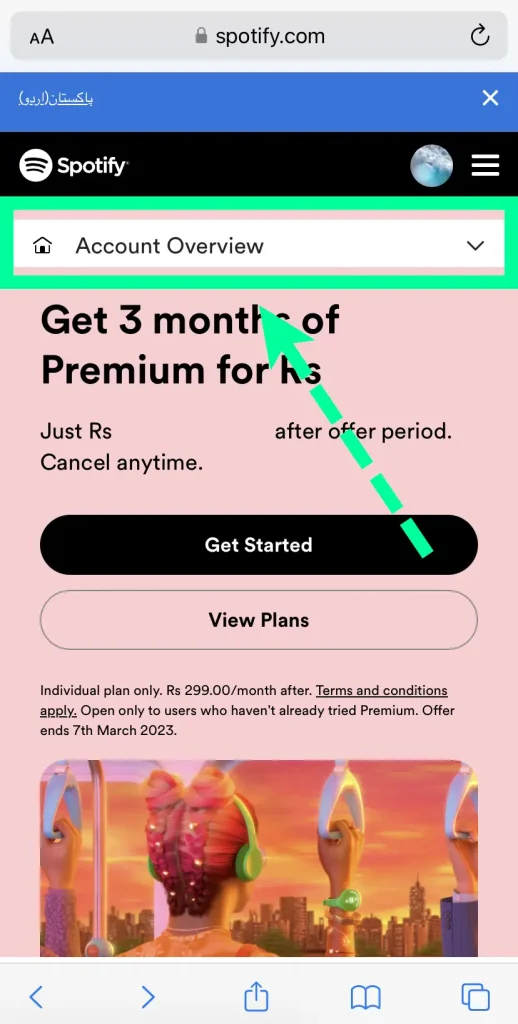
2 Tap on the “edit profile” next to your email address.
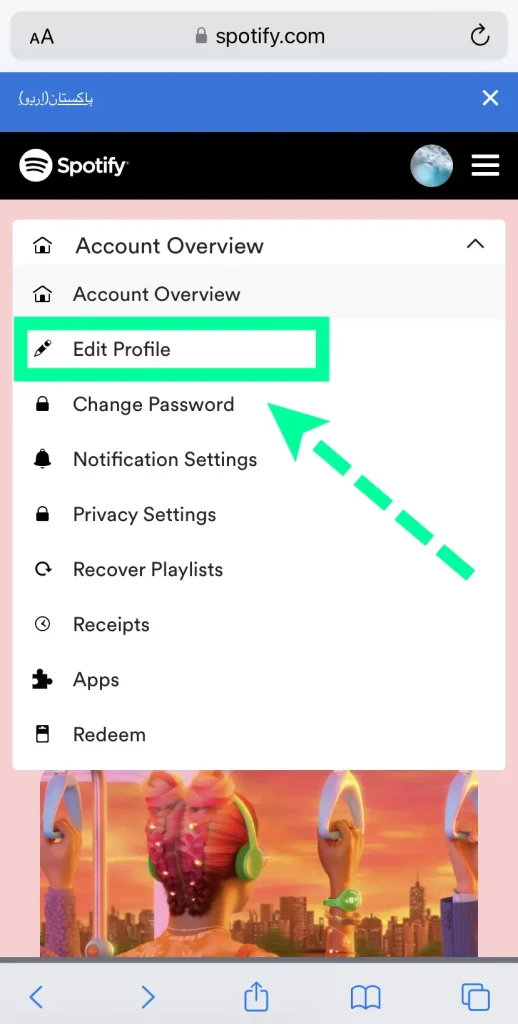
3 Enter your new email address and tap on Save.
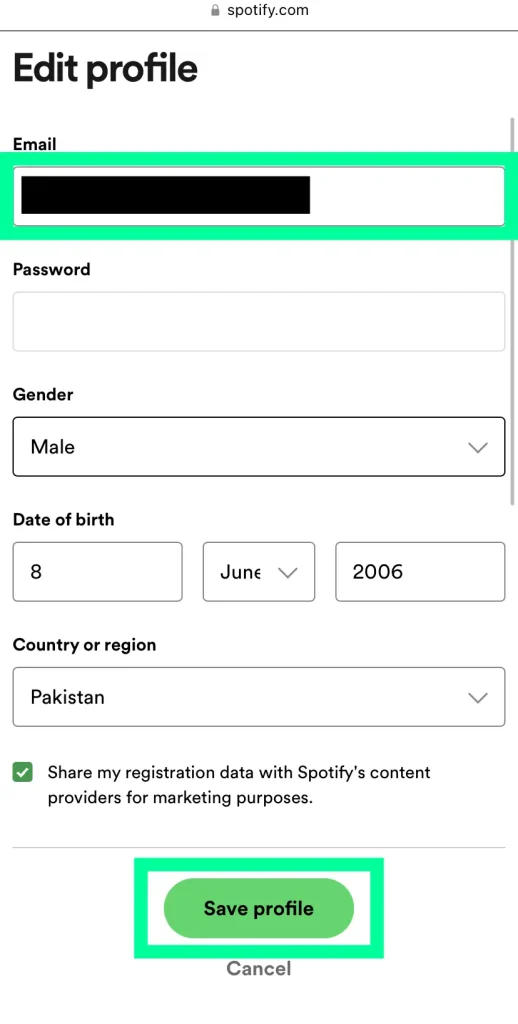
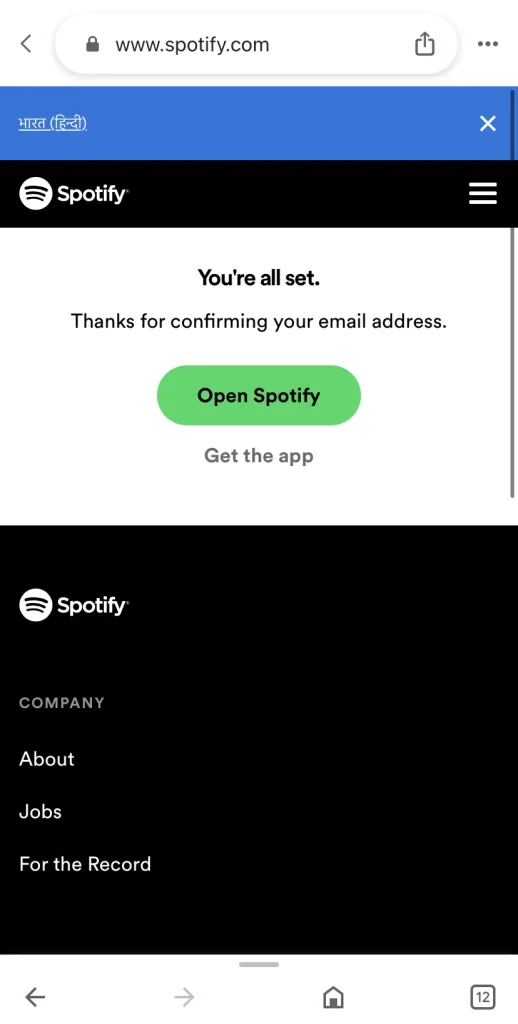
5 A confirmation message will be sent to your new email address. Tap on the link in the message to verify your new email address.
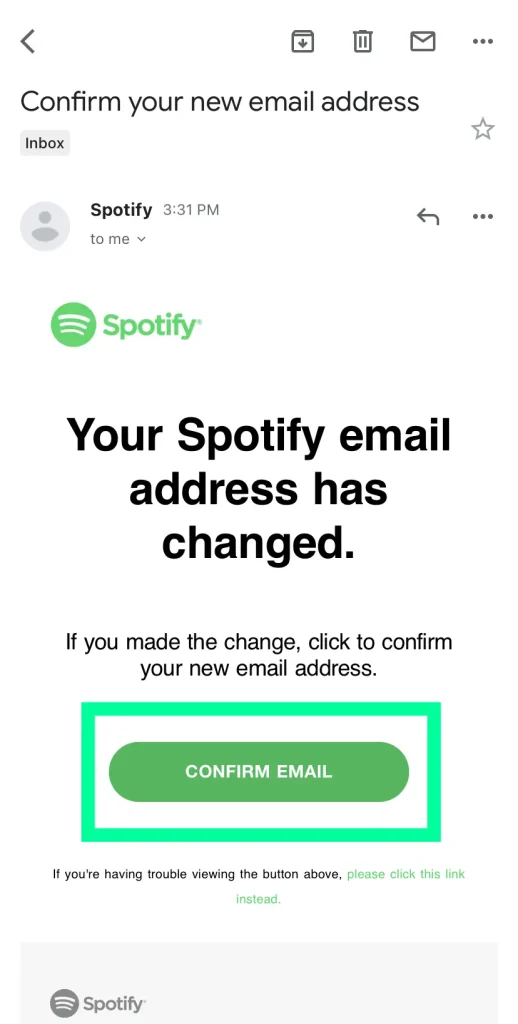
6 You will be redirected back to the Spotify app where you can now log in with your new email address.
Change Spotify Email on Desktop
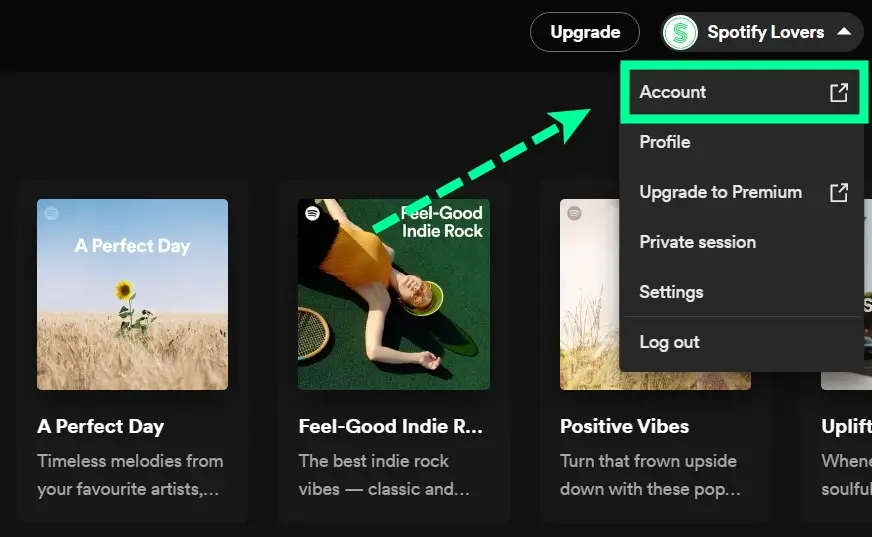
1 Open the Spotify desktop app. Click on the Profile tab in the left sidebar.
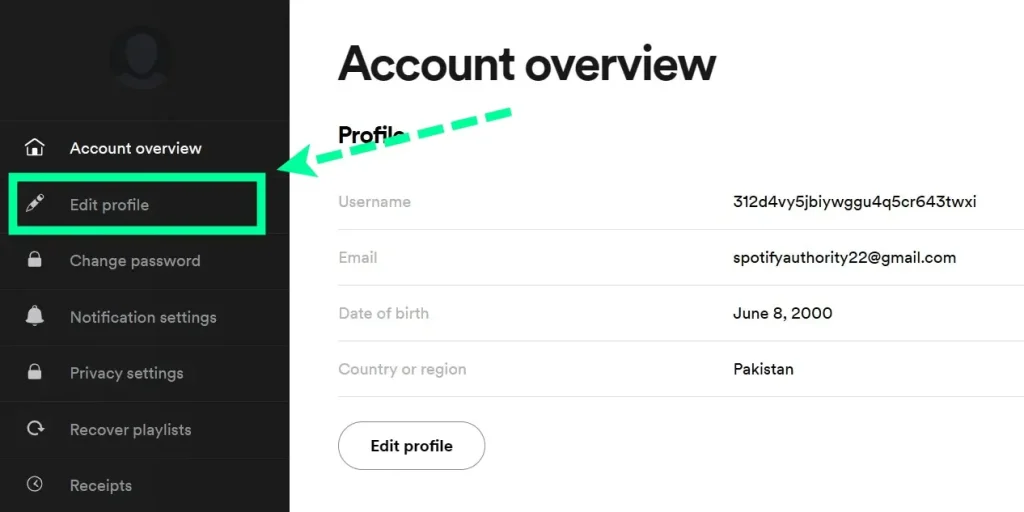
2 Under the “Account overview” section, click on the “Edit Profile” button.
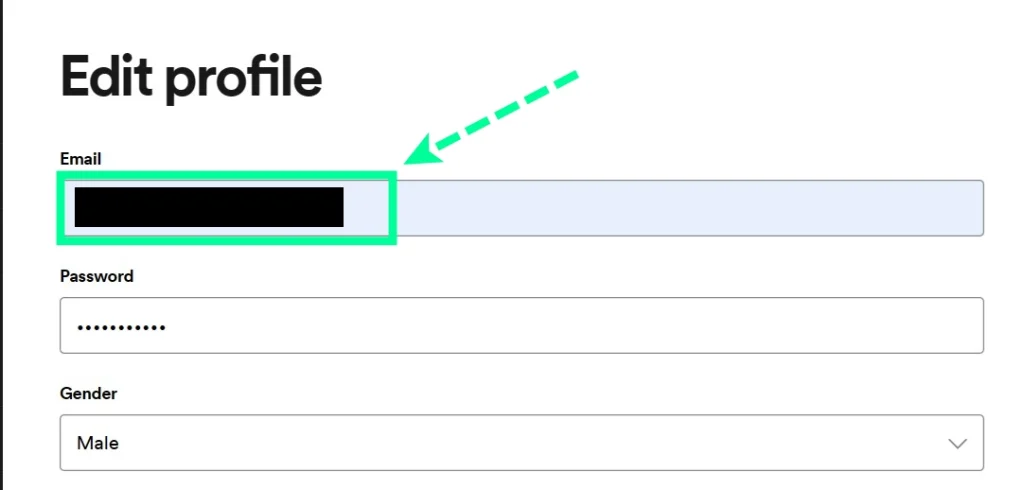
3 In the “Email address” field, enter your new email address.
4 Click on the “Save Profile” button.
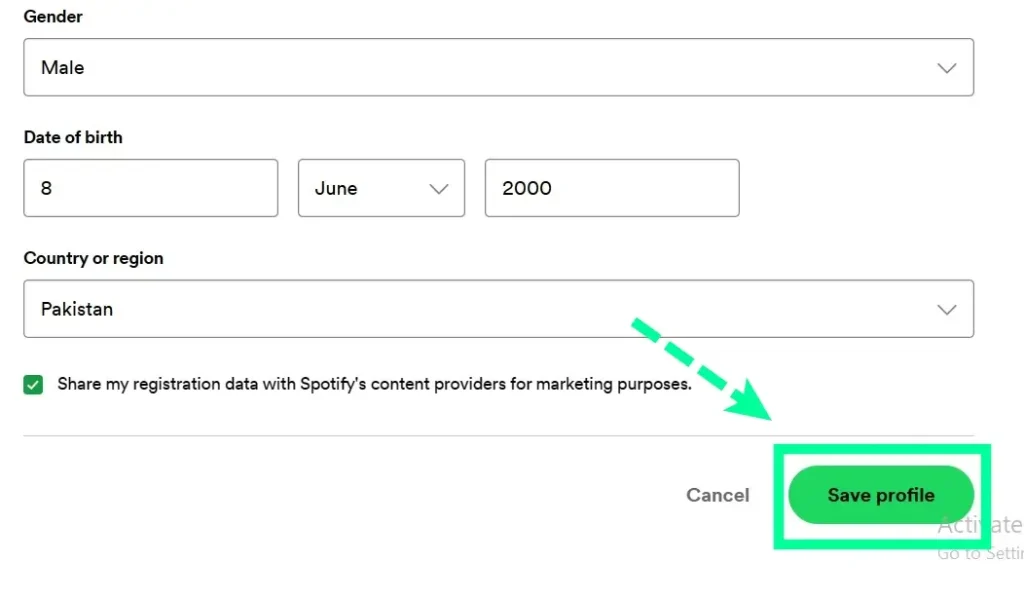
5 A confirmation email will be sent to your new email address, just open the email.
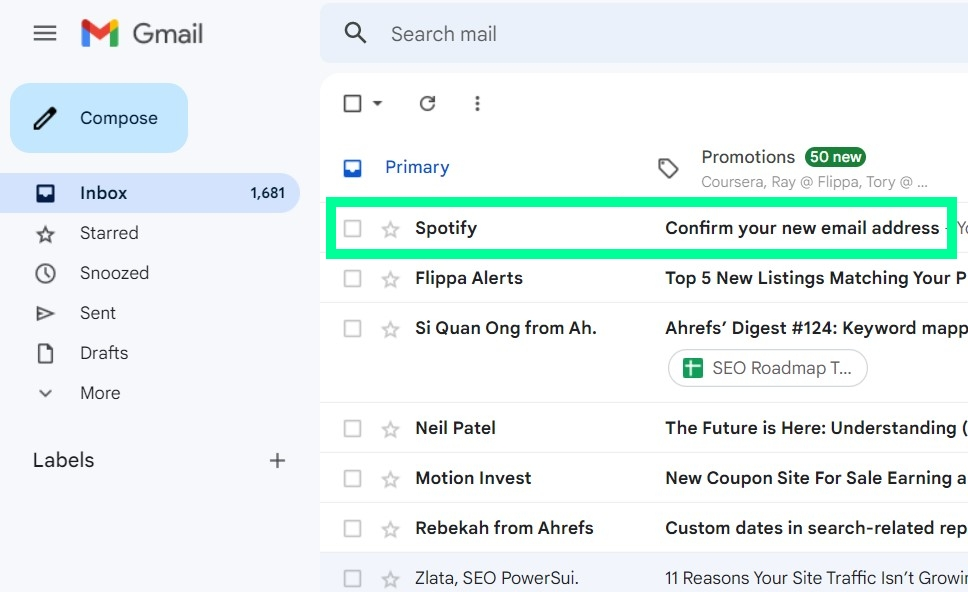
6 Click on the link in the confirmation email to verify your new email address.
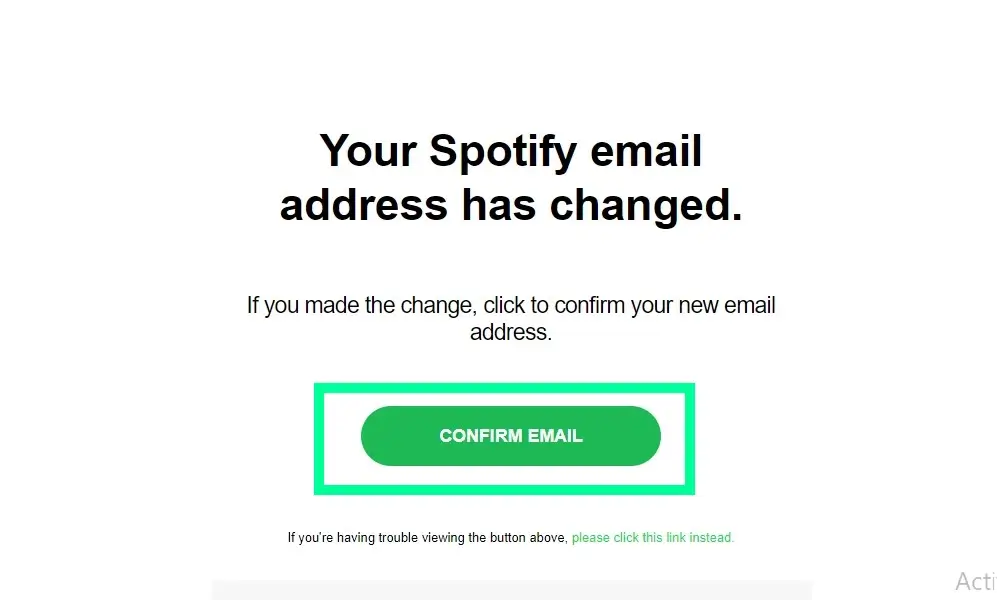
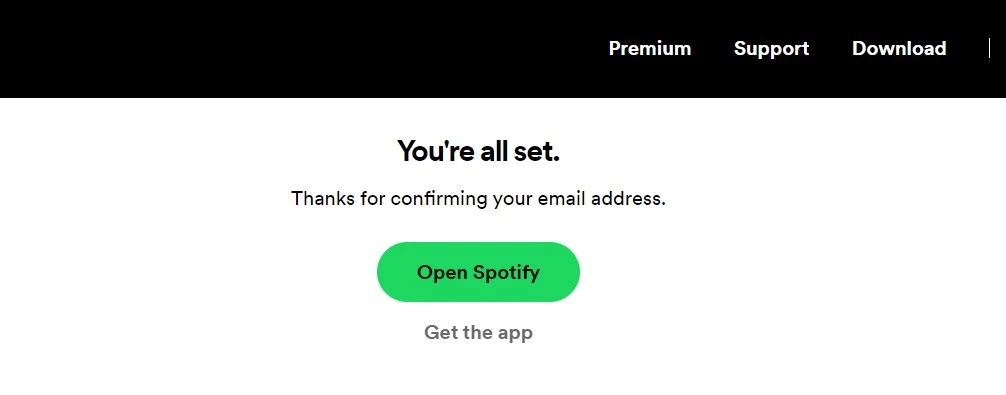
7 Your Spotify account will now be updated with your new email address.
Change email address when you’re using Spotify through Facebook
When you set up a Spotify account through Facebook it’s important to note that it links your personal email address to the account. If you change the email address associated with your Facebook account, then it won’t change on your Spotify++ account. To keep your Spotify account secure and to make sure you’re able to access all updates for the service, make sure to update the email address linked up with Spotify anytime that you switch over your email accounts. It’ll only take a few minutes and that way, if you ever need to reset a password or get information about services or features you’ll make sure everything is running smoothly.
Things you should consider before changing
Before deciding to change your Spotify email, there are a few things you should consider. First, whether your current Spotify email is associated with other accounts like Apple Music or iTunes. Other services may be using this email address for account information and changing it could lead to complications.
Additionally, check if the new email you would like to use has not been used before on Spotify as it is not possible to have two unique accounts with the same email address. Finally, make sure the new address you’d like to use is secure by following best practices for passwords and by setting up two-factor authentication when available. By keeping these points in mind, you can ensure a smooth transition to your new Spotify email!
Will I Lose My Data When I Change Spotify Email?
The good news is that no, you will not lose your data when you change email on Spotify. Existing users are able to switch to a new account language and update their email address on the desktop version of Spotify right from their profile settings. However, it must be noted that if you ever decide to terminate your subscription and start a fresh one later, you will have to reset your music library by restoring each playlist individually and recreating any folder structures etc. It is also worth noting that changing from a free account to premium or vice versa will require creating a whole new account, which can only be done using the same device and payment method for up to 6 months after deletion or upgrade of your current account – so make sure to keep this in mind when planning ahead!
How do I Check my old email address on Spotify?
Spotify is a great way of streaming music and much more. But what if you want to check which email address you used to create your Spotify account? It’s actually quite simple. All you need to do is access your profile page on the app or website and look for the ‘Account’ tab. Once there, click on ‘Profile’, which will take you to a page with some basic info about yourself and then select ‘Edit Profile’ at the top. You will see your email address displayed near the top of the form, allowing you to check whether it is indeed your own or not. And that’s all there is to checking your old email address on Spotify– easy as pie!
Why can’t I change Spotify’s email?
Experiencing difficulty changing your Spotify email address? There could be a couple of explanations behind this. To solve the issue quickly and effectively, take some time to identify precisely what’s causing it.
- Technical problems or glitches may occasionally impede progress with Spotify; if so, waiting might get you back on track!
- Lastly, keep in mind that login information linked through Facebook or Google cannot be modified for security purposes within the platform.
Can you change Spotify Email without creating an Email Account?
Spotify’s email address is associated with your account and cannot be changed without creating a new account. Therefore, it’s important to use an email address that you check often. The email address will help you reset your password if you ever forget it and get other account-related notifications from Spotify such as promotions, the upcoming release of new albums, and so on. Additionally, some features that are available to members who have verified accounts – like streaming ad-free music – require a valid email address. So make sure the one associated with your account is active!
Final Verdicts
If you want to change your Spotify email, it’s actually quite simple. Just follow these steps and you’ll be all set! Thanks for reading and enjoy your new, updated account information.
How To Change Email Address In Spotify Desktop Mobile
Spotify is a digital music service that provides you access to millions of songs in high quality. What’s more useful is that Spotify is available on every platform you can think of. If you are using Spotify, you may already know that it requires an email address during the signup process. Spotify can be used for free, but you need an email account for account creation. We sometimes have to change our Spotify email address for various reasons, such as not having access to the old email address or just wanting to use our new email address with Spotify.
Steps Change Email Address in Spotify (Desktop & Mobile)#
Whatever might be the reason, Spotify allows you to change your email address in a few easy steps. You can use the Spotify desktop or mobile app to change your email address. Hence, in this article, we will share a step-by-step guide on how to change Spotify’s email address.
1) Change Email Address on Spotify (Desktop)#
In this method, we will use the Spotify website to change the email address. Here’s what you need to do.
First of all, head to the Spotify website and sign in to your account.
Once you are signed in, click on the Profile option on the top-right corner.
On the drop-down menu, click on the Account option as shown below.
This will open the Account Overview page. You need to click on the Edit Profile.
On the Edit Profile page, you need to type the new email address on the Email field and enter your current Spotify password.
Once done, click on the Save Profile button at the bottom of the page.
That’s it! You are done. This is how you can change your Spotify email address on the web version.
2) How to Change Email address (Android)#
Just like the web version, you can change your Spotify email address via the mobile app as well. Here are some of the simple steps you need to follow.
First of all, launch the Spotify Application on your Android device.
Next, tap on the Settings gear icon as shown in the screenshot.
On the Account page, tap on the Email option as shown below.
On the next page, enter the new Email address and enter your existing password. Once done, tap on the Save button.
It’s pretty easy to change your Spotify email address on the desktop and mobile. I hope this article helped you! Please share it with your friends also. If you have any doubts related to this, let us know in the comment box below.