Как использовать беспроводные контроллеры DUALSHOCK 4 на PC, Mac или устройствах Android и iOS
Чтобы использовать беспроводной контроллер DUALSHOCK®4 в совместимых играх и приложениях не на консоли, подключите его по Bluetooth® или через USB за несколько простых шагов.
Устройства, совместимые с беспроводным контроллером DUALSHOCK 4
Подключение беспроводного контроллера DUALSHOCK 4 по Bluetooth и через USB поддерживают устройства с перечисленными ниже и более современными версиями ОС. Подключив беспроводной контроллер, вы можете использовать его для управления в совместимых играх и приложениях.
- Android™ 10
- iOS 13
- iPadOS 13
- macOS Catalina
- tvOS 13
Подключить беспроводной контроллер DUALSHOCK 4 к PC с Windows можно с помощью беспроводного USB-адаптера DUALSHOCK®4 или с помощью совместимого кабеля micro USB.
Как зарегистрировать беспроводной контроллер DUALSHOCK 4 на совместимом устройстве
При первом использовании беспроводного контроллера на совместимом устройстве с использованием Bluetooth включите режим регистрации.
Световая панель на контроллере должна быть выключена.
Если световая панель включена, нажмите и удерживайте кнопку PS, пока она не выключится. Если к контроллеру подключен кабель USB, отключите его.
Удерживая кнопку SHARE, нажмите и удерживайте кнопку PS, пока световая панель не замигает.
Включите Bluetooth на устройстве, а затем выберите контроллер в списке устройств Bluetooth. Когда регистрация контроллера будет завершена, световая панель мигнет, а затем загорится индикатор игрока.
Игры и приложения, поддерживающие беспроводной контроллер DUALSHOCK 4
Беспроводной контроллер можно использовать в играх, которые транслируются с консоли PS5™ или PS4™ на совместимое устройство с помощью приложения PS Remote Play.
Также беспроводной контроллер можно использовать в играх, поддерживающих беспроводные контроллеры DUALSHOCK 4.
При подключении беспроводного контроллера DUALSHOCK 4 к совместимому устройству Sony Xperia доступны все функции.
На некоторых устройствах некоторые функции беспроводного контроллера недоступны при подключении по Bluetooth.
How to Connect a PS4 DualShock 4 Controller to a PC

The DualShock 4 is a great controller, but it’s designed specifically for the Sony PlayStation 4. That means, at least on paper, that it’s not meant to be used with PC games. Fear not, since PCs are such powerful and flexible systems, you can get nearly any peripheral to work on them with a little effort. Here’s how to connect a DualShock 4 controller to your PC.
The Connection Itself
There are two ways to connect a DualShock 4 to your gaming rig. You can go the wired or wireless routes, but setting up those connections is a bit different than how you would do it on a PlayStation 4 console.
The Wired Method
- Plug your controller into a USB port with a USB-to-micro-USB cable.
- That’s it, as far as connecting the controller goes. More on getting it to work in a bit.
The Bluetooth Method
- With the DualShock 4 turned off (You’ll know by the deactivated light bar), press and hold the PlayStation and Share buttons for three seconds until the light bar starts double flashing.
- Access the Bluetooth menu on your PC via the system tray.
- Click “Add Bluetooth or other device.”
- Click “Bluetooth.”
- Select the DualShock 4 controller from the list that pops up.
Getting the Gamepad to Work
Connecting the controller is only the start of the process, due to how the DualShock 4 communicates with your PC. Most current Windows games use Microsoft’s XInput, an interface that processes Xbox 360 and Xbox One controller inputs. The DualShock 4 doesn’t send XInput commands, so a wrapper is needed to translate its inputs into something your PC can deal with easier. There are two good options: DS4Windows and Steam’s controller compatibility settings.
The Comprehensive Way: DS4Windows
DS4Windows is a freeware program that tricks your PC into thinking an Xbox 360 controller is connected, instead of a DualShock 4. Follow these steps to get it to work.
- Download DS4Windows and unzip it to a directory.
- Open DS4Windows.exe in the directory you just unzipped.
- Click “Install ViGEmBus Driver.”
- Follow the steps in the driver installer. This installs a multipurpose gamepad driver to your system that DS4Windows uses to get the DualShock 4 to work.
- Click “Finished.”
- Connect your DualShock 4 to your PC.
- The controller should show up under the Controllers tab. Wait a minute to make sure all of the necessary drivers show up. Once Windows pops up a message saying it has connected a new Xbox 360 controller, you’re ready to play!
What Else Can You Do With DS4Windows?
By default, the DualShock 4 acts like an Xbox 360 controller, with the touchpad functioning as a mouse. That said, DS4Windows offers more options. To start, click the Profiles tab and double-click the Default profile (or create your own new profile). This causes an outline of the DualShock 4 to appear surrounded by various settings. Here, you can remap the physical controls, program the touchpad and motion controls to act in different ways, adjust rumble settings, and tweak the analog sticks’ dead zones and movement curves. You can even change the light bar’s color.
DS4Windows offers many more options for getting your DualShock 4 to feel good on your PC. You shouldn’t have to open these settings, because most games will behave properly after you set the software up the first time.
The (Potentially) Easier Way: Steam
If your favorite games are on Steam, they’ll work with the DualShock 4 with a quick tweak.
- Go to the Settings menu in Steam (under Steam on the taskbar).
- Select the Controller menu.
- Click “General Controller Settings.”
- Check the box marked “PlayStation Configuration Support.”
- Connect the DualShock 4 to your PC.
Steam’s DualShock 4 compatibility is pretty hit-or-miss, and this technique obviously won’t work with non-Steam games. As a result, you may have better luck simply using DS4Windows.
Подключение Dualshock 4 к устройству с Android
-
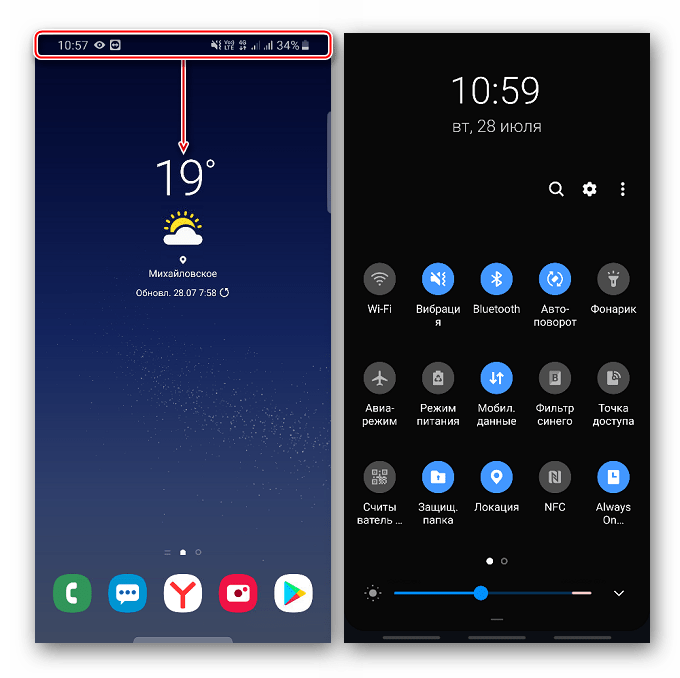
Входим в настройки Bluetooth на смартфоне. Для этого свайпом по экрану сверху вниз открываем панель быстрого доступа.
После подключения беспроводной геймпад может работать с сильной задержкой. Причем чаще всего это случается на устройствах с более ранними версиями Android. Пользователи на профильных форумах предлагают решить эту проблему с помощью прикладной программы Bluetooth Auto Connect.
-
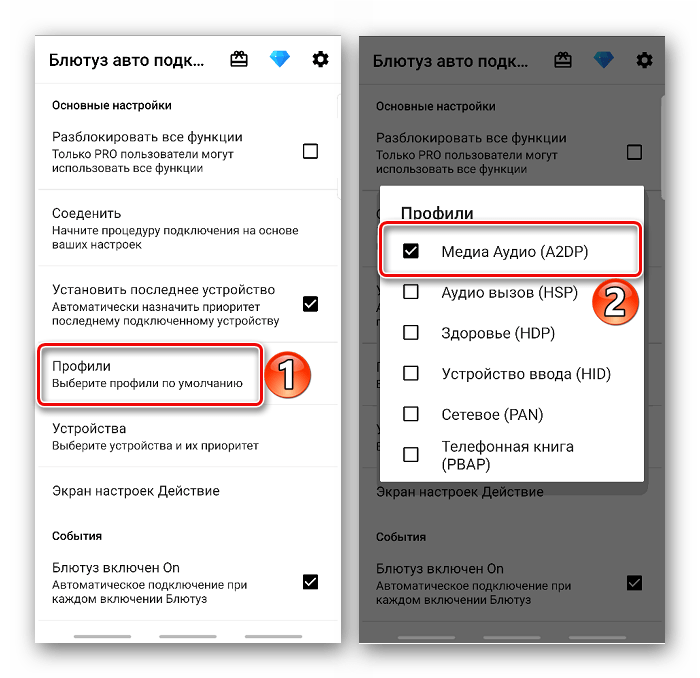
Скачиваем приложение и запускаем его. Открываем раздел «Профили» и выбираем «Media Audio (A2DP)».
Бывает, что Sony PlayStation 4 не может обнаружить контроллер после беспроводного подключения его к Андроид-устройству. На официальном сайте компании в этом случае рекомендуют сначала подключить геймпад к консоли с помощью кабеля, а затем нажать на нем кнопку «PS». Когда установится сопряжение, кабель можно будет отключить.
Способ 2: OTG
Технология «On-The-Go» предназначена для подключения к мобильным устройствам периферийного оборудования и других гаджетов. Чтобы проводной контроллер Дуалшок 4 работал, понадобится OTG-кабель (переходник) и смартфон или планшет, который поддерживает эту технологию. Как правило, достаточно просто подключить кабель и смартфон автоматически определит манипулятор.
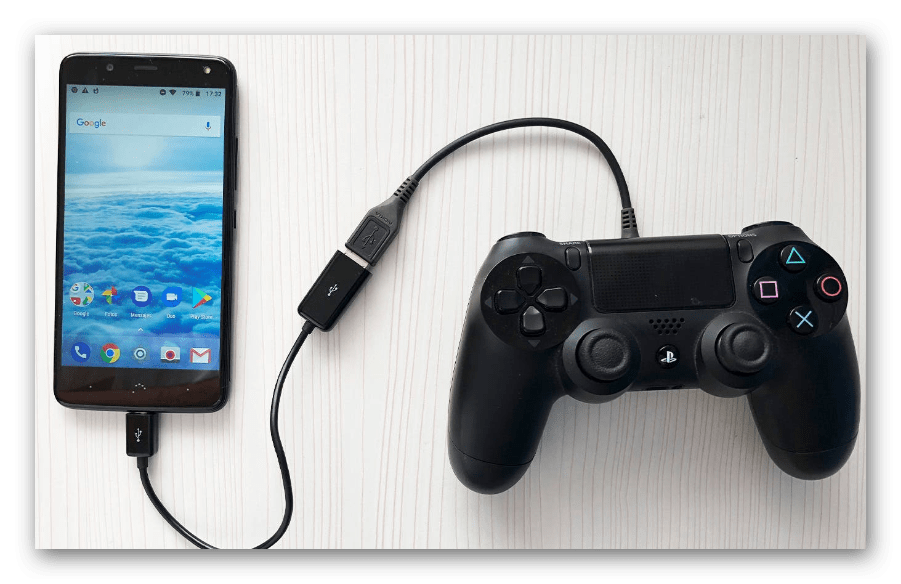
О наличии технологии OTG можно узнать из технических характеристик мобильного устройства или с помощью специального ПО. Более подробно об этом написано в отдельной статье.
How to connect an Xbox or PS4 Bluetooth controller to an Android device
Nowadays, a lot of Android games can be played on your smartphone or tablet using Xbox One or PS4 controllers.
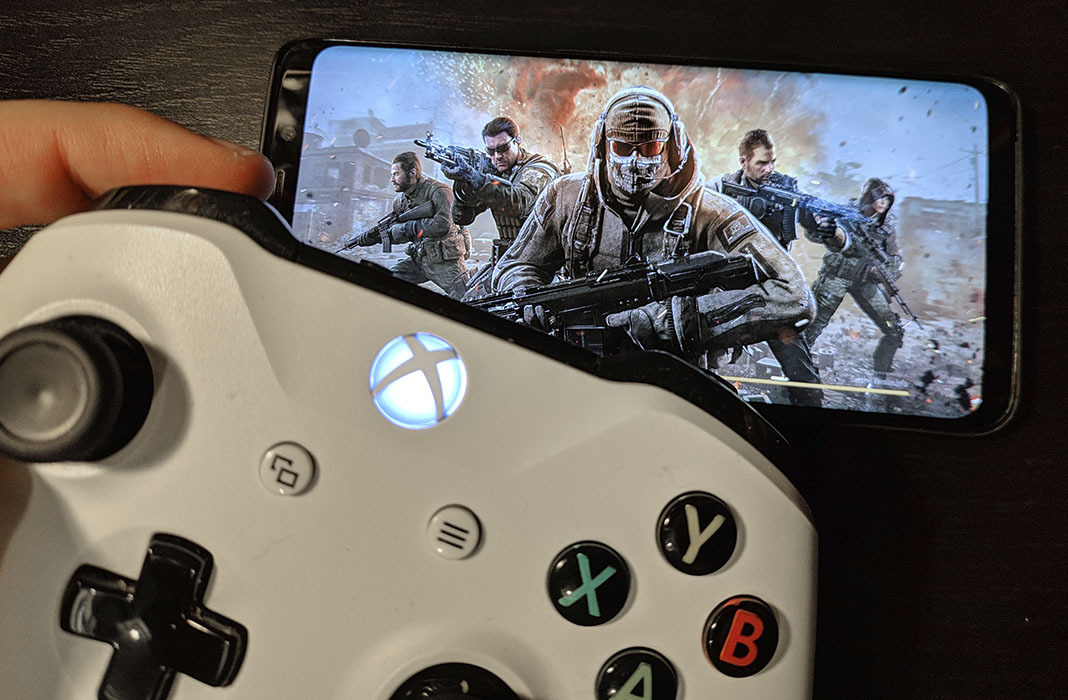
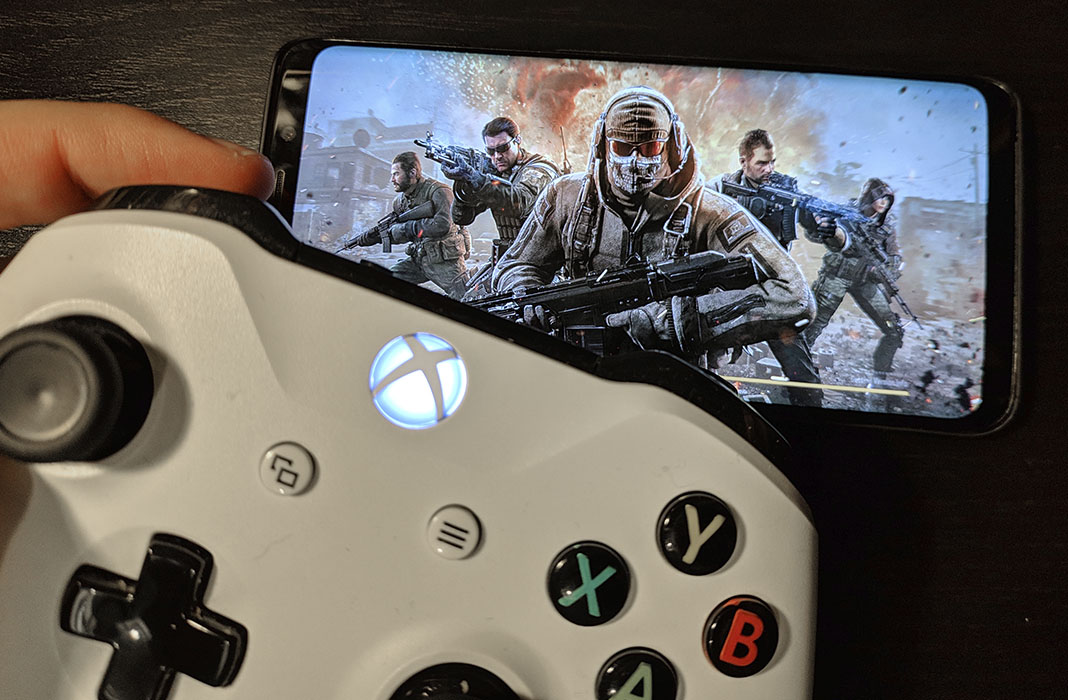
We’re constantly seeing more and more games that offer the possibility to connect external controllers. Games like Fortnite and PUBG Mobile are completely compatible with these controllers and others like Call of Duty Mobile will soon add this feature as well. This means you can use the same gamepad that you use for playing on your PC or gaming console for playing your mobile games. Thanks to the fact that consoles like Xbox One and PS4 have established their control systems as universal, you can connect them via Bluetooth to your Android device if it offers this type of connection. Read on to discover how to connect them.
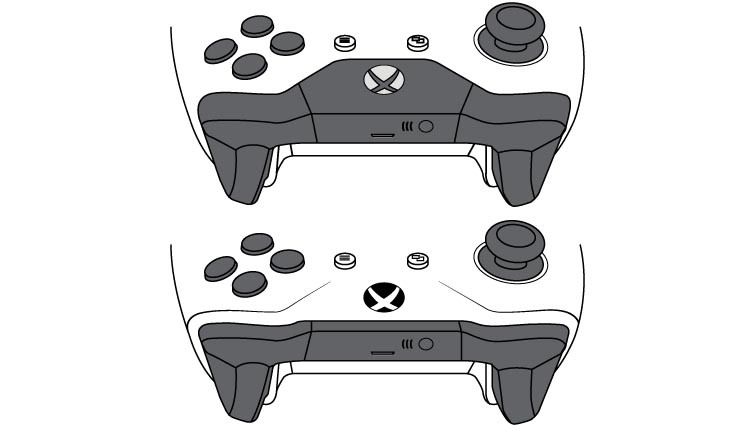
If you have an Xbox gamepad, the first thing you have to figure out is if it’s a Bluetooth controller or if it’s an older version that uses USB dongles. There’s an easy way to figure this out. If the X button in the middle is made with a material similar to the controller itself, it’s bluetooth. If the button is a completely separate piece and a different color, then it’s not. Once you figure that out, you can start the pairing process.
Returning to the Microsoft controls, these are USUALLY compatible with modern Android devices, but the only brand that they have an official agreement with is Samsung. So Xbox controllers sync perfectly with devices from this brand.