How to Fix the Base System Device Error in Device Manager
You may see that there is a yellow mark in Bad System Device in Device Manager. This mark refers to the missing or wrong of the device, and it always happens after you update the system or drivers. Now, try these solutions mentioned in this post from MiniTool Solution to fix the error.
What Is Base System Device?
A Base System Device can be a chipset device on the motherboard from the range of card readers. In some cases, driver installation is lost after reinstalling Windows or after connecting new components. You may see it under Device Manager > Other devices.
You will find an entry named ” Base System Device ” which may show as “Not Installed”. Sometimes you see it listed, but with a yellow exclamation mark. In the next part, I will show you how to fix the Base System Device error.
This post introduces how to fix the “An operating system wasn't found. Try disconnecting any drives that don't contain an operating system.” issue.
Method 1: Update the Base System Device Driver in Device Manager
You can update the Base System Device Driver via Device Manager. The steps are as follows:
Step 1: Open Device Manager.
Step 2: Navigate to Base System Device and right-click it to choose Update Driver Software….

Step 3: Click Search automatically for updated driver software. Then Windows will search and find the driver for you.
Reboot your computer and check to see if the Base System Device driver issue is fixed. If this way doesn’t work for you, you can use the methods below.
Method 2: Re-install the Base System Device Driver
Generally, you can visit the website of the device manufacturer or the website of the PC manufacturer to download the latest drivers. But for Base System Device, it is impossible to know what the specific device is. However, you can get its device name and vendor name to determine what it is. Here are the steps:
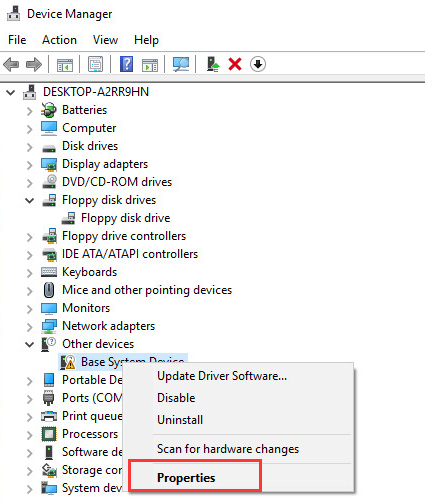
Step 1: Open Device Manager again, right-click Base System Device to click Properties.

Step 2: Navigate to the Details tab, then select Hardware Ids from the drop-down menu of Property.
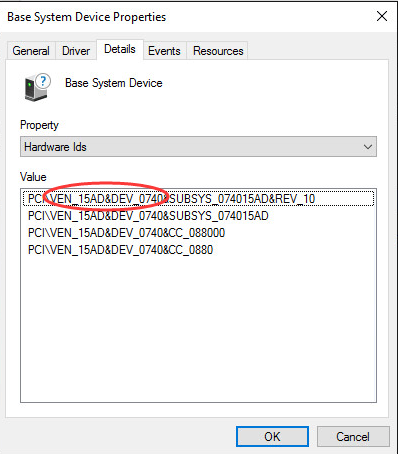
Step 3: The Hardware Id Value should be like follows. The VEN code represents the vendor and the DEV code means device.
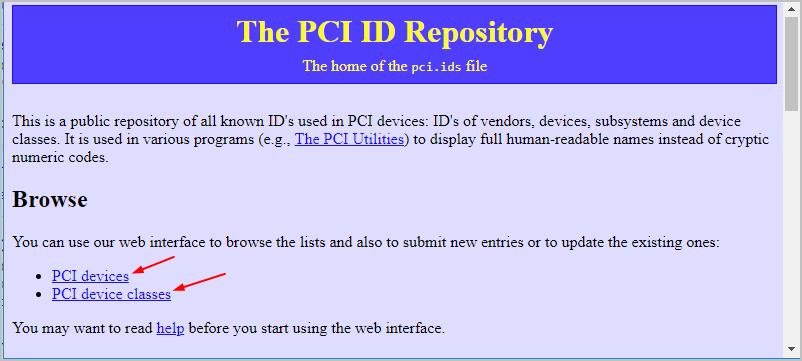
Step 4: Go to The PCI ID Repository. Then you can use the VEN code and the DEV code to figure out what Base System Device stands for.
Step 5: Then, you can go to the PC manufacturer’s website or the device manufacturer’s website to download the driver.
Method 3: Update Base System Device Driver with a Driver Updater
Updating drivers manually requires time and computer skills. If you don’t have the time, patience or computer skills to update the driver manually, you can do it automatically with a Driver Updater.
What Is 192.168.4.1? How to log in to it? How to change its password? How to troubleshoot 192.168.4.1 connection issues? Here are the answers.
Final Words
To sum up, this post has introduced what the Base System Device is and has also walked through 3 ways to fix the Base System Device error. If you have any better solution to fix this error, please share it in the comment zone.
About The Author
Having been an editor at MiniTool since graduating college as an English major, Daisy specializes in writing about data backups, disk cloning, and file syncing as well as general computer knowledge and issues. In her free time, Daisy enjoys running and going with friends to the amusement park.
What Is Base System Device and How To Fix It on Windows 10
Windows 10 is great, but it’s not the most stable operating system. In order to fix some of its problems, we need to know what’s going on with our Base system device driver. This will tell us where the problem might be and how we can go about fixing it quickly.
Let’s start by making sure that everything is clear with this Base system device in Windows 10 and how it works in your computer.
We’ll cover a few definitions first, then we can talk about some troubleshooting steps to Fix Base System Device issues on Windows 10.

Table of Contents
- What Is the Base System Device in Windows?
- How to Fix Base System Device and Drivers in Windows 10
- Method 1. Update the Base System Device Driver via Device Manager
- Method 2. Install the Missing Drivers From OEM Websites
- Method 3. Automatically Update Drivers via Windows Update
- Method 4. Update Base System Device Driver With a Driver Updater
- Final Thoughts
What Is the Base System Device in Windows?
A Base system device can range from a card reader to a chipset device on your motherboard, though it usually refers to the system’s chipset. Alongside it, you need to have a Base system driver installed in order to make the device work.
This Base system device provides information to the computer. It needs drivers in order for you to use it with any services and components that need access.
When you are missing these necessary drivers, you can check from Device Manager → Other devices, then see if your base system driver may be disabled or not installed properly. Sometimes, you will see it listed with a yellow exclamation mark indicating an error or missing driver.
How to Fix Base System Device and Drivers in Windows 10
The methods below were written for the latest version of Windows 10. We’ll explore some possible ways to restore the Base system device and its drivers in order to fix issues you may be having. We’ll alleviate the trouble associated with the “Missing Base Device Driver” error message.
Method 1. Update the Base System Device Driver via Device Manager
The Device Manager is your one-stop-shop for computer device drivers and other tools to help you manage them. You can use it to diagnose the issue with your Base system driver or update it if needed too!
- Press the Windows + X keys on your keyboard at the same time, then click on Device Manager .

- Expand the Other devices section by clicking on the arrow icon in front of it. Right-click on the Base System Device and choose Update Driver .
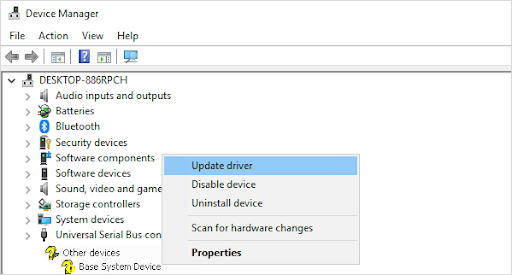
Note: If you can’t find the “Other devices” section, try expanding the Universal Serial Bus controllers section and look for the Base System Device there.
Method 2. Install the Missing Drivers From OEM Websites
The problem may be a result of your computer not being properly configured. This can happen when you’re missing some drivers like for the motherboard, processor, or other chipset hardware that might have been installed incorrectly on your machine before it was purchased.
To fix this issue, try downloading and installing the available drivers from your official OEM website by visiting it directly. Using an OEM disk, which is typically included with the purchase of new machines, can be difficult to find online. Disks often contain outdated drivers as well, or may not be compatible with your setup.
The following download links may help you resolve the issue:
-
(Intel Chipset Drivers) (Driver provided by Dell)
After downloading the file, complete the installation setup to have the correct drivers added to your computer. Now, any problems caused by the missing Base Device Driver should be corrected.
Method 3. Automatically Update Drivers via Windows Update
Recent versions of Windows 10 — as well as the upcoming Windows 11 — feature a section that allows you to install drivers from the easily accessible Settings app. This eliminates the need of going into the often complex Device Manager.
- Click on the Windows icon in the bottom left of your screen to bring up the Start menu . Choose Settings , or alternatively use the Windows + I shortcut.

- Click on the Update & Security tile. This is where you can find most of your Windows Update settings and choose when to receive updates.

- Make sure to stay on the default Windows Update tab. Click on the Check for updates option and wait for Windows 10 to find available updates.

- If an update is found, click on the Install option and wait for Windows 10 to download and apply the necessary updates.
- Go back to the Windows Update section, and then click on the View optional updates link if available.

- Expand the Driver updates section, and review what drivers currently need an update. To update the drivers, simply place a checkmark next to them, and then click the Download and install button.
- Allow Windows 10 to update your drivers, and then reboot your computer. It’s possible that you’ll no longer experience an error related to the Base System Device or its drivers.
Method 4. Update Base System Device Driver With a Driver Updater

While it’s not necessary to use a third-party app for driver updates, it’s an option that is available to all Windows 10 users. You can also find and download third-party updater tools such as Driver Booster , DriverHub , or DriverPack Solution to automatically update drivers.
Most of these tools are free and easy to use. If you’re unsatisfied with the service, we recommend searching the internet for more advanced apps.
Always make sure that the app you’re using is trustworthy. Some applications that offer to fix or update your drivers contain malware, adware, or spyware. We recommend searching the product’s name and reading reviews made by real users before downloading any software.
Final Thoughts
It’s no secret that a Base system device plays an important role in your PC. You may not know the troubleshooting techniques you can use if it isn’t working correctly, but we hope today’s blog post has helped you!
If this is something you need help with or have questions about, please don’t hesitate to contact us. We are experts and are happy to guide you through any process step by step. Let’s achieve our shared goal of getting your device up and running again as quickly as possible.
Visit our Help Center to get access to hundreds of articles covering hundreds of topics, and with tips on how to get the most out of your system. Want more? Sign up for our newsletter to get us promotions, deals, and discounts right in your inbox. Subscribe with your email address below.
How to Fix Base System Device Driver issue in Device Manager
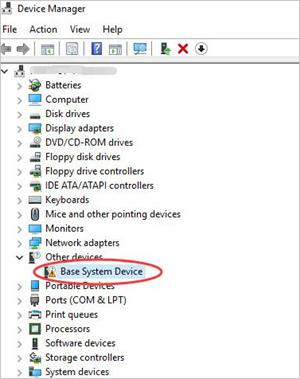
If you’re having the Base System Device driver problem, don’t worry. You can update the driver with one of the methods below. We’ve included three methods you can use to update the driver. Just choose an easier method to update your Base System Device driver.
TIP: If you see more than one Base System Device listed in Device Manager, use one of the methods above to update the driver for each item.
Method 1: Update the Base System Device driver via Device Manager
You can update the drivers through manager. Follow these steps:
1) In Device Manager, right-click the device and click Update Driver Software….
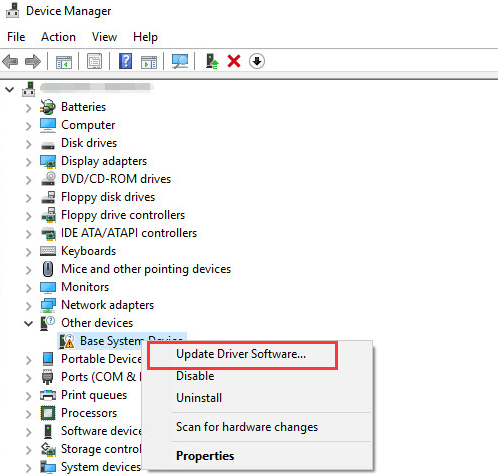
2) Click Search automatically for updated driver software. Then Windows will search and find the driver for you.
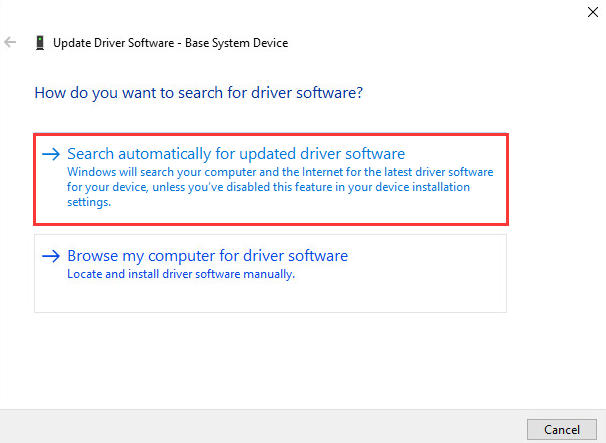
3) Reboot your computer and check to see if the Base System Device driver issue is fixed.
Windows may not provide the latest driver for the device. If this way doesn’t work for you, you can use Method 2 or Method 3.
Method 2: Update the Base System Device driver manually
Usually, you can go to the device manufacturer’s website or the PC manufacturer’s website to download the latest driver. But for Base System Device, it is impossible to know what the specific device is. The good news is you can get its device name and its vendor name to determine what it is.
Follow steps below to get the device name and its vendor name.
1) In Device Manager, right-click the device and click Properties.
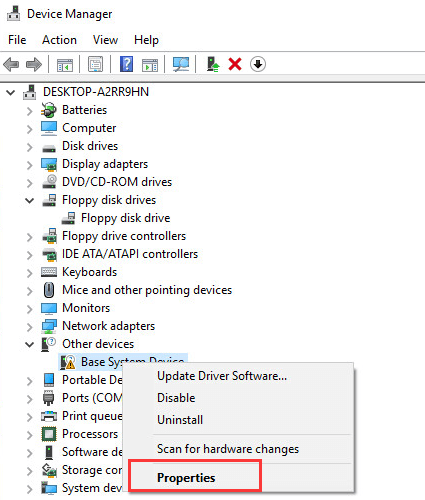
3) Click the Details tab, then select Hardware Ids from the drop-down menu of Property.
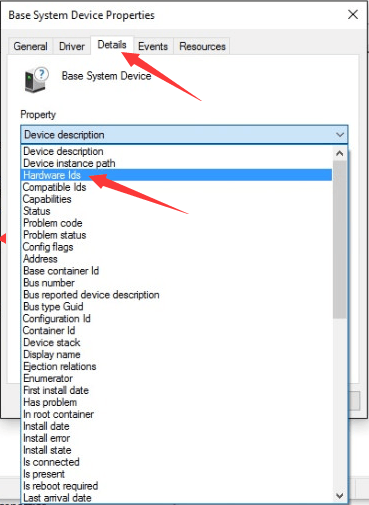
4) The Hardware Id Value should be like follows. The VEN code means vendor and the DEV code means device. (In the example below, the VEN code is 15AD and the device is 0740.)
5) Go to https://pci-ids.ucw.cz/. Then you can use the VEN code and the DEV code to figure out what the Base System Device stands for.
6) After you figure out what the device is, you can go to the PC manufacturer’s website or the device manufacturer’s website to download the driver. It’s recommended to go to the PC manufacturer’s website first, as they may customize the driver.
Method 3: Update the Base System Device driver automatically
Updating drivers manually requires time and computer skills. If you don’t have the time, patience or computer skills to update the driver manually, you can do it automatically with Driver Easy.
Driver Easy will automatically recognize your system and find the correct drivers for it. You don’t need to know exactly what system your computer is running, you don’t need to risk downloading and installing the wrong driver, and you don’t need to worry about making a mistake when installing.
You can update your drivers automatically with either the FREE or the Pro version of Driver Easy. But with the Pro version it takes just 2 clicks (and you get full support and a 30-day money back guarantee):
1) Download and install Driver Easy.
2) Run Driver Easy and click Scan Now button. Driver Easy will then scan your computer and detect any problem drivers.

3) Click the Update button next to all flagged devices to automatically download the correct version of their driver, then you can manually install it (you can do this with the FREE version).
Or click Update All to automatically download and install the correct version of all the drivers that are missing or out of date on your system (this requires the Pro version – you’ll be prompted to upgrade when you click Update All).
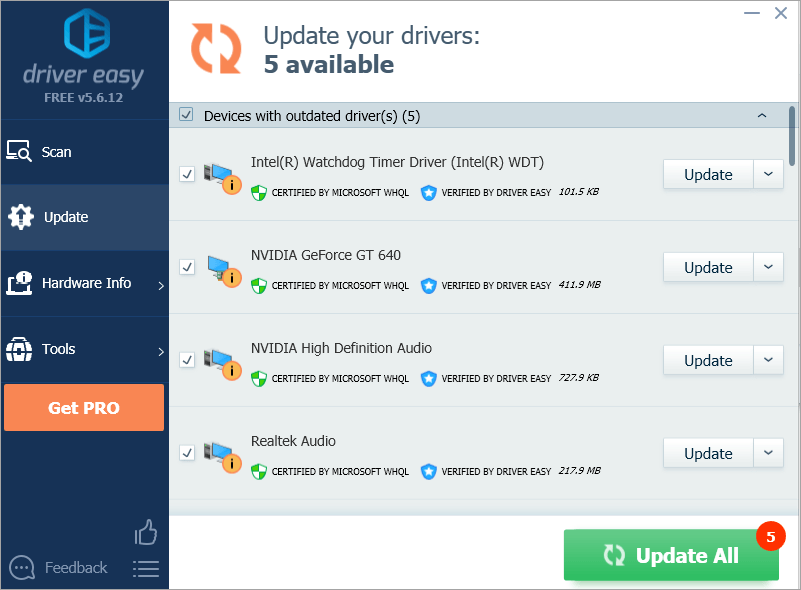
4) After updating the driver, check to see if you still see the yellow mark in Device Manager.
Hopefully you can update the driver successfully with the tips above. If you have any questions, please feel free to leave your comments below. We’d love to hear of any ideas or suggestions.
Solution to Base System Driver Issue in Windows
Do you see a yellow exclamation mark near the base system device item in the Device Manager?

If yes, this post is for you. Many users have complained of finding driver related issues after installing or reinstalling Windows.
What is the base system device driver related issue?
Base system device issue points towards the driver problem. It occurs when the drivers of the card reader are not properly installed on your computer. The base system device is generally listed under “Other devices” category in Device Manager. There is a possibility the base system device issue is related to other system drivers.
A simple solution to this problem is updating drivers that can be done in 3 ways.
Method One – Update Drivers through Device Manager
- On your keyboard, press Windows logo key and R simultaneously to invoke Run command
- In Run command, type devmgmt.msc
- In the Device Manager window, go to Other devices category and expand it
- right-click on Base System device item and click on the option Update driver software
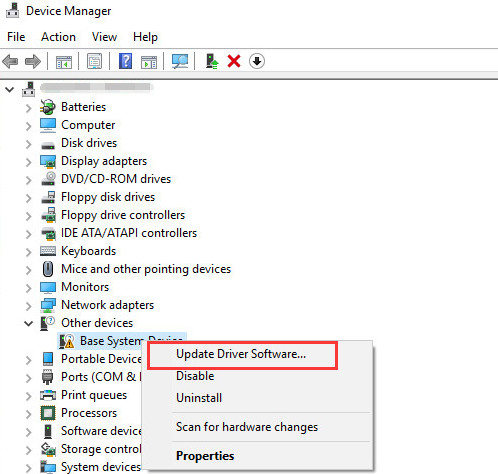
- In the next window, click on the option that says the search for driver software automatically
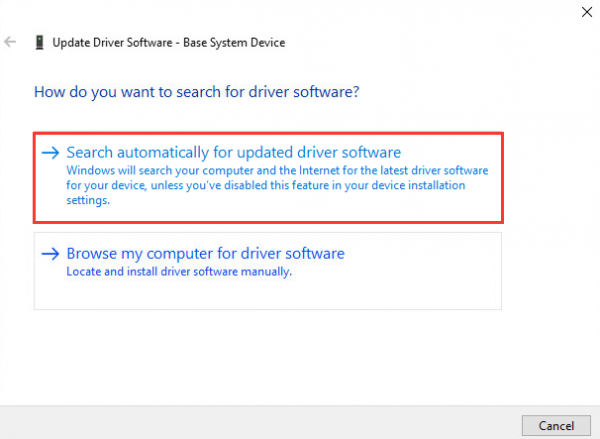
- Windows will search the Internet for driver software update and install it
- If this method does not work for you, try updating the driver manually
Method Two- Update drivers manually
- Open Device manager. Refer the first three steps given in solution above
- In the Device Manager window, expand Other Devices category
- Right-click on Base System device
- Select Properties
- In the Base System Device Properties window, go to Details tab
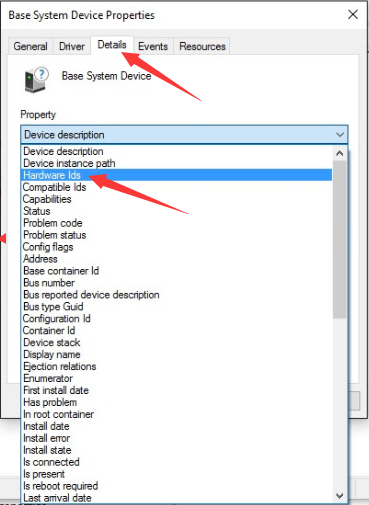
- Under Device description, expand the drop down list
- Select Hardware Ids from the list
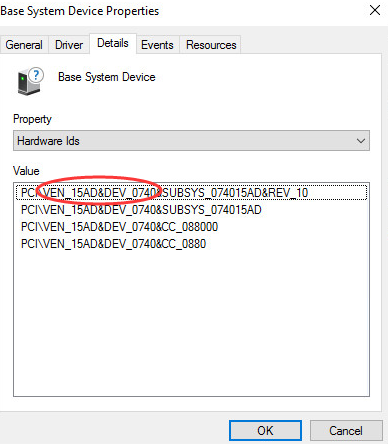
The Hardware Ids contains two important values- VEN stands for Vendor and DEV stands for Device. You need to have Vendor ID and Device ID to find the right device drivers on the internet. Look at the image below – the Vendor ID is 15AD and the Device ID is 0740
- Copy the entire Hardware ID and paste in Google search box, you will get the name of few sites where the driver might be available.
If you find the manual driver update method difficult, you can use the DriverDownloader software to update driver automatically
Method Three- Update Drivers automatically
A super fast and easy to update base system device driver is by using a driver update tool such as DriverDownloader.
Did you know that you can update your drivers using this software in matter of just a couple of minutes?
Yes, that’s true. DriverDownloader is that quick. Also it always installs the latest driver that’s compatible to your system, so you don’t have to worry about compatatibility issues.
Isn’t that cool, eh?
Click the green button below to download DriverDownloader.
Other Solution
If none of the solutions have worked for you, try the troubleshooting steps given below.
- Launch Internet browser
- Download “Onboard Network Driver for Microsoft Windows”
- Unzip the file and run:
We hope you are able to resolve the base system device driver issue by following one of the solutions given in this post.