How To Fix Activation Error 0Xc004F200 On Windows
After investigating this particular issue thoroughly, it turns out that there are several different underlying causes that might be responsible for the apparition of this error code. Here’s a list of potential culprits: Now that you are aware of every potential cause that might trigger this activation error on Windows 10 and Windows 7, here’s a list of methods that other affected users have successfully used to get to the bottom of this issue:
Method 1: Running the Activation Troubleshooter#
Before you move on to more technical fixes, you should start by ensuring that the issue is not server-related. More often than not, you can attribute the apparition of this issue to a licensing inconsistency that’s affecting your computer’s ability to communicate with the activation servers. In this scenario, you should start this troubleshooting guide by running the Activation Troubleshooter and applying the recommended fix. Note: Most user reports flagging this issue have reported that the problem only started occurring after they made a major hardware change (most commonly replacing the motherboard). If this scenario is applicable in your particular scenario, follow the instructions below to run the Activation Troubleshooter and apply the recommended fix: If you still end up seeing the same 0xc004f200 error is still occurring during the activation process, move down to the next potential fix below.
Method 2: Uninstalling the Problematic Update#
Although Microsoft never acknowledged this issue, the apparition of the 0xc004f200 error coincides with the deployment of the KB4480970 security patch. This patch affected both Windows 7 and Windows 10 and has triggered a ‘Non-Genuine‘ error on volume-licensed Windows clients that already had the KB 971033 update installed. If the scenario described above is perfectly applicable to your situation, the instructions below will allow you to uninstall the problematic KB4480970 update and ensure that you resolve the 0xc004f200 error code. Keep in mind that we’ve put together 2 separate guides to accommodate both Windows versions (Windows 7 and Windows 10) – Follow the sub-guide that is applicable to the operating system that you’re currently encountering the issue on:
A. Uninstalling the Security Patch KB4480970 on Windows 10#
B. Uninstalling the Security Patch on Windows 7#
Method 3: Refreshing every Windows Component#
If none of the methods above have worked in your particular scenario that’s causing the 0xc004f200, the next thing you should investigate is some type of underlying system file corruption that is affecting your OS’s ability to check the integrity of your license and activate it if necessary. In this case, the best thing you can do is refresh every Windows component that might be causing this problem with a procedure like clean installing or repair installing:
Repair installing – In case you have important information on your Windows drive, go for a repair install procedure since it will allow you to keep all your personal data. You will be able to keep your personal media, apps, games, and even some user preferences associated with your current OS installation. The main issue is that you will need to insert or plug in a compatible installation media in order to trigger a repair install procedure.Clean installing – If you don’t have any important data on your OS drive, the quickest and painless procedure is to go for a clean install. This operation will erase any personal data on the OS drive, but you will be able to trigger this procedure directly from the GUI menu of Windows without having to plug in a compatible installation media.
Method 4: Contacting Microsoft’s Support#
If none of the methods above didn’t allow you to re-activate your Windows build and you’re still encountering the 0xc004f200 error, the best course of action is to get in contact with Microsoft’s support team and ask them to activate your operating system. There are a couple of different ways that will allow you to do this, but the most convenient way of getting this sorted is to get in touch with a Microsoft Agent via the toll-free number that’s specific to the region where you are located. Here’s a list of country-specific phone numbers – Depending on your region and the number of support agents that are active in that time frame, you might need to wait a couple of hours before you get in contact with a live agent. Once you manage to speak to a human, you will be asked a number of security questions to confirm that you actually own the license key that you’re trying to activate. If everything checks out, they will activate your Windows build remotely.
How to Fix ‘An Error Occurred During Activation. Try Again’ Error during…[FIX] Windows Activation Error 0XC004F213 on Windows 10Fix: Windows Activation Error 0x55601 or 0x44578How to Fix Error 0xc004f014 During Activation on Windows 10 



How to Fix Activation Error 0xc004f200 on Windows
Some Windows users are encountering that they are experiencing an activation error 0xc004f200 that ends up essentially bricking their OS and labeling it as non-genuine. This problem is reported to occur on both Windows 10 and Windows 7.
Activation Error 0xc004f200
After investigating this particular issue thoroughly, it turns out that there are several different underlying causes that might be responsible for the apparition of this error code. Here’s a list of potential culprits:
- Sever-related Activation issue – As it turns out, more often than not, a licensing inconsistency can be responsible for this particular error code. In most cases, you can resolve the issue by running the Activation troubleshooter and applying the recommended fix.
- A recent deployment of a bad update – If you recently installed a cumulative update that included the KB4480970 security patch, chances are one of the patches has triggered a ‘non-genuine error. In this case, you should be able to fix the issue by uninstalling the problematic security update and clearing up any remnant files.
- System file corruption – Under certain circumstances, you might see this error occurring due to some kind of system file corruption that is affecting your OS’s ability to check the integrity of your license key. In this case, you will be able to resolve the problem by repair installing, or clean installing.
- Licensing key inconsistency – If none of the fixes that can be deployed by yourself prove to be effective in your case, the only thing left to do is to get in contact with a Microsoft support agent and ask them to inquire about the status of your license key. If everything checks out, they have the ability to re-activate your license key remotely.
Now that you are aware of every potential cause that might trigger this activation error on Windows 10 and Windows 7, here’s a list of methods that other affected users have successfully used to get to the bottom of this issue:
Method 1: Running the Activation Troubleshooter
Before you move on to more technical fixes, you should start by ensuring that the issue is not server-related.
More often than not, you can attribute the apparition of this issue to a licensing inconsistency that’s affecting your computer’s ability to communicate with the activation servers.
In this scenario, you should start this troubleshooting guide by running the Activation Troubleshooter and applying the recommended fix.
Note: Most user reports flagging this issue have reported that the problem only started occurring after they made a major hardware change (most commonly replacing the motherboard).
If this scenario is applicable in your particular scenario, follow the instructions below to run the Activation Troubleshooter and apply the recommended fix:
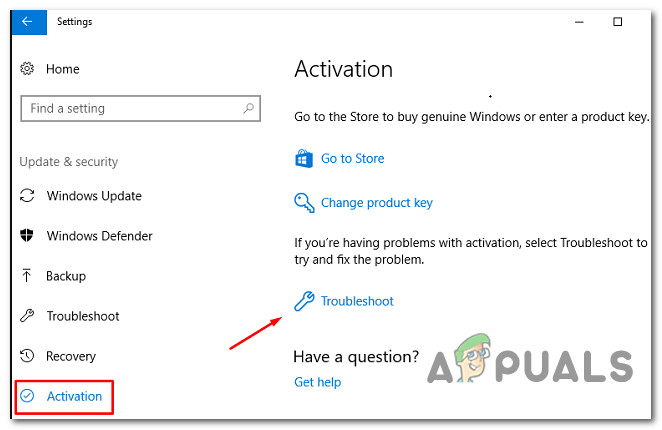
- Start by opening up a Run dialog box by pressing Windows key + R. Next, type “ms-settings:activation” and press Enter to open up the Activation tab of the Settings menu. Opening the activation Troubleshooter
- Once you’re inside the Activation tab of the Settings app, move over to the right-side pane and click on the Troubleshoot button under Activate Windows.
If you still end up seeing the same 0xc004f200 error is still occurring during the activation process, move down to the next potential fix below.
Method 2: Uninstalling the Problematic Update
Although Microsoft never acknowledged this issue, the apparition of the 0xc004f200 error coincides with the deployment of the KB4480970 security patch. This patch affected both Windows 7 and Windows 10 and has triggered a ‘Non-Genuine‘ error on volume-licensed Windows clients that already had the KB 971033 update installed.
If the scenario described above is perfectly applicable to your situation, the instructions below will allow you to uninstall the problematic KB4480970 update and ensure that you resolve the 0xc004f200 error code.
Keep in mind that we’ve put together 2 separate guides to accommodate both Windows versions (Windows 7 and Windows 10) – Follow the sub-guide that is applicable to the operating system that you’re currently encountering the issue on:
A. Uninstalling the Security Patch KB4480970 on Windows 10
- Press Windows key + R to open up a Run dialog box. Next, type “ms-settings:windowsupdate” inside the text box and press Enter to open up the Windows Update screen of the Settings app.
- Inside the Windows Update screen, click on View Update history from the left-hand pane.
- Then, once the list of recently installed updates loads up, click on Uninstall updates (at the top of the screen).
- Scroll down through the list of installed updates and locate the KB4074588 update inside the list of installed updates.
- Once you manage to locate the update, right-click on it and choose Uninstall from the context menu. Next, click Yes at the confirmation prompt to start the process.
- After the update has been uninstalled, visit the official download link of the troubleshooter and install the Microsoft Show or Hide troubleshooter package.
- When the download is complete, open the .diagcab file and start by clicking on the Advanced button. Next, check the box associated with Apply Repairs Automatically.
- Click Next to advance to the next menu, then wait for the utility to finish the scan for updates before clicking on Hide Updates.
- Finally, check the box associated with the update that you want to hide, then click on Next to advanced to hide the selected update from Windows Update.
- Once the troubleshooter is running, wait until the procedure is complete, then restart your computer and see if the issue has been resolved once the next startup sequence is complete.
B. Uninstalling the Security Patch on Windows 7
- Press Windows key + R to open up a Run dialog box. Next, type ‘control’ inside the text box and press Enter to open up Control Panel. If you are prompted by the UAC (User Account Control), click Yes to grant admin access. Accessing Control Panel
- Inside Control Panel, navigate to Windows Update > View Update History > Installed Updates. Viewing the Update History
- Once you’re inside the Installed Updates menu, right-click on Update for Microsoft Windows (KB971033) then click on Uninstall from the context menu that just appeared.
- Once the update is uninstalled, press Windows key + R to open up a Run dialog box. Inside the text box, type ‘cmd’ and press Ctrl + Shift + Enter to open up an elevated Command Prompt menu. Opening an elevated CMD prompt
Method 3: Refreshing every Windows Component
If none of the methods above have worked in your particular scenario that’s causing the 0xc004f200, the next thing you should investigate is some type of underlying system file corruption that is affecting your OS’s ability to check the integrity of your license and activate it if necessary.
In this case, the best thing you can do is refresh every Windows component that might be causing this problem with a procedure like clean installing or repair installing:
-
– In case you have important information on your Windows drive, go for a repair install procedure since it will allow you to keep all your personal data. You will be able to keep your personal media, apps, games, and even some user preferences associated with your current OS installation. The main issue is that you will need to insert or plug in a compatible installation media in order to trigger a repair install procedure. – If you don’t have any important data on your OS drive, the quickest and painless procedure is to go for a clean install. This operation will erase any personal data on the OS drive, but you will be able to trigger this procedure directly from the GUI menu of Windows without having to plug in a compatible installation media.
Method 4: Contacting Microsoft’s Support
If none of the methods above didn’t allow you to re-activate your Windows build and you’re still encountering the 0xc004f200 error, the best course of action is to get in contact with Microsoft’s support team and ask them to activate your operating system.
There are a couple of different ways that will allow you to do this, but the most convenient way of getting this sorted is to get in touch with a Microsoft Agent via the toll-free number that’s specific to the region where you are located.
Here’s a list of country-specific phone numbers – Depending on your region and the number of support agents that are active in that time frame, you might need to wait a couple of hours before you get in contact with a live agent.
Once you manage to speak to a human, you will be asked a number of security questions to confirm that you actually own the license key that you’re trying to activate. If everything checks out, they will activate your Windows build remotely.
How to Fix Windows 7 Bricking Issue (0xC004F200, Non-Genuine) That Microsoft Says Wasn’t Caused by Latest Cumulative Updates

Windows 10 isn’t the only Windows version experiencing issues after receiving cumulative updates. Latest January security patch has also brought troubles for those on Windows 7. The update has reportedly resulted in several issues, including file share and connection issues. It is also giving some users 0xc004f200 «not genuine» error. However, Microsoft says that at least this Windows 7 activation bug isn’t caused by the latest update.
If you are also seeing this Windows 7 activation error after installing the latest updates (January patch KB4480970), Microsoft has acknowledged the problem and offered a workaround. The company writes:
Related Story How To Use Bing Chat On Your Android Phone
- «Windows is not genuine.»
- “Your computer might be running a counterfeit copy of Windows.”
- On screen errors and logged events reference “xC004F200 (non-genuine).”
Microsoft assures that this is NOT a problem associated with the latest security patch and the «timing of this issue» just coincides with the release of the January updates (KB4480960 and KB4480970) that were released earlier this week.
«A recent update to the Microsoft Activation and Validation unintentionally caused a «not genuine» error on volume-licensed Windows 7 clients that had KB 971033 installed,» Microsoft says. «The change was introduced at 10:00:00 UTC on January 8, 2019, and was reverted at 4:30:00 UTC on January 9, 2019.»
How to fix Windows 7 activation bug xC004F200 (non-genuine)
Microsoft says that Windows 7 devices that have installed KB971033 but did not experience this activation issue between 10:00 UTC, January 8 and 4:30 UTC, January 9 should not experience the issue in the future. But if you do experience this problem and have KB971033 installed, you can follow any of these steps to uninstall the update.
- In the Installed Updates item in Control Panel (Control Panel > Windows Update > View update history > Installed Updates), right-click Update for Microsoft Windows (KB971033), and then select Uninstall.
- Run the following command in a Command Prompt window as administrator:
- wusa /uninstall /kb:971033
- Run the following command in a Command Prompt window as administrator:
- dism /online /Remove-Package /PackageName:Microsoft-Windows-Security-WindowsActivationTechnologies-Package
After you have uninstalled KB 971033, rebuild the activation-related files and then reactivate the system by running the following commands in a Command Prompt window as admin (for specific details, head over to this official post):
- net stop sppuinotify
- sc config sppuinotify start= disabled
- net stop sppsvc
- del %windir%\system32\7B296FB0-376B-497e-B012-9C450E1B7327-5P-0.C7483456-A289-439d-8115-601632D005A0 /ah
- del %windir%\system32\7B296FB0-376B-497e-B012-9C450E1B7327-5P-1.C7483456-A289-439d-8115-601632D005A0 /ah
- del %windir%\ServiceProfiles\NetworkService\AppData\Roaming\Microsoft\SoftwareProtectionPlatform\tokens.dat
- del %windir%\ServiceProfiles\NetworkService\AppData\Roaming\Microsoft\SoftwareProtectionPlatform\cache\cache.dat
- net start sppsvc
- cscript c:\windows\system32\slmgr.vbs /ipk <edition-specific KMS client key>
- cscript c:\windows\system32\slmgr.vbs /ato
- sc config sppuinotify start= demand
Along with the activation error that Microsoft says isn’t related to the latest January update, the company has acknowledged two more issues with Windows 7 that do seem to have resulted from the latest patch. These include:
- Local users who are part of the local “Administrators“ group may not be able to remotely access shares on Windows Server 2008 R2 and Windows 7 machines after installing the January 8th, 2019 security updates. This does not affect domain accounts in the local «Administrators» group.
- After you apply this update, the network interface controller may stop working on some client software configurations. This occurs because of an issue related to a missing file, oem<number>.inf. The exact problematic configurations are currently unknown.
To resolve these Windows 7 issues, Microsoft has offered the following workarounds:
Fix for the first issue:
- To locate the network device, launch devmgmt.msc. It may appear under Other Devices.
- To automatically rediscover the NIC and install drivers, select Scan for Hardware Changes from the Action menu.
- Alternatively, install the drivers for the network device by right-clicking the device and choosing Update. Then choose Search automatically for updated driver software or Browse my computer for driver software.
Workaround to fix the second issue (network interface controller)
To work around this issue use either a local account that is not part of the local “Administrators” group or any domain user (including domain administrators).
The company says it recommends these workarounds until a fix is made available in a future release. For more details, head over to the official post that explains both what fixes the latest update has brought and the associated known issues.
Что делать, если вы получаете ошибку 0xc004f200 в Windows 10/8.1/7
Одной из самых странных ошибок, которые получают пользователи Microsoft Windows, является xc004f200 Windows, а не подлинная ошибка.
Я говорю странно, потому что он появляется, даже если кто-то использует действующий ключ активации Windows. Более интересным является тот факт, что Windows могла показывать, что она активирована все время и работает без сбоев, только внезапно заявив, что ей не хватает подлинной активации.
Далее следуют бесконечные проблемы, в том числе отключение некоторых функций операционной системой. И опять же, сложности xc004f200 не ограничиваются Windows и иногда возникают при переносе Microsoft Office на новые ПК.
Что ж, не расстраивайтесь, если вы столкнулись с этой проблемой, потому что она имеет множество простых в реализации решений.
Но прежде чем обсуждать их, давайте посмотрим, что вызывает предупреждение 0xC004F200 (не подлинное).
Что вызывает ошибку 0xc004f200?
Большинство пользователей сталкивались с этой проблемой после обновления. Для других это происходит при установке программного обеспечения Office на новые ПК или после обновления оборудования.
Теперь проблема не в неправильной настройке программного обеспечения, а в природе лицензионных соглашений Microsoft.
Например, ваш ключ MSDN или ключи продукта TechNet могут быть заблокированы при использовании на других машинах, поскольку они предназначены для использования одним человеком.
Но вам может повезти, и вы сможете использовать его некоторое время, прежде чем система почувствует. Ваша удача заканчивается с изменением системы, например, после переустановки Windows.
Опять же, несмотря на то, что пользователи знают о строгих условиях лицензирования Microsoft, некоторые пользователи по-прежнему незаконно раздают ключи продуктов или перепродают их на сайтах аукционов. Microsoft обычно обнаруживает, что такой ключ был установлен на втором компьютере, и помещает его в черный список, предотвращая дальнейшее использование.
Короче говоря, ошибка исходит из того, что Microsoft думает, что ваше программное обеспечение является пиратским и происходит даже с пользователями, которые установили подлинные программы.
– СВЯЗАН: создайте резервную копию данных активации Windows с помощью Advanced Token Manager
Как устранить ошибку 0xc004f200
Вот наши рекомендуемые способы избавиться от этой проблемы.
1. Измените ключ продукта Windows
Вы можете получить эту ошибку, если вы переустановили Windows, используя другой носитель, кроме действительных дисков восстановления для вашей машины.
В таком случае вам необходимо изменить ключ продукта и установить тот, который напечатан на вашей наклейке сертификата подлинности.
Шаги:
- Найдите наклейку COA на корпусе вашего компьютера.
- Нажмите клавишу Windows + R .
- В поле Поиск введите SLUI.EXE 3

- При появлении запроса введите лицензионный ключ с наклейки, а затем следуйте дальнейшим инструкциям.
- В конце появится следующая Windows, подтверждающая, что ваша Windows активирована.

2. Удалите последние обновления/откат изменений
Удаление Центра обновления Windows, которое вызвало ошибку, также решает проблему в некоторых случаях. Это обновление, которое вы сделали в последний раз до получения предупреждения 0xC004F200 в первый раз.
Шаги:
Windows 7/Vista
- Нажмите Пуск , затем выберите Панель управления .

- Выберите Система и безопасность .
- В разделе Центр обновления Windows выберите Просмотреть установленные обновления .

- Найдите соответствующее обновление, затем щелкните правой кнопкой мыши и выберите Удалить . Это удалит вызывающее проблемы обновление.

- Перезагрузите компьютер в обычном режиме.
Windows 8/8.1
- Находясь на начальном экране, проведите пальцем вверх или щелкните значок стрелки вниз (вниз). Откроется экран приложений .
- Прокручивайте раздел Приложения , пока не откроете системную область Windows. Там вы увидите Панель управления . Нажмите на это.
(За 8.1 просто нажмите кнопку «Пуск», затем введите « Панель управления» в поле поиска, чтобы выполнить быстрый поиск)
- Перейдите на страницу Программы и найдите Программы и компоненты.
- Нажмите Просмотр установленных обновлений .
- Выберите обновление, которое необходимо удалить, и щелкните правой кнопкой мыши . Выберите Удалить .
- Подтвердите, что вы хотите продолжить удаление, нажав Да , когда вас попросит UAC (Контроль учетных записей).
- Нажмите Удалить , когда UAC попросит вас сохранить/закрыть открытое приложение.
- Перезагрузите компьютер, как только он завершит удаление. Надеюсь, ошибка исчезнет.
- ТАКЖЕ ЧИТАЙТЕ: Как удалить загруженные обновления Windows, которые не удалось установить
Windows 10
- Нажмите Пуск , затем нажмите Настройки .
- Нажмите на вкладку Обновление и безопасность .
- Снова нажмите на Центр обновления Windows .
- Теперь нажмите на вкладку История обновлений .

- Теперь нажмите Удалить обновления.
- В списке обновлений Windows 10 выберите нежелательное обновление и нажмите Удалить .

– СВЯЗАННО: ошибки активации Windows 10: почему они возникают и как их исправить
3. Попробуйте Устранение неполадок активации
Пользователи под управлением версии 1607 Windows 10 или более поздней могут получить помощь от средства устранения неполадок активации в основном, если проблемы, связанные с 0xC004F200, возникают после значительного изменения оборудования (например, обновления ОЗУ) или переустановки Windows.
Выполните следующие шаги, чтобы вызвать его:
Шаги:
- Нажмите кнопку Пуск и выберите Настройки .

- Нажмите Обновление и безопасность .

- Теперь нажмите на параметр Активация , затем нажмите Устранение неполадок чуть ниже раздела Активировать Windows сейчас (обратите внимание, что параметр Устранение неполадок доступен только в неактивированной Windows. ). Нажмите Да , когда вас спросит UAC.

- Средство устранения неполадок начнет процесс активации, сначала обнаружив существующие ошибки активации.
- В следующем окне нажмите Я недавно сменил оборудование на этом устройстве.
- Теперь система предложит вам войти в свою учетную запись Microsoft. Сделать логин.
- Затем вам будет предложено выбрать тип используемого вами устройства. Нажмите , это устройство, которым я сейчас пользуюсь , а затем нажмите Активировать .

Это все. Ваша ошибка теперь должна исчезнуть.
– СВЯЗАНО: 4 быстрых исправления ошибки активации Windows 10 0xc004f034
4. Сделайте полную переустановку
Если ничего не помогает, попробуйте переформатировать и переустановить версию Windows. Вы можете использовать носитель восстановления производителя, если он доступен для этого ПК, а также загрузить розничный ISO/диск. Затем вам нужно будет активировать Windows с использованием законной лицензии, как описано ниже.
ТАКЖЕ ЧИТАЙТЕ: Как переустановить Windows 10
5. Реактивировать Windows
Возможно, ваш компьютер потерял настройки активации, поэтому попробуйте выполнить новую активацию Windows.
Windows 7
- Нажмите Пуск .
- Нажмите правой кнопкой мыши на Компьютер и выберите
- Теперь нажмите Активировать Windows сейчас .
- Если вы онлайн, выберите Активировать Windows онлайн сейчас . Подтвердите свой выбор и введите пароль администратора, если будет предложено.
- Введите ключ продукта по запросу и выберите
- Следуйте остальным инструкциям.
Вы также можете активировать копию Windows 7 по телефону:
Шаги:
- Повторите шаг 1-3.
- Выберите « Показать другие способы активации» .
- Введите ключ продукта и нажмите Далее .
- Выберите « Использовать автоматизированную телефонную систему» . Введите пароль администратора или подтвердите свой выбор, если будет предложено.
- Выберите ваше точное местоположение (или ближайшее местоположение) из предоставленного выпадающего списка. Нажмите Далее .
- Чтобы завершить процесс активации, позвоните на любой из перечисленных телефонных номеров и следуйте инструкциям, данным автоматизированной системой.
Окна 8,1
- Нажмите кнопку Пуск и введите Настройки ПК.
- В списке результатов выберите Настройки ПК .
- Теперь выберите Активировать Windows .
- Введите ключ активации Windows 8.1 в соответствующем окне.
- Теперь нажмите Далее и следуйте оставшимся инструкциям.
Чтобы активировать Windows 8.1 по телефону:
- Повторите шаги 1-3 выше.
- Нажмите Обратиться в службу поддержки (для получения справки). Введите пароль администратора/подтвердите этот выбор – если будет предложено.
- Снова выберите ваше точное местоположение (или ближайшее местоположение) из раскрывающегося списка, затем нажмите Далее .
- Позвоните на любой из указанных телефонных номеров и следуйте автоматизированным инструкциям.
Windows 8
- Нажмите Windows + Rклавиши на клавиатуре, чтобы открыть команду запуска.
- Введите cmd , чтобы получить доступ к командной строке.
- Введите vbs -ipk xxxxx-xxxxx- (25-значный ключ продукта Windows 8) в окне командной строки и нажмите клавишу Enter.
- В следующей строке введите vbs -ato и снова нажмите Enter .
Это должно быть так.
Однако, если ошибка не устранена в Windows 8, вы можете выполнить эти корректирующие шаги, чтобы увидеть, сможете ли вы наконец добиться прогресса:
- Повторите шаги 1-2, чтобы снова открыть командную строку.
- Введите Slui 3 и нажмите клавишу ввода (в командной строке).

- Появляется новое окно. Введите свой 25-значный ключ продукта в этом окне, затем нажмите Активировать .

Это может успешно удалить ошибку.
Windows 10
Вы можете повторно активировать Windows 10, введя 23-значный ключ продукта или цифровую лицензию.
- Нажмите кнопку Пуск и выберите Настройки .
- Перейдите на Обновление и безопасность .
- Выберите Активация .

- Выберите Изменить ключ продукта.
- Нажмите да , чтобы запустить приложение. внести необходимые изменения .
- Теперь повторно введите ключ продукта и следуйте инструкциям.

6. Обратитесь в службу поддержки
Поддержка Microsoft очень полезна, когда сталкивается с множеством технических проблем, поэтому вы можете пообщаться с ними для получения помощи.
Вы можете связаться с ними здесь, чтобы узнать точное состояние вашего ключа Windows.
Ошибка 0xc004f200 при установке Office в Windows
Некоторые пользователи сталкиваются с его проблемой при попытке установить Microsoft Office. Если вы находитесь в аналогичном сценарии, вы все равно можете выйти, используя следующие исправления:
1. Используйте средство диагностики подлинных преимуществ Microsoft.
Одним из самых простых способов является использование средства устранения неполадок Genuine Advantage Diagnostic. Инструмент автоматически диагностирует и решает общие проблемы, связанные с Windows и Office.
Вот шаги для запуска диагностики:
- Нажмите здесь, чтобы загрузить инструмент.
- Запустите процесс диагностики, щелкнув инструмент на панели задач, как показано, затем выбрав команду «Выполнить».

- Вы также можете щелкнуть правой кнопкой мыши и выбрать запустить от имени администратора в папке Загрузки .

- Выберите продолжить и следуйте инструкциям, чтобы выполнить полную диагностику.
2. Переустановите Office
Переустановка программного обеспечения также может быть решением независимо от версии Office.
Шаги:
Перезагрузите компьютер в режиме чистой загрузки. Для начала «чистая загрузка» обычно запускает Windows с минимальными драйверами и программами запуска.
Это поможет вам определить, является ли это фоновым процессом, который мешает работе офиса и вызывает проблемы.
Вот как войти в чистую загрузку:
- Нажмите Пуск , затем введите msconfig в окне поиска (для Windows 8 проведите пальцем по главному экрану (с правого края) и начните вводить msconfig . ).

- Выберите Конфигурация системы или msconfig . exe из результатов (в зависимости от Windows).

- Перейдите к параметру Службы в окне Конфигурация системы и установите флажок « Скрыть все службы Microsoft».
- Теперь нажмите Отключить все .

- Перейдите на вкладку Автозагрузка в том же окне «Конфигурация системы» и нажмите Открыть диспетчер задач .

- В разделе Запуск в разделе Диспетчер задач выберите каждый элемент, а затем выберите Отключить для каждого элемента запуска.

- Закройте Диспетчер задач .
- Теперь вы вернулись на вкладку Автозагрузка в Конфигурация системы . Нажмите ОК и перезагрузите компьютер.
Теперь компьютер перезагрузится и запустится при чистой загрузке.
- Вручную удалите программу Office и заново установите ее. Эта проблема может исчезнуть, и ваш офис будет активирован без проблем.
ТАКЖЕ ЧИТАЙТЕ: Как полностью удалить Microsoft Office в Windows 10.
Как перезагрузить компьютер для нормальной загрузки
Не забудьте вернуть компьютер в нормальное состояние после завершения поиска и устранения неисправностей при чистой загрузке.