How To Open Hlp Files On Windows 10 11 Full Guide
Many programs come with their own help files, and some older applications use .hlp format for those files. This format was supported by older versions of Windows, but Windows 10 doesn’t have native support for it, which means that you can’t open .hlp files on the newest OS from Microsoft. Hlp files are commonly used for reading help documentation for older applications. However, according to users, they are unable to view .hlp files. In this article, we’re going to present you with the solutions to fix this predicament, and how to open hlp files on your Windows 10 computer.
How do I open .hlp files in Windows 10?#
1. Use a dedicated third-party tool#
If you want to open .hlp files on Windows 10, you can always use third-party solutions. We recommend you a tool that can be used for both authoring and opening these types of files. It will also help you to create Help, policy, and knowledge base content. Using rich media, you can be sure that your text looks awesome and is easy to understand. After creating the content, you can choose to generate the output for multiple platforms, web or mobile, or select from a variety of presets, such as PDF, HTML5, and more.
2. Copy winhlp32.exe from Windows XP PC#
Windows 10 doesn’t have a winhlp32.exe file that is in charge of .hlp files, and to fix this issue you can copy this file from Windows XP if you have any old PC running Windows XP. Also, if you have a Windows XP installation disc you can set up a virtual machine with Virtualbox on your PC, install Windows XP, and transfer winhlp32.exe. If you don’t know how to set up a VM or what tools to use, we recommend you to take a look at our dedicated guide and learn everything you need to know. You might be able to download this file online from third-party sources, but that file can contain malware, therefore, use extra caution and be sure to scan it with your antivirus.
3. Convert .hlp files to PDF documents#
Although .hlp files have their advantage, some users are suggesting that the best way to view those files is to convert them to PDF documents. This is a relatively simple procedure, but in order to do it, you need to find a proper converter online. There are many free converters online, so feel free to try any of them.
4. Use Command Prompt#
@echo off set crtpth=%CD% takeown /f “%windir%winhlp32.exe” >nul icacls “%windir%winhlp32.exe” /grant *S-1-5-32-544:F >nul copy /y “%crtpth%winhlp32.exe” %windir% icacls “%windir%winhlp32.exe” /setowner “NT ServiceTrustedInstaller” >nul echo. SPONSORED echo Done. echo. echo Press any key to Exit pause >nul exit According to users, you might be able to open .hlp files on your PC simply by running a few commands from Command Prompt, but you need to copy winhlp32.exe from Windows XP. Keep in mind that you need to copy the file from a 32-bit version of XP if you’re using a 32-bit version of Windows 10. The same goes for 64-bit versions. If you copy winhlp32.exe from a 32-bit version of Windows XP to a 64-bit version of Windows 10, this procedure might not work. After running Win10-Hlp32-Fix.cmd the issue should be resolved and you’ll be able to view .hlp files on your PC. This is an advanced solution, so please read and follow the instructions carefully.
5. Drag the desired file to the winhlp32.exe#
According to users, in order to view .hlp file naturally on Windows 10, you need to copy winhlp32.exe from a Windows XP. However, you might also have to change your security permissions and replace certain system files. According to users, you might be able to avoid all this trouble simply by finding the .hlp file that you want to open and dragging into the winhlp32.exe file. This will open the .hlp file automatically without changing your security permissions and you’ll be able to view the contents of the file.
6. Install the patched winhlp32.exe#
The default application used to read .hlp files in older Windows platforms is Winhelp32.exe. Thus, we will try to install a version that is compatible with Windows 10. To do this, you need to be able to open Command Prompt as admin. If you can’t open it as an administrator, you need to resolve this firstly, with the help of our comprehensive guide. After installing it, you should be able to run .hlp files on your PC. Keep in mind that this solution is rather advanced, and if you’re not careful you can cause damage to your Windows installation. Windows 10 doesn’t have native support to open .hlp files, but if you have an older application that still uses those files you can try to avoid this limitation by using one of our solutions. If you have any other files with unknown extension, you can try to open them with these best software to open all types of files on Windows 10. We’d like to hear your opinions on this issue so feel free to comment in the dedicated section below.
Name * Email * Commenting as . Not you? Save information for future comments
Comment
Как открыть файлы .HLP WinHelp в Windows 10
Из-за некоторых проблем безопасности, связанных с устаревшими файлами WinHelp, которые обычно имеют расширение .HLP, компания Microsoft решила отказаться от поддержки этих файлов в Windows Vista, 7, 8.x и теперь в Windows 10. До Windows 10 у пользователей была возможность загрузить WinHlp32 Viewer (KB917607) с сайта Microsoft и установить его на свой компьютер, если им нужно было просмотреть файлы HLP. Но пользователям Windows 10 не повезло, поскольку Microsoft решила не предлагать им такой возможности. Если вы попытаетесь установить исправление KB917607, выпущенное для Windows 7 или 8.x, на систему Windows 10, то появится сообщение о несовместимости обновления.
Что же делать пользователям Windows 10? Если вы действительно хотите получить доступ к файлам .HLP на вашей Windows 10, то мы в TrishTech.com создали крошечную утилиту, которая может извлечь WinHlp32.exe из файлов хотфикса KB917607 для вас. Сначала вам нужно извлечь файлы из этого исправления, а затем заменить ими файлы из папки Windows.
Открытие файлов справки с расширением .hlp
Часть 1: Извлечение файлов
- Посетите сайт https://support.microsoft.com/en-us/kb/917607 и загрузите 32-битный хотфикс WinHlp32.exe для Windows 8 (32-битная версия имеет «x86» в имени файла). Если у вас возникли проблемы с загрузкой, попробуйте использовать веб-браузер Firefox вместо Edge или Internet Explorer.
- Скачайте — magic.zip. Извлеките magic.exe из скачанного архива.
- Поместите файл magic.exe и загруженный файл MSU обновления KB917607 (например, Windows8-RT-KB917607-x86.msu) в одну папку.

- Дважды щелкните на magic.exe и подождите пару секунд. Теперь у вас есть WinHlp32.exe и вспомогательные файлы для использования. Вы можете удалить magic.exe, если хотите. Не удаляйте файл Windows8-RT-KB917607-x86.msu, он необходим для части 2.
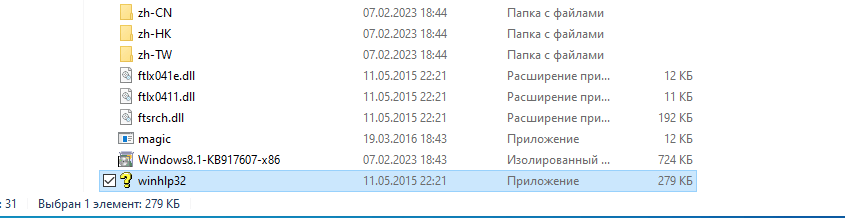
Часть 2: Замена файлов в папке Windows
- Скачайте файл replace-winhlp32.zip, извлеките из него файл replace.bat и скопируйте его в ту же папку, куда вы извлекли файл WinHlp32.exe и другие вспомогательные файлы.
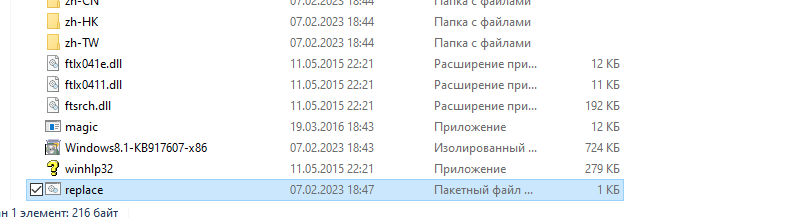
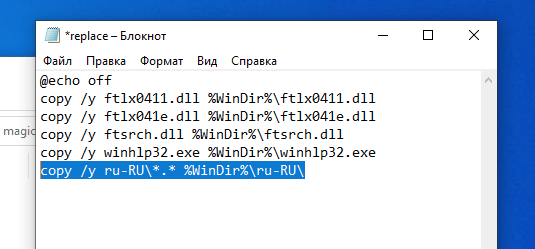
- Пропустите этот шаг, если вы используете английский язык в качестве языка интерфейса Windows. Если вы не используете английский язык в качестве языка системы Windows по умолчанию, то отредактируйте файл replace.bat и в последней строке замените en-US на свой язык. Например, если вам нужен русский язык, то замените en-US на ru-RU, если французский, то на fr-FR и т.д. Замена WinHlp32.exe в Windows 10
- Скачайте Process Hacker с сайта https://github.com/processhacker/processhacker/releases. Вы можете скачать установочную версию и установить ее на свой компьютер.
- Запустите Process Hacker с повышенными привилегиями (щелкните правой кнопкой мыши на ProcessHacker.exe и выберите Run as administrator). Сохраните его запущенным.
- Дважды щелкните на Windows8-RT-KB917607-x86.msu, чтобы запустить обновление. Разумеется, это обновление не для Windows 10 и будет неудачным. Не закрывайте диалоговые окна и сообщения об ошибках, которые оно показывает.
- Быстро переключитесь обратно в Process Hacker, найдите TrustedInstaller.exe в списке процессов, щелкните по нему правой кнопкой мыши и выберите в меню правой кнопки мыши пункт Разное → Запуск от имени этого пользователя. (Miscellaneous → Run as this user).
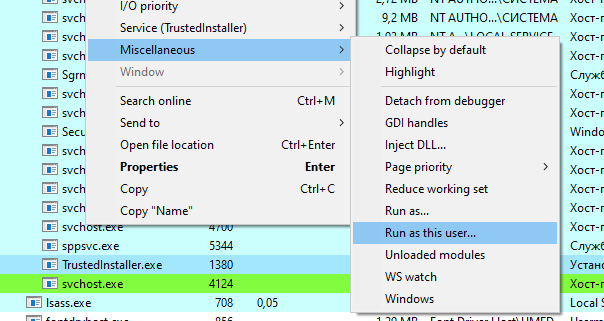
- В команду программы введите cmd.exe и нажмите кнопку OK.
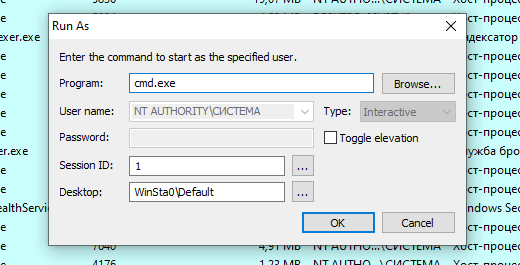
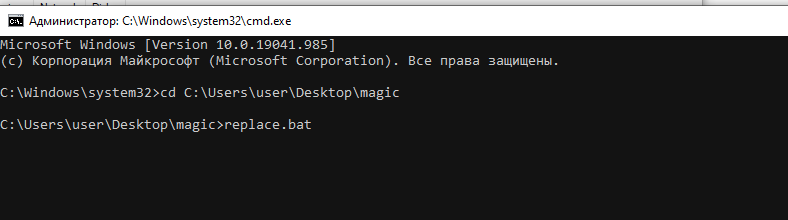
- Когда откроется окно командной строки, измените букву диска и путь к папке, куда вы извлекли WinHlp32.exe и Replace.bat. Например, если вы извлекли эти файлы в E:\Helper, то сначала введите E: и нажмите Enter в командной строке. Затем введите CD E:\Helper в командной строке и нажмите Enter.
- Затем введите replace.bat в командной строке и нажмите Enter. Вы увидите, что происходит копирование и замена файлов.
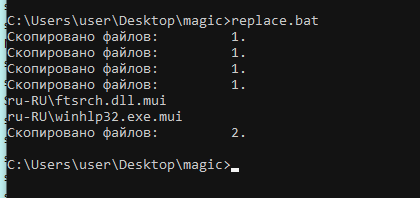
- Закройте окно командной строки, окно Process Hacker и любые другие окна, открытые с помощью этих инструкций. Теперь ваша система готова к открытию файлов .HLP. Просто дважды щелкните по любому файлу .HLP, и он откроется в привычной справке Windows.
How to Open .hlp Files in Windows 10/11 Using WinHlp32.exe
A long time back, most of the software used to ship with .hlp (WinHelp help format) help files. Since Windows Vista, the legacy .hlp format has been deprecated. To view 32-bit Help files with the .hlp file extension in Windows Vista (and higher — through Windows 8.1), you will need to download and install WinHlp32.exe ( KB917607 package) from the Microsoft Download Center.
However, this update isn’t available for Windows 10/11. Installing one of the KB917607 installers on Windows 10 or 11 would cause the following error:
This article tells you how to restore the missing WinHelp (.hlp) viewer on Windows 10 or 11.
Contents
Get Winhlp32.exe (.hlp) functionality in Windows 10 or 11
There are situations where you need the .hlp functionality even today. For example, I needed to refer to WinDiff.hlp manual to know the command-line switches supported. Note that WinDiff is still being used today by many users. By default, Windows 10/11 have the file Winhlp32.exe in the Windows directory, but it’s only a 12 KB dummy or placeholder file that doesn’t do anything when run.
Step 1: Download KB917607 and extract the files manually
-
Download the KB917607 update (meant for Windows 8 or 8.1) from the Microsoft Download Center to your Windows 10 or 11 computer.
Tip: Alternatively, you can search for Winhlp32.exe in the D:\Test folder and easily pick the two files from search results. Similarly, search for ftsrch.dll and ftsrch.dll.mui (en-us version) and copy them.
Now, you have the four files Winhlp32.exe , Winhlp32.exe.mui , ftsrch.dll , and ftsrch.dll.mui on your desktop. Follow one of the methods under Step 2 below.
Step 2: Copy the files to the Windows folder
Method 1: Replace the default Winhlp32.exe with the legacy copy
This method replaces the factory default copy of Winhlp32.exe with the legacy (Windows 8) version of the file.
An advantage of this method is that the contextual help ( F1 ) works perfectly in your old applications. The disadvantage is that the procedure needs to be carried out after installing every Windows 10 or 11 Feature Update. The procedure needs to be repeated also when Windows File Protection replaces the file with the original copy automatically, or when the user runs the Sfc.exe command to fix corrupted files.
- Run Command Prompt under TrustedInstaller rights. Let’s say you’re using the AdvancedRun tool as specified in the linked article.
- In the Command Prompt window, run these commands:
Note: Replace the desktop folder path accordingly in the command-line. Don’t use environment variables like %userprofile% because the Command Prompt window is currently running under TrustedInstaller privileges.
That’s it. We’ve replaced the default Winhlp32.exe with the Windows 8 version of the file.
You should be able to open .hlp files by double-clicking on them or by pressing F1 (contextual help) from the respective application.
Method 2: Without replacing the default Winhlp32.exe file
This method doesn’t replace the original Winhlp32.exe. Instead, we copy the older version of the file in a different name and then associate .hlp files with it.
- Rename them to Winhlp32_legacy.exe & Winhlp32_legacy.exe.mui respectively.
- Move the file Winhlp32_legacy.exe to C:\Windows
- Move Winhlp32_legacy.exe.mui to C:\windows\en-US
Note: As Windows 10 and 11 already contain the Winhlp32.exe and Winhlp32.exe.mui placeholder files, we don’t want to delete or rename the factory default versions to replace them with the legacy copies.
Some users tend to take ownership of the original Winhlp32.exe file and delete it before replacing it with the legacy copy. Doing so might cause the Windows File Protection to restore the originals at a later stage automatically.
Here is a sample System File Checker ( Sfc.exe ) CBS log showing that the Windows File Protection has restored the factory-default versions of the files from the component store ( WinSxS )
So, we need to avoid deleting or renaming the factory default version of Winhlp32.exe and the corresponding .mui file. That’s why we changed the file names by suffixing _legacy in Step 6 above.
- If you need the full-text search feature (“Find” tab) in .hlp files, copy these two files as well:
- ftsrch.dll (copy it to C:\Windows)
- ftsrch.dll.mui (copy it to C:\Windows\en-us)
If you receive the “Unable to display the Find tab. (177)” error, you can fix the issue by deleting .FTS, .GID, and .CNT files in the %LOCALAPPDATA%\Help and/or %SYSTEMROOT%\Help directory. The .GID and .CNT files may be found in the same directory as the .hlp file.
Associate .hlp files with legacy Winhlp32 (legacy version)
- Locate a .hlp file on your computer, right-click on the file and choose Properties.
- Click on the Change button.
- Click More apps
You’ve now associated .hlp files with the legacy (Windows 8) version of Winhlp32.exe. Double-click a .hlp file to test. WinDiff WinHelp .hlp file
Why was WinHlp32 discontinued by Microsoft?
Around March 2006, the Microsoft Help team announced that WinHelp would be deprecated (phased out). Ted Dworkin (Director of Windows Support Experience) said this:
“WinHelp does not meet the code standards established for Vista. These standards include security, reliability, and performance. WinHelp is architected in such a way that we would have to rewrite it from the ground up to meet the Vista code standards. And that approach doesn’t make sense given that we have two other Help systems in Vista.”
Microsoft recommends that software developers discontinue using the Windows Help application and transition their Help experience to an alternative Help file format, such as CHM, HTML, or XML.
(Last updated on July 26, 2022)
One small request: If you liked this post, please share this?
- Pin it!
- Share it to your favorite blog + Facebook, Reddit
- Tweet it!
Related
About the author
Ramesh Srinivasan is passionate about Microsoft technologies and he has been a consecutive ten-time recipient of the Microsoft Most Valuable Professional award in the Windows Shell/Desktop Experience category, from 2003 to 2012. He loves to troubleshoot and write about Windows. Ramesh founded Winhelponline.com in 2005.
42 thoughts on “How to Open .hlp Files in Windows 10/11 Using WinHlp32.exe”
Thanks. There’s still good use to be had out of many older apps.
This article provides the answer on how to access .HLP files. But it seems to provide that help using Windows 8.0 and 8.1. You use the .HLP file reader from these OS’s. You mention this process works with Windows 10. You say you are using Windows 10 64bit. The .HLP file program you use in this example appears to be WINHLP32.EXE. Isn’t this the 32bit version you’re using. I’m concerned about true compatibility. You mention Windows 10 can change back to the default version from the new legacy files. What happens to the other commands, extracted and installed files if Windows 10 returns to the default? Will the default version try to read the changed files and create errors? Can I easily start the steps over at some point in the instructions without doing all of the steps? It seems by interpreting your statements, Windows 10 looks for the default files when loading. What makes it find the legacy files instead? The command lines you enter? Most importantly, How Do I Remove The Changes If Something Goes Wrong?
@Mark:
1) Winhlp32.exe is 32-bit, even if you get the x64 installer from Microsoft.
2) We’re not replacing the factory default Winhlp32.exe (in Windows 10) with the legacy copies. So, Windows won’t revert to the default settings unless you manually do so.
3) Associating .hlp files with the legacy version of Winhlp32.exe (Winhlp32_legacy.exe) is all you need to do. Windows won’t use the default Winhlp32.exe (stub) in that case.
4) To remove the changes, all you need to do is delete Winhlp32_legacy.exe and the corresponding .mui file. Then, change the .hlp file association to the default Winhlp32.exe (stub)
Blimey what a struggle. Thanks very much for doing this
The directory has changed.
It’s now Windows8.1-KB917607-x64.cab note 8.1
I still get errors In paintshoppro (admittedly dated 2001) pressing help just gets ! Failed to launch help (but going to the program directory and clicking on psp.hlp works)… But even then having opened it I see
! There was a problem running the macro even thogh the topic displays
and pressing the Topic button at top doesn’t do anything
Perhaps I should just learn a new program!
Fix for error “There was a problem running the macro. (1037)”:
” To change this setting, users must first add the following new subkey to the registry:
HKEY_LOCAL_MACHINE\SOFTWARE\Microsoft\WinHelp
Then, users must add a DWORD value that is named AllowProgrammaticMacros to this subkey. If the value for AllowProgrammaticMacros is set to 1, the macros will be turned on. If the value is set to 0, the macros will be turned off. If this registry value does not exist, the macros will be turned off.”
Yep, didn’t work for me either. Trying to use Autosketch 8’s Help menu file (or any other) returned a “(9009)” error from my system.
@Charles: Can you upload that particular .hlp file. Let me see if I can repro the error. This could be due to a wrong .mui localization file.
Try deleting the .exe on Winhlp32_legacy.exe, mine was reading Winhlp32_legacy.exe.exe and I kept getting 9009 until I renamed the file to Winhlp32_legacy
I started doing this since I was getting the help-error in for Zoombrowser.exe. Now, I can open individual help files from the Zoombrowser EX directory. BUT, when I’m running Zoombrowser, I get the help-error when I try to access help and on start-up of the program and when program opens a new window. It appears that at least some features of Zoombrowser work Ok. It’s just I get these errors all the time taking me to the infamous microsoft page https://support.microsoft.com/en-ca/help/917607/feature-not-included-help-not-supported-error-opening-help-windows
Works perfectly! I’m still using Lotus Organizer and needed help (pun intended)! Thanks
This works perfectly. Thank you so much!
Just to be aware that the folder names extracted from the cab have changed in Windows8.1-KB917607-x64.
The files are now in: amd64_microsoft-windows-winhstb_31bf3856ad364e35_6.3.9600.20470_none_1a54d9f2f676f6c2 (winhlp32.exe)
and
amd64_microsoft-windows-winhstb.resources_31bf3856ad364e35_6.3.9600.20470_en-us_c3a9a33a1aee3495 (Winhlp32.exe.mui)
Cheers
James
Thanks so much for these wonderfully clear and detailed instructions. They worked perfectly to enable the display of my .hlp files, but that turned out not to be all that I needed: the program that finds and calls the appropriate .hlp files is still dead, apparently because it continues to rely on WinHlp32. I hope that you can tell me what to do next.
I’m running WordPerfect 11, under Windows 10. The problem is with its Help facility, and more specifically with the “Help Topics” and “Macro Commands” items in its dropdown menu. When I select either of those options, I get an error message that says, “Call to Help failed”. A friend has theorized that perhaps “WinHlp32 needs to be running in memory as a service, and WordPerfect is trying to call it with a program-to-program call of some kind.”
Thanks for any thoughts that you have.
When I attempted to extract Windows8-RT-KB917607-x64.cab to the desktop I got the following error:
Can not open output file : Access is denied. : C:\Users\Public\Desktop\Windows8.1-KB917607-x86.cab
@Devin: Does changing the output directory help? (e.g., Devin\Desktop instead of Public\Desktop)
It looks as if you ordinarily answer questions that are posted here, but you haven’t answered mine, from a couple of weeks ago. Did you miss it?
Ramesh, Thanks for great instructions. While doing this, all went well thru the expanding of the files but when I looked for the two files to copy to the desktop and rename, they do not exist in the expanded files. I tried looking for the Winhlp32.exe but could not find them that way either. Am I doing something wrong?
Works for me. I used a fix from Trish Tech previously but each Windows 10 update wiped it out. The *legacy.* is so simple it’s brilliant. Updates still mess with my 1037 fix though.
I run Lotus Approach databases. Approach is quite simply the best PC database manager there ever was. Still is. Beats any SQL system too if you don’t need to share on line.
Excellent article.. but a problem. I am running Windows 10 on a 64 bit machine. I did the conversion, and was able to open the Paradox(version 11) Database help files by clicking on them, but, when I try to select the Help files from the main program (Help could not be started) and I am taken too https://support.microsoft.com/en-us/topic/error-opening-help-in-windows-based-programs-feature-not-included-or-help-not-supported-3c841463-d67c-6062-0ee7-1a149da3973b. Now I followed the instructions about adding the key WinHelp, and setting the AllowProgrammaticMacros DWord to 1.. I attempted this in HKEY_LOCAL_MACHINE\SOFTWARE\Microsoft , and I also tried HKEY_LOCAL_MACHINE\SOFTWARE\Wow6432Node\Microsoft, adding the new key WinHelp…. at my wits end.. What do I have to do to get Paradox Programming Language Help files to show up from the main menu again? THANKS IN ADVANCE!!
This is a great article that I have come across quiet some time. I usually don’t leave comment but here I am compelled to do so. Followed instruction step by step and help file worked.
Awesome Ramesh!! Kudos to you for writing this blog.
One question I have for developers it is good they can change by doing this, assume we have thousands of users of desktop-client application which is using .hlp file. How do you recommend changing those! It is not feasible to ask user(non-technical) to do this. Do We have any alternate solution that you can think of!
This works for *some* .hlp, but not ALL .hlp files. I have an older PC game from 1996 or so, Free Enterprise, and it will not open the .hlp file at all, no matter what I do. In Paint Shop Pro 6 .hlp file opens with the macro error, but I can view those .hlp files.
For Free Enterprise, I just get the usual, cannot display this help file, try opening the file again etc. and I even pointed to C:\windows\winhlp32_legacy.exe. I even double clicked winhlp32_legacy.exe, and tried to open the .hlp file that way, it still said, cannot display this help file, try opening the file again etc.
@Tom: You may try using the Windows Vista or 7 version of winhlp32.exe. Or, if you can send me the 1996 .hlp file, I’ll try to repro the issue.
On my W10 system i can open it but there’s no content.
After copying it to C:\… the issue is gone and it works normally.
Worked great for me, thanks! Method 2 is letting me open my 90’s help files no problem.
This worked great to allow me to install and run Avery Design 4.0 under Windows 10. Thanks, Ramesh!
Well done, very useful info. I had initially thought this site must be hosting viruses because it’s called “winhelponline” and the article is to fix the winhelp… who would make a website just for that one issue? But then I realised that there is nothing suspicious here and your whole website is just useful info like this.
I found a slightly more elegant solution for installing WinHlp32 again even for Windows 11 which is unlikely to break with build updates because it doesn’t touch the C:\WINDOWS folder at all, and made that solution into an easy to use bat script to install it easily. I made it as a batch script so it’s completely transparent as to what it’s doing to your system.
Just “Save as” the “Raw” version.
Hopefully someone finds it useful
@29039: Excellent. Thanks for creating the batch file.
Thank you very much,It worked!
A very big THANKYOU, I still use an old licensed copy of Paint Shop Pro 5. It does everything I want with image editing, I even registered Corel Paint Shop a few years back, didn’t like it. However had forgotten how to create a gif with transparent background but now finally I can read the hlp file.
Very good instructions, thank you Ramesh. I still use WordPerfect 10, and now the Help feature works again.
I simply used Total Commander to rename the existing winhelp.exe to winhelp.exe.old; had a small hitch with that because of rights, but managed to acquire sufficient rights to rename.
@Chris: Excellent! Thank you for taking the time to send your feedback.
Hi Ramesh,
Thanks for this detailed solution. I have a problem in that once I get to the extraction process for the cab file, the files you specify are not included. All of the amd64 files end in .manifest instead of .exe or .dll. Is there a step I’m missing or is this what I suspect is an updated version of the kb file? 7zip reports the size and dates of all of the files as bigger and later than your screenshot shows.
Also, I had to use Windows to extract the files from the cab because I got ‘can’t open input file’ error when attempting from cmd line, even when opening as Administrator. This might be my issue too, but I just can’t tell from what I can see. Any help you can provide is appreciated.
Unfortunately it seems it doesn’t work for Rebirth338, since it probably tries to call winhlp32.exe whatsoever. I can open the help files from outside but Rebirth won’t start after initial System Test.
@knupp: I guess you’ve tried Method 2. Please give method 1 a try wherein the winhlp32.exe file name remains intact.
Thank you for this Ramesh. I can use my older programs more effectively now.
Question: Do I need to leave the 4 files on my desktop under Method 1? I’m not an advanced user.
@Lee: You can move/backup those 4 files somewhere else if you want in case you want those files in the future — e.g., after installing a Windows 10 Feature Update.
I extracted files using Winrar and the files you specify are not included. All of the amd64 files end in .manifest instead of .exe or .dll
What is the solution for this? Using fully updated Windows 11, fyi
@Scott: From CMD prompt, run the following command from the directory containing extracted files:
dir winhlp32.exe /s /a /b
For error 9009 try moving help files to c:\helpfiles (no s p a c e s)
Thank you very much for your writeup here. It worked perfectly. The one I used is downloading the windows8 KB, extracting with 7z, copying those 4 files into a folder, using Command Prompt (as Administrator) to rename the dummies and copying the replacements.
Then by clicking the HLP file, it opened with links and everything. Excellent! Was going nuts with all the online links to convert to PDF, etc. and nothing but spam, trials with major limitations, etc.
Just a quick note regarding your Method 2 –
if you want to have the F1 key, or “Help / Index” commands or the like working from a program in addition to the nice ability to open the help file directly, start
winhlp32_legacy.exe -x
before loading the program. It’s not perfect – once you open the help in your program and then close the help window, winhlp32_legacy.exe terminates, so the next F1 will trigger the stupid “Help is not available” again. But it’s a start, and restarting winhlp32_legacy could be automated.
Gleaned that method from the ReactOS source code, and it works perfectly on Windows 10 with the original WinHelp, too.
@29039: Excellent. Thanks for creating the batch file. Worked fine, including automatic downloading of the Windows8.1-KB917607-x86.msu file. It is still there.
@Ramesh And, of course, thanks to the Ramesh for the work on which that batch file is partially based.
Как открыть файл *.HLP в Windows 10: подробный гайд для пользователей
Файлы с расширением *.HLP (Help) были широко используемы в операционной системе Microsoft Windows до версии Windows 7 в качестве файлов справки и документации. Начиная с Windows Vista, Microsoft переключилась на файлы справки в формате CHM (.chm), поэтому в Windows 10 открыть файлы *.HLP несколько сложнее, но все еще возможно.
Шаг 1: Скопируйте файл * .HLP на компьютер
Первым шагом необходимо скопировать файл *.HLP, который вы хотите открыть, на компьютер. Можно сделать это с помощью внешних устройств хранения, отправив файл самому себе на электронную почту или просто скопировать его на другой компьютер и перенести на нужный.
Шаг 2: Загрузить WinHelp32.exe из Microsoft
Чтобы открыть файлы *.HLP в Windows 10, вам понадобится загрузить приложение WinHelp32.exe из Microsoft. В стандартной установке Windows 10, это приложение отсутствует, и вам нужно будет загрузить его вручную.
Перейдите на следующую страницу Microsoft WinHelp32.exe и загрузите исправление, соответствующее вашей архитектуре системы.
После загрузки WinHelp32.exe дайте ему имя (например, WinHelp32_backup.exe) и разместите в любом месте на вашем компьютере.
Шаг 3: Запустить WinHelp32.exe
Теперь нужно запустить WinHelp32.exe, чтобы установить его на компьютер и использовать для открытия файлов *.HLP:
Найдите WinHelp32.exe на вашем компьютере и дважды щелкните на нем.
После того, как приложение будет установлено на компьютер, можно открыть любой файл *.HLP, который вы скопировали на компьютер.
Шаг 4: Откройте файл * .HLP в приложении WinHelp32.exe
Следующим шагом является открытие файла *.HLP с помощью приложения WinHelp32.exe:
Найдите файл *.HLP на вашем компьютере. Щелкните на нем правой кнопкой мыши и выберите "Открыть с помощью" в контекстном меню.
Введите путь к приложению WinHelp32.exe и выберите его. Если WinHelp32.exe был корректно установлен, файл *.HLP должен успешно открыться.
Шаг 5: Настройка режима совместимости (дополнительно)
Если вы все еще испытываете проблемы с открытием файлов *.HLP, можно попробовать установить режим совместимости:
Найдите WinHelp32.exe на вашем компьютере.
Щелкните правой кнопкой мыши на приложении и выберите "Свойства".
В диалоговом окне Свойства выберите вкладку "Совместимость".
Включите режим совместимости Windows 7 или Windows XP.
Вывод
Теперь вы знаете, как открыть файл *.HLP в операционной системе Windows 10. Большинство пользователей справляются с этой задачей без проблем, но если вы все еще испытываете трудности, не стесняйтесь обращаться за помощью в службу поддержки Microsoft.