Vegas Pro не открывает .MOV
Обновлено: 04 июня 2022 
Задача
Смонтировать видео-отчет из путешествия. Исходные материалы даны в формате MOV.
Исходные данные
Конфигурация компьютера
- Windows 8.1 (64 бит)
- Процессор — 2,16 GHz
- Оперативная память — 8 ГБ
Установленные программы
- Vegas Pro 15
- QuickTime 7.7.9
- K-lite Mega Codec Pack 15.9.0.0
Как и было рекомендовано, сначала были установлены кодеки, а уже потом Vegas Pro 15. Правильная последовательность именно такая: сначала кодеки, после — программа. На разных компьютерах по-разному — из-за нарушения последовательности установки могут возникнуть проблемы и ошибки, а могут и не возникнуть.
Проблема — Vegas Pro 15 не открывает файлы MOV
Vegas Pro 15 открывает только звуковую дорожку в видео-файлах формата MOV, которые мне прислали в качестве исходных материалов для видео про путешествие. Вместо видео-трека — черный экран.
При этом мой Вегас Про 15 открыл без проблем файл с футажем в формате MOV. Я предположила, что видео из путешествия снято на последнюю модель IPhone, и мой Вегас слишком стар для новых форматов видео.
Что я делала по рекомендациям из Интернета
Я просмотрела много видео на русском и на английском языках на тему, как сделать так, чтобы Вегас Про 15 открывал файлы MOV. Самый популярный совет — это установить QuickTime, но у меня он уже был установлен.
- Чистила кэш Vegas Pro 15 — не помогло.
- Частой рекомендацией — это установить более старую версию QuickTime. Снесла QT версии 7.7.9, установила 7.7.6, не помогло, опять установила 7.7.9.
- Удалила K-lite, установила кодеки ffdshow и Xvid — не помогло.
- K-lite опять восстановила, так как в нем очень удобно просматривать видео, например, с разной скоростью. Установила версию K-lite Mega Codec Pack 16.0.5. При установке K-lite было требование удалить ffdshow, что я и сделала.
Решение проблемы — перекодирование MOV в другой формат
Я знала с самого начала, что можно перекодировать видео в другой формат, но при этом может быть потеря качества видео, чего не хотелось бы. Поэтому я сначала попыталась обойтись без перекодирования, но не получилось.
Как я перекодировала MOV в mp4
Перекодирование mov в mp4 через VLC media player
В VLC выбирала предустановленные профили:
- Video — H.264 + MP3(MP4)
- Video — H.265 + MP3(MP4)
- Video for MPEG4 720p TV/device
- Video for MPEG4 1080p TV/device
Ни один из файлов mp4, полученных перекодированием из mov с помощью VLC, в Вегас Про 15 не открылся. Вегас выдавал сообщение, что файл или поврежден или имеет неправильный формат.
Перекодирование mov в mp4 через Movavi Video Converter 21.2.0 Premium
Файлы mp4, полученные перекодированием из mov с помощью Movavi, в Vegas Pro 15 также не открылись.
Перекодирование mov в mp4 через онлайн конвертер Мовави
Наконец-то свершилось! При конвертировании через онлайн сервис Мовави https://www.videoconverter.com получились mp4 файлы, которые мой Vegas Pro 15 наконец-то открыл! Интерфейс этого конвертера самый простой, он не предлагает выбор из профилей, а просто выбираешь формат MP4 без каких-либо вариантов.
Но этот конвертер обрабатывает файлы только до 100 Мб. Обработка более тяжелых файлов платная.
Перекодирование файлов mov размером более 100 Мб в mp4
Здесь мне пришел на помощь вот этот сервис по обрезке видео — https://online-video-cutter.com/ru/. Я ничего не обрезала, просто загружала туда большие файлы, а потом их сохраняла в формате mp4. Эти файлы тоже пришлись по вкусу моему Вегасу и он их открыл.
Как правильно конвертировать MOV в mp4
Правильный подход в этом случае — это выяснение, что внутри моих файлов mov и почему Вегас их не открывает. После получения полной иформации о mov файлах будет ясно, какой конвертер использовать.
Бесплатная программа MediaInfo
- Скачиваем программу MediaInfo с сайта разработчика: https://mediaarea.net/ru/MediaInfo
- После установки программы открываем папку с нужным видео файлом, выделяем его и нажимаем правую кнопку мыши, в выпадающем меню видим строчку MediaInfo. Нажимаем на MediaInfo, открывается окошко программы.
 Выделяем нужный файл, в выпадающем меню нажимаем на MediaInfo, чтобы открыть программу.
 - В верхнем меню выбираем View и Text. Открывается текст с полной информацией о файле. Можно получить данные об исходниках нескольких файлов или сразу целой папки. Для этого в левом меню выбираем Select a folder to examine.
- Полученные данные экспортируем, нажав File — Export.
 Результат работы программы MediaInfo.
Итак, мои файлы mov были сняты на iPhone 11 и сжаты кодеком HEVC. Vegas Pro уже умеет работать с этим кодеком, но имеет множество ограничений. С файлами iPhone 11 должна работать 17-я версия Вегаса, а у меня Вегас Про 15.
H.265 — высокоэффективная видео компрессия (High Efficiency Video Compression — HEVC) — это новейший стандарт сжатия видео, который постепенно отвоевывает свое место на рынке. То есть, HEVC это собственно и есть H.265.
Конвертация файлов MOV сжатых HEVC
Для конвертации HEVC бесплатный видеоконвертор XMedia Recode 64bit. Скачать его можно по ссылке: https://www.xmedia-recode.de/en/download.php
Как правильно конвертировать MOV в mp4 с помощью VLC, чтобы открыть mp4 в Vegas Pro 15
Итак, дано: файлы MOV, сжатые HEVC. Нужно получить mp4, чтобы их открыл Vegas Pro 15.
Как я писала выше, когда я выбирала готовые пресеты VLC, то Вегас Про их не открывал.
Для того, чтобы полученные в VLC mp4 открыл Вегас, нужно конвертировать наши MOV в h.264 + ААС. Наиболее распространенными для контейнера MP4 являются видеокодек H.264 и аудиокодек AAC.
- Открываем VLC. В верхнем меню выбираем Медиа — Конвертировать/Сохранить.
- Открывается окно Источник, нажимаем на +, добавляем файл или файлы, нажимаем Конвертировать/Сохранить.
- Открывается окно Преобразовать. Выбираем профиль Video — H.264 + MP3(MP4). Нажимаем на иконку с гаечным ключом справа — Изменить выделенный профиль.
 Нажимаем на иконку с гаечным ключом справа — Изменить выделенный профиль.
 - Открывается окно Редактирование профиля. Во вкладке Аудиокодек выбираем MPEG4 Audio (AAC). Нажимаем Сохранить.
 Во вкладке Аудиокодек выбираем MPEG4 Audio (AAC). Нажимаем Сохранить.
 - Оказываемся опять в окне Преобразовать. Заполняем поле Конечный файл, для этого нажимаем справа Обзор и пишем имя файла, нажимаем Сохранить.
- Опять оказываемся в окне Преобразовать. Нажимаем Начать. Начинается конвертация. Открываем полученный файл в Вегасе!
Если важно качество и не важен размер — подойдет какой-нибудь ПроРес с минимальным сжатием. Для новичка настройки кодера VLC слишком сложны. Сейчас в сети множество бесплатных кодеров с готовыми пресетами.
How to Fix Sony Vegas Pro not Opening MOV Files?
Are you experiencing Sony Vegas Pro not Opening MOV Files?
When you try to Import the MOV files Vegas Pro refuses to import them?
Don’t worry about it!
The CPU Guide brings you the 5 best working solutions to solve Sony Vegas Pro not Opening MOV Files.
Here one of the users shares his experience on Reddit about Vegas Pro Not Opening MOV Files.
Solution 1: Enable the Quicktime plugin To fix Vegas Pro not Opening MOV Files
Sony Vegas Pro doesn’t support the MOV unless the Quicktime plugin is enabled in Sony Vegas.
Quick time the plug-in is a depreciated feature in the Vegas pro because Apple is no longer providing updates for this plugin and this can cause some security issues that’s whys it’s not enabled by default in Vegas pro.
- Open the Sony Vegas pro
- On the top bar find “Options” click on it
- The menu will appear
- Select the “Preference” option
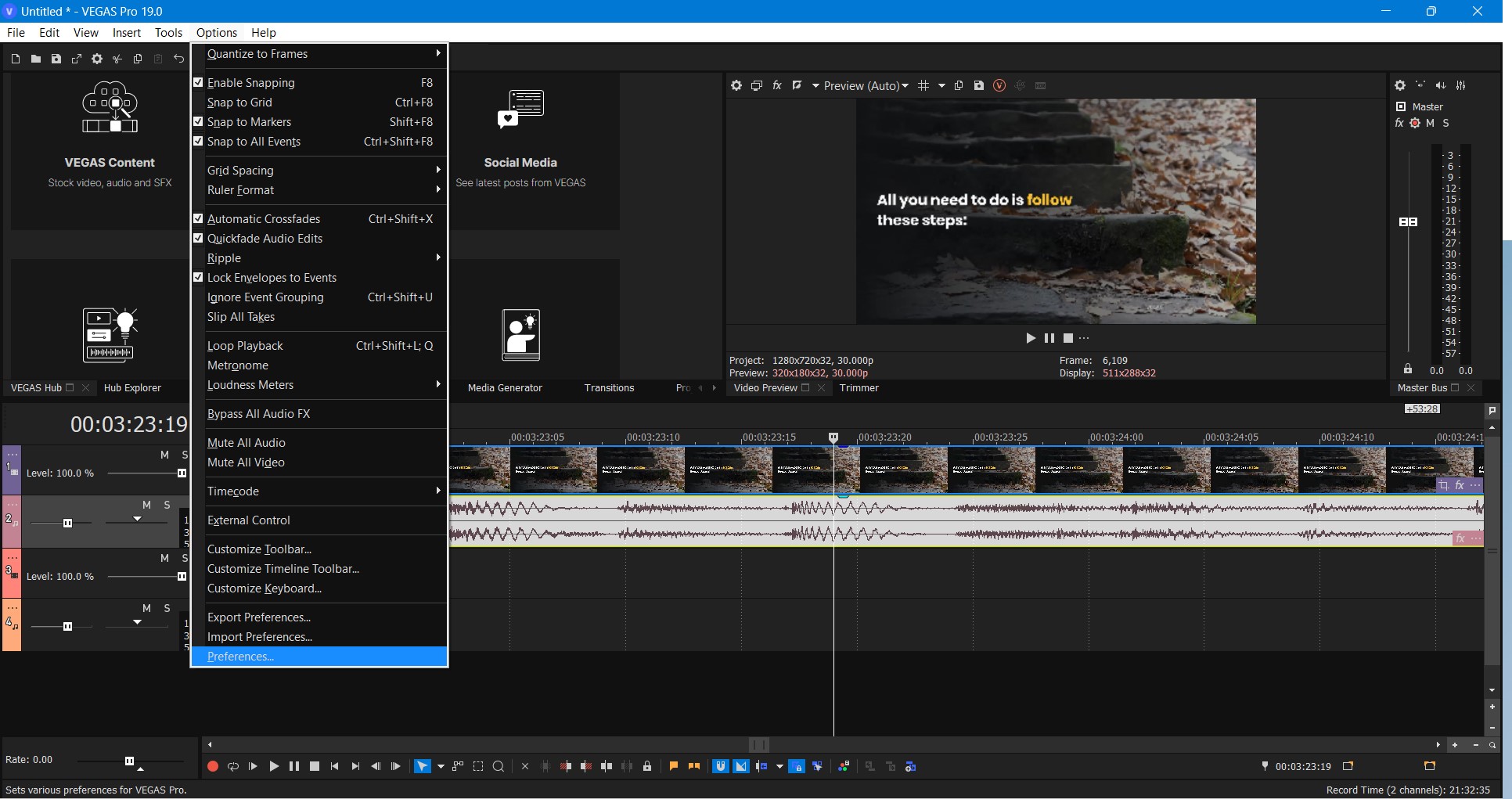
- A Preference Window will Open
- From the above tabs select the “Deprecated feature” tab
- Now find & select the “Quick Time plugin“
- Make sure the “Enable the QuickTime Plugin” option is checked
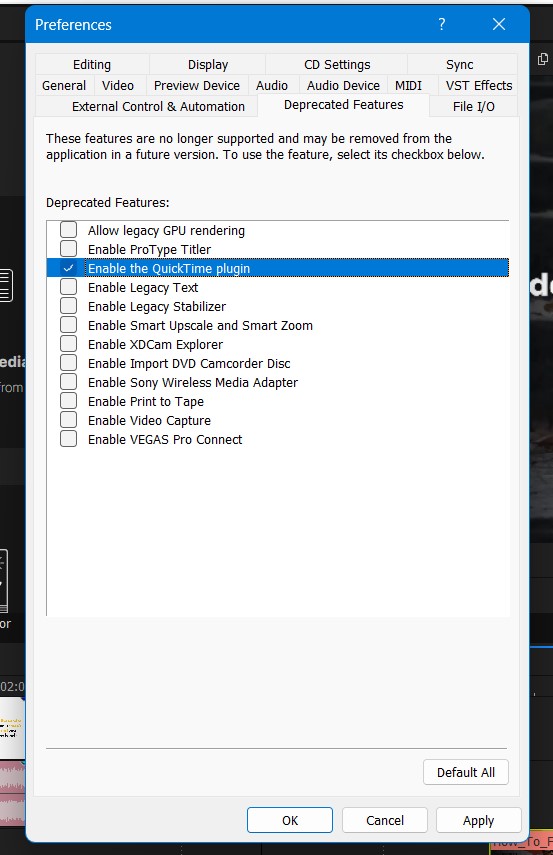
- Click on Apply and Ok to save the settings
Now you can easily import MOV and your Sony Vegas not Opening MOV Files issue is resolved.
If you don’t want to enable the QuickTime plugin there is one more you can perform to your video file before importing it into Sony Vegas pro.
Solution 2: Convert your Video File into MP4
According to vegas pro users, the easiest way they found is to convert the MOV video file into MP4.
You can convert your MOV format video into Mp4 with the help of the Video Converter.
Some of the video converters are free and some are paid software.
So, you can choose according to your requirements.
Here one of our users is sharing their experience.
If you still facing Vegas not Opening MOV Files so is time to troubleshoot your PC.
Solution 3: Restart the Sony Vegas Pro & PC
Whenever you encounter Sony Vegas not Opening MOV Files or any bug, you should restart the software.
Restarting the Vegas will eliminate any temporary error which is occurring due to the old cookies and cache or the system’s other software is clashing with your Video and audio editing software.
All of these errors will be eradicated after a simple restart of the PC Windows 11/10.
Hope all of the above solutions help you to solve the Sony Vegas not Opening MOV Files.
Solution 4: Update Graphics Card Driver on Windows 11 through Device manager
Update the graphic card driver, might the outdated graphic driver might be causing the Sony Vegas not Opening MOV Files.
Here is how you can update graphic drivers on Windows 11:
- Click on the Search icon
- Type Device Manager
- Click to open Device Manager
- Then select the display adapter
- A further menu will open and find your video driver
- Click right on the graphic card name
- Click on the updated driver
- Now successfully the graphic driver is updated.
For the dedicated GPU drivers, upgrades follow the next solution.
Solution 5: Check for Driver’s Updates of GPU/Video Card OF different company
One of the leading and highlighted issues is the GPU drivers are outdated, simultaneously the video card also has outdated drivers.

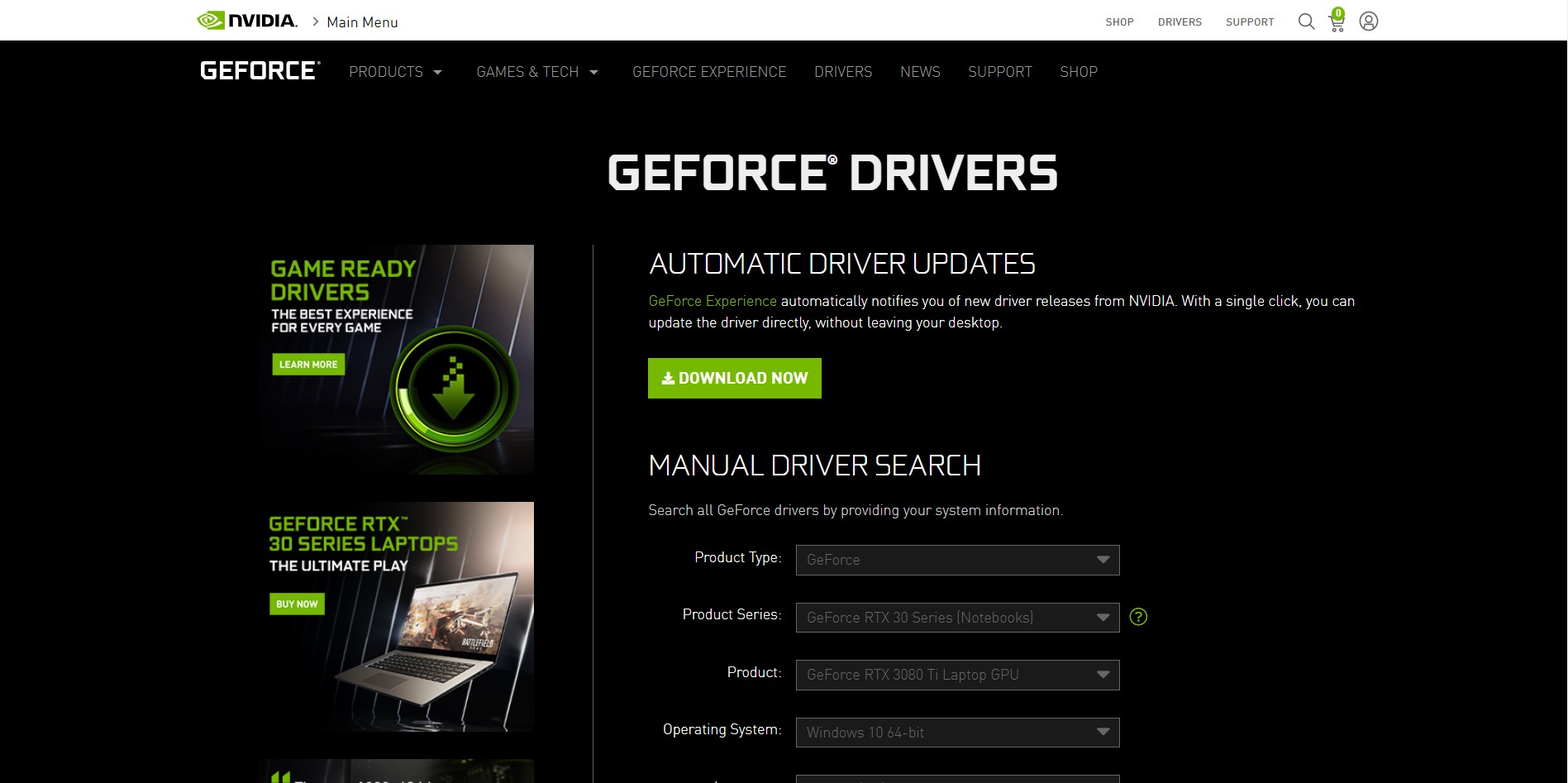

After updating the GPU drivers check whether Sony Vegas not Opening MOV Files is fixed or not.
If you have any queries or suggestions, share your experience with us in the comments section down below or you can reach us on our social handles.
Hammad
Meet Hammad, a dynamic writer with a passion for gaming and a talent for analysis. With extensive years of experience in the gaming industry, Hammad has a unique perspective on the latest gaming trends and technologies. In addition to writing about gaming, Hammad also guides our team with marketing news and his investment analysis.
MOV to Vegas Pro — Edit MOV in Vegas Pro 19/18/17
Can’t Import MOV File to Vegas Pro 19/18/17 — Solved

Questions
“My ousin Amy loves photography, poetry, architecture and documentaries. She is an excellent college student. She saved some money by taking a part-time job after class, and she used her savings to buy a new Nikon D6. The problem is that although her video can be successfully imported into Vegas Pro, she can’t preview the imported 4K video. I know that low software version will lead to such problems. I want to know how to solve this problem without upgrading the software.” — Smith, Owen
"How do I import an MOV video in Vegas Pro? Hi, I had purchased Vegas Pro 19 last week. Now I am planning to buy Panasonic Lumix BS1H which records 5.9K footage in .MOV format. I believe .MOV format is the basis for .mp4 formats as mentioned on the wikipedia. Would the Vegas Pro 19 be able to import and edit these videos in MOV format or I would require to convert them first. If I do not want to alter the video & audio format, what is the best way to change the containers?" — Somers, Robert
"Is there any way to use .mov files in Vegas Pro 18 without converting? The thing is, I want to use my camera recordings, and those are only available to me in a .mov format in 4K. I don’t really wanna convert
3hrs of 4K videos, so is there any sort of plugin that enables directly importing it?" — Barrett, Alexander
That is not news that the MOV video cannot play on some occasions. You can find problems like cannot play MOV video or show playing errors on your PC. Even someone has complained, "I would avoid the MOV file if there are other options". Want to quickly solve the problems and play it on any device, here are things you might need to be known.
About MOV Format
A file with the MOV file extension is an Apple QuickTime Movie file that’s stored in a QuickTime File Format container file. It stores one or more tracks that store different types of media data, such as video, audio, and subtitles. Like MP4 files, QuickTime MOV videos are encoded with the MPEG-4 codec. There are many cameras and camcorders can record .mov footage, and we can download some tv shows and movies from websites in .mov format. As a container format, MOV can contain number of video and audio codecs, such as MPEG-4, H.264, H.265/HEVC, MPEG-2, Apple ProRes, DNxHD, etc.
VEGAS Pro — the professional toolset for video editing, live streaming and sound design. It is is a Windows-compatible nonlinear editing software with vast sets of video and audio editing features. However, when you import MOV files into Vegas Pro, you may come across lots of problems, such as nothing shows up on the screen, or there is only image or you only get sound in Vegas Pro 19, 18, 17. Well, according to MAGIX, Vegas Pro only accepts the H.264 family, including MP4 and AVC/AVCHD, and also supports cutting-edge codecs like HEVC, as well as common professional formats like ProRes, XDCAM/XAVC and P2.
Vegas Pro Supported Video/Audio Formats
Video: Blackmagic RAW*, HEVC/H.265, AVC/H.264, MP4, MPEG-2, MPEG-1, AVI, WMV, M4V, Sony XAVC / XAVC-S / XDCAM EX / HD 422 / MXF / ProDisc / HDCAM SR, MPEG IMX, DV, HDV, AVCHD, Panasonic P2, RED RAW
*Currently in BETA
Audio: AIFF, AAC, MP2, MP3, M4A, OGG Vorbis, WAV, WMA, FLAC
MOV Not Supported in Vegas Pro 19, 18, 17? Let’s Fix It Now
It has been previously announced that MAGIX Vegas Pro does work with and support MOV files. However, the MOV files setting and codec might differ from other MOV files that we have saved or exported from various devices, players or programs. If you are currently using an earlier version of the Vegas Pro, most people would recommend you to upgrade it to the latest version, so it would recognize the MOV file. It might not necessarily work in all cases as you might experience video glitches (i.e. such as slow playback speed or screen crash). Another method tried and tested by users of Vegas Pro to ensure MOV files work is to either rename the MOV files directly as an MPG, WMV, MP4 or convert them to file types or formats that are compatible. This method has a advantage: It is quicker. But it cannot solve the fundamental problem.
If you’re interested in how to edit with an MOV file, there’s a simple answer. The trick for how to import MOV files into Vegas Pro 19, 18, 17, is to convert the MOV file to an editing-friendly codec first.
Best MOV to Vegas Pro Workflow — Transcode MOV to Vegas Pro best editting format
To get the work done, you can just get Acrok Video Converter Ultimate, which can help you convert 8K, 6K, 4K, 2K and 1080P MOV to Vegas Pro supported video codecs with optimized settings while keeping the video quality. In addition, it can convert all other popular video formats like MXF, MTS, MP4, WMV, MKV, FLV, AVI, WMV, ASF, M2TS, VOB, Blu-ray, DVD, etc. to Vegas Pro compatible video formats. What’s more, you can do some simple cutting, trimming and merging before converting MOV files. This is very convenient for those who just want to import a tiny snippet of a .mov file into Vegas Pro and avoid converting the whole file. Now get the tool and add MOV files into Vegas Pro effortlessly.
Free download MOV to Vegas Pro Converter
Features of MOV to Vegas Pro Converter
[Tutorial] How to Convert MOV to Vegas Pro Compatible Format
PS: The process is almost the same on PC and Mac. Here we will take Acrok Video Converter for Windows as the example to show the MOV to Vegas Pro 19/18/17 and other lower versions conversion process.
Add MOV video files
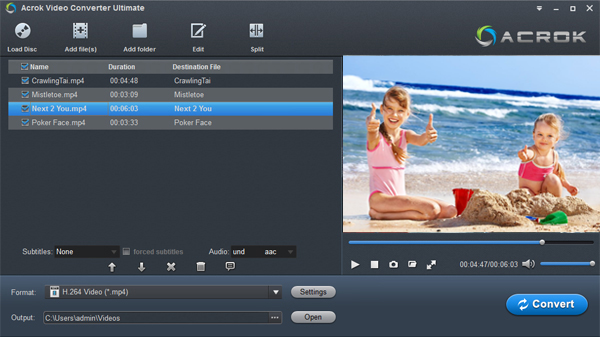
After downloading, install and run Acrok Video Converter Ultimate as the best MOV to Vegas Pro Converter on your PC, simply drag and drop your MOV files to the program. You can also click "Add file" button to load your source files. (Note: batch conversion is supported, so you can load more than one file to save time.)
Choose an Vegas Pro editing-friendly format
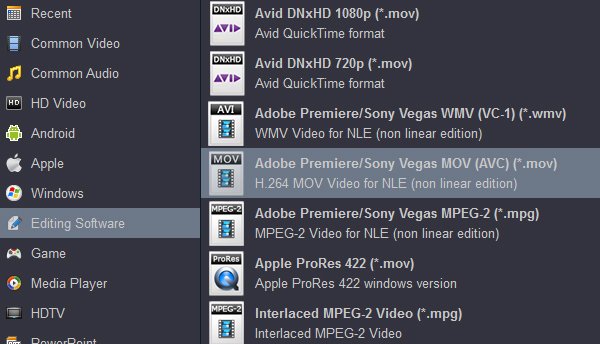
Based on our test, MPEG-2 MPG, H.264 MP4 and H.264 MOV are supported by Vegas Pro 19, 18, 17 well. So here we take converting MOV to H.264 MP4 as an example. Click "Format" bar and move mouse cursor to "Common Video" and then select "H.264 MP4 Video (*.mp4)". MP4 is not the only option that can import to Vegas Pro. Converting MOV to MPEG-2 MPG, H.264 MOV, etc works too. There is a long list of output video formats available for you to choose.
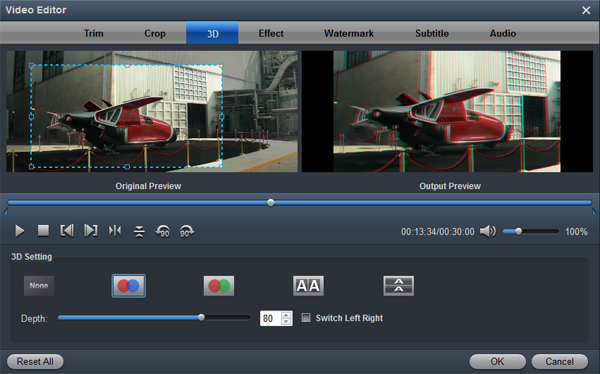
Tips: You can cut, crop, merge, rotate to make some easy video edits before conversion with Acrok Video Converter Ultimate.
Start the conversion
Hit "Convert" button and it will begin fast video decoding, conversion and processing your MOV video at one go. Hardware acceleration can be enabled to speed up the processing, only if your computer has supported graphics cards.
When the conversion is finished, you can click "Open" button to get the generated video files effortlessly. Launch Vegas Pro on your computer, choose "File > Import to import converted MOV files in Vegas Pro 19/18/17 for further editing.
Possible Solution: Rename the File Extension to Fix Vegas Pro MOV File Import Failure Error.
Maybe we don’t have to make things so complex. To fix MOV file import errors, sometimes we just need to rename the file extension from .mov to .mp4, .m4v, .mpg, or other format. This trick does get some users out of trouble. However, it isn’t guaranteed to work. Some people still can’t load files to Vegas Pro 18, Vegas Pro 17 even the lastest Vegas Pro 19 successfully. Some people even are not allowed to rename the file extension for some reason.
Final Words
You should know that codec format decides whether you can load a video or audio file successfully or not, while MOV is just a container format. So even though you are importing an .mov video, the encoded file wrapped in the mov box might not be supported, which leads to file import failure. To be honest, it’s not so hard to solve the Vegas Pro video edit. All you need to do is get the videos converted to be Vegas Pro supported. Therefore, transocding mov file using Acrok software or any other conversion software is the the most effective yet easiest solution recommended by us.
Users Reviews
I purchased Acrok Video Converter Ultimate after a search over several months for a program that could merge subtitles with videos without many complications. Acrok Video converter Ultimate is perfect for this. So simple and very quick.
Bennett, Stacie
This is an Awesome tool. I tried several free video converters before to save money, but finally, I can’t endure the conversion failure and unsupported formats. Occasionally, I find Acrok software, it is very powerful and multifunctional.
Grinnell, Steve
КАК ОТКРЫТЬ MOV В SONY VEGAS
Открыть файлы формата MOV в Sony Vegas возможно несколькими способами. Наиболее распространенный из них – установка дополнительных кодеков на компьютер, которые обеспечивают поддержку данного формата в программе.
Один из таких кодеков – QuickTime Player, который может быть загружен бесплатно с официального сайта Apple. Установив данный плеер, можно расширить возможности Sony Vegas и работать с файлами MOV без проблем. Однако, следует учесть, что QuickTime Player является устаревшим программным обеспечением, которое больше не обновляется разработчиками.
Другой вариант – конвертация файла MOV в более поддерживаемый формат, например, MP4. Существует множество бесплатных программ для конвертации видеофайлов, таких как HandBrake или Any Video Converter. После конвертации файла можно открыть его в Sony Vegas без проблем.
Также существуют платные плагины для Sony Vegas, которые добавляют поддержку формата MOV. Например, плагин QuickTime Pro от компании MainConcept, который стоит около 200 долларов.
В любом случае, перед началом работы следует убедиться, что файлы MOV действительно не открываются в Sony Vegas. Иногда возникают проблемы с отображением видео или звука, которые могут быть решены путем обновления кодеков или перезапуска программы.

Как открыть MOV файлы в Sony Vegas PRO? — AFC советы
Vegas не открывает mov, mp4, avi. Обзор вариантов решения проблемы
Sony Vegas не видит формат .MOV [РЕШЕНО]
Sony Vegas Pro (Magix Vegas Pro) 13/14 не открывает файлы mov (записанные на iPhone)
Sony Vegas не открывает mp4 avi mp3 mov решение
Vegas Pro 17 — как открыть .MOV файлы
Sony Vegas НЕ ОТКРЫВАЕТ MOV [Apple Application Support / QuickTime]
Vegas PRO 17, 18, 19, 20 не открывает файлы MOV: 100% cпособ решения проблемы