How To Install And Use Teams Add In For Outlook
How to Install and Use Teams Add in for Outlook#
Microsoft Teams Outlook amalgamation is useful for the users of both programs. This integration allows the users to set up meetings or use Microsoft Teams right directly from Outlook, without a need to open both applications separately. Once Microsoft Teams is added to Outlook, it will appear on the home page of Outlook as a Teams logo which can be accessed anytime. This merger is available for Windows, mobile users, MAC users, and even for the web.
How to Install and Use Teams Add in for Outlook Where Can I Run Teams Add-in Outlook? What to Consider for Teams Metting Add-in? Step 1: Enable Microsoft Teams Add-in Step 2: Set Microsoft Teams Meeting Step 3: Set Up Calendar
Where Can I Run Teams Add-in Outlook?#
The integration is available for recent versions of Office 365. Try running the following mentioned versions for Office and Windows for the add-in tool:
Office 2013 Office 2016 Office 2019 Office 2021 Exchange 2013 Exchange 2016 Windows 10 Windows 11
What to Consider for Teams Metting Add-in?#
Make sure you have an Exchange mailbox in your Outlook profile which can be used to schedule Team Meetings. Live events cannot be scheduled. Channel meetings also cannot be scheduled. In the case of an Authentication Proxy in the network path for your PC, the Add-in will not work.
Before we start with the steps, you would need to download both the applications on your PC. Once you have these programs, you can use Add-in to use Teams in Outlook.
Step 1: Enable Microsoft Teams Add-in#
Without Add-in Teams Outlook integration is difficult. Therefore, to get the benefits, you must enable the Add-in first. Do the same as in steps mentioned below:
Press the Windows key, type outlook and click on Open.
Click on File menu.
Then, click on Options.
Change COM Add-ins to Disabled Items from the drop-down and, click OK.
Next, check if Microsoft Teams Meeting Add-in for Microsoft Office is disabled, in case it is, click on Enable.
Once you have enabled, the meeting option will appear on the home page of your Outlook app. Also Read: How to Turn On Microsoft Outlook Dark Mode
Step 2: Set Microsoft Teams Meeting#
Microsoft Teams Outlook integration allows its users to easily use the option of Team meetings from the Outlook home page. Check the following steps to see how it is done:
Launch the Outlook app.
On the home page, click on Teams call.
On the meeting screen, set the audio and video settings, and click on Join now.
Also Read: How to Request Control in Microsoft Teams
Step 3: Set Up Calendar#
Along with features like setting up a new meeting you can also set up information about coming meetings in the calendar with Teams Add in for Outlook. Details like subject, meeting time, and attendees can also be added to it. Once you have prepared the invite with a message, you can send the meeting invite to the members. To set up the calendar follow the steps mentioned below for a detailed description:
Open the Outlook application from the Windows Search bar.
Click on the Calendar icon on the left side panel of the home page.
Click on New event.
Fill in the details and click on Save.
Add an email address or contact name and click Share.
Also Read: Fix Outlook App Won’t Open in Windows 10 Q1. Is the Outlook desktop app free to use? Ans. Yes, Outlook for desktop is a free-to-use use application for mail, file saving, calling, texting, or business purposes. Q2. Is Add-in the only way to add Microsoft Teams to Outlook? Ans. Yes, you can only add Microsoft Teams to Outlook using Add-in from the File option of Outlook. Q3. Can I use Microsoft Teams in Outlook on my mobile phone? Ans. If you have already downloaded Microsoft Teams and Outlook applications on your mobile phone, then yes, you can use Teams in Outlook by enabling Add-ins. Q4. Can I add another app to integrate with Outlook? Ans. Yes, Skype integration in Outlook is available for Microsoft users to enable and use. Q5. How is Teams integration with Outlook helpful? Ans. Microsoft Teams in Outlook is very helpful for regular users to carry and manage daily tasks like meetings, setting up the calendar for future meetings, joining meetings, and many more. Also, using Teams in Outlook assists in providing notifications faster to the user. Recommended:
How to Recover Deleted Snapchat Account After 30 Days Fix Skype Camera Not Working on Windows 10 Fix Outlook Trying to Connect to Server on Windows 10 How to Set Out of Office in Teams
Microsoft Teams and Outlook integration is probably one of the best things to happen to Microsoft 365 users. It has helped to manage the tasks easily for business millennials. From keeping an eye on new meetings to joining a new call instantly, many tasks can be controlled while operating Outlook. We hope that this guide helped you not only in Teams Add in for Outlook process but also in enlightening about its benefits. If you have any further queries about the topic or have some valuable suggestions to give, then drop them in the comments section below.
Планирование собрания Microsoft Teams из Outlook
Microsoft Teams включает в себя надстройку Outlook, которая позволяет создавать новые собрания команд непосредственно из Outlook. Вы также можете просматривать собрания, принимать их или присоединяться к ним в любом приложении.
Примечание: В настоящее время вы можете планировать собрания команд из Outlook, но не можете выбирать канал для их участия.
В этой статье
Планирование собрания Teams
Outlook на рабочем столе
Откройте Outlook и переключитесь в представление календаря.
Выберите Новые элементы > Собрание Teams в верхней части страницы на вкладке Главная.
Выберите учетную запись, с которой вы хотите запланировать собрание Teams.
Выберите Запланировать собрание. Или, если применимо, выберите шаблон собрания.
Добавьте приглашений в поля Обязательный или Необязательный — вы можете даже пригласить целые группы контактов (ранее известные как списки рассылки).
Добавьте тему собрания, место (если применимо), время начала и время окончания.
Нажмите Отправить.
Примечание: Сведения о присоединении к собранию Teams добавляются в приглашение на собрание автоматически.
Outlook в Интернете
В новой форме события выберите переключатель Собрание Teams , чтобы включить его.
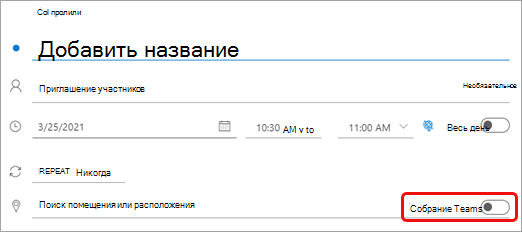
После отправки приглашения вы увидите сведения о присоединении к собранию в событии.
Удаление Teams из собрания
Вы можете удалить Teams из собрания во время создания собрания, но не после отправки приглашения.
Outlook на рабочем столе
В верхней части формы собрания выберите Параметры > Не размещать в сети.
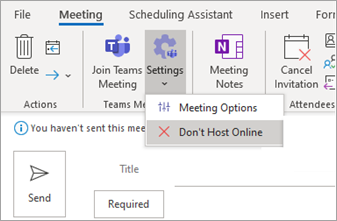
Outlook в Интернете
В форме нового события выберите переключатель Собрание Teams , чтобы отключить его.
Создание всех собраний Teams
Вы можете включить параметр «Календарь», чтобы все запланированные в Outlook собрания, включая Outlook в Интернете и мобильные устройства, проходили в Teams по сети.
Примечание: В зависимости от расписания обновления выпуска для вашей организации в настоящее время у вас может не быть доступа к этой функции.
Outlook на рабочем столе
В верхней части экрана Outlook выберите Файл > Параметры.
На странице Параметры Outlook выберите Календарь слева.
В разделе Параметры календаря выберите Добавить собрание по сети для всех собраний.
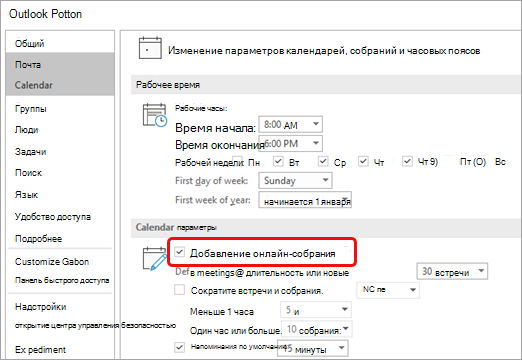
Outlook в Интернете
В правом верхнем углу экрана выберите Параметры  , а затем — Просмотреть все параметры Outlook в правом нижнем углу.
Выберите Календарь > События и приглашения > Добавить собрания по сети для всех собраний.
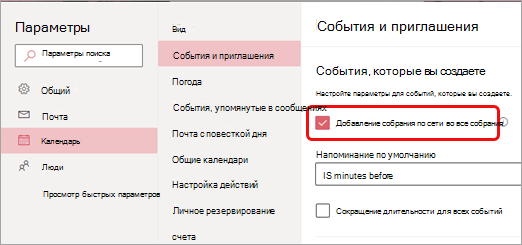
Нажмите кнопку Сохранить.
Устранение неполадок
В меню выбора людей в параметрах собрания не отображаются приглашения, добавленные в ряд собраний.
В этом сценарии вам потребуется пригласить людей на серию собраний, а не на вхождение собрания.
В веб-представлении параметров собрания отображаются не все приглашенные люди.
После добавления приглашений на собрание в Outlook необходимо нажать кнопку Отправить обновление, чтобы дополнительные приглашения отображались в веб-представлении параметров собрания.
В этой статье
Планирование собрания Teams
В Outlook коснитесь значка календаря в правом нижнем углу приложения, а затем выберите  .
.
Прокрутите вниз до Встречи Teamsи включите тумблер.
Добавьте приглашений в поля Обязательный или Необязательный — вы можете даже пригласить целые группы контактов (ранее известные как списки рассылки).
Добавьте сведения о собрании, а затем коснитесь проверка метки в правом верхнем углу приложения.
Удаление Teams из собрания
Вы можете удалить Teams из собрания во время создания собрания, но не после отправки приглашения.
В форме Новое событие коснитесь переключателя Собрание Teams , чтобы отключить его.
Создание всех собраний Teams
Вы можете включить параметр Календарь, чтобы все собрания, запланированные из Outlook, включая Outlook на рабочем столе и в Интернете, проходили в Режиме онлайн в Teams.
Примечание: В зависимости от расписания обновления выпуска для вашей организации в настоящее время у вас может не быть доступа к этой функции.
В Outlook коснитесь рисунка профиля (или значка Office) в левом верхнем углу, а затем выберите Параметры .
В разделе Почтовые учетные записи коснитесь Office 365.
В разделе Параметры учетной записи коснитесь пункта Собрания по сети, чтобы включить переключатель.
В этой статье
Планирование собрания Teams
В Outlook коснитесь значка календаря в правом нижнем углу приложения, а затем выберите .
Прокрутите вниз до Встречи Teamsи включите тумблер.
Добавьте приглашений в поля Обязательный или Необязательный — вы можете даже пригласить целые группы контактов (ранее известные как списки рассылки).
Добавьте сведения о собрании, а затем коснитесь проверка метки в правом верхнем углу приложения.
Удаление Teams из собрания
Вы можете удалить Teams из собрания во время создания собрания, но не после отправки приглашения.
В форме Новое событие коснитесь переключателя Собрания Teams , чтобы отключить его.
Создание всех собраний Teams
Вы можете включить параметр Календарь, чтобы все собрания, запланированные из Outlook, включая Outlook на рабочем столе и в Интернете, проходили в Режиме онлайн в Teams.
Примечание: В зависимости от расписания обновления выпуска для вашей организации в настоящее время у вас может не быть доступа к этой функции.
В Outlook коснитесь рисунка профиля (или значка Office) в левом верхнем углу, а затем выберите Параметры .
В разделе Почтовые учетные записи коснитесь учетной записи Office 365.
Прокрутите вниз и коснитесь пункта Онлайн-собрания, чтобы включить переключатель.
How to Set Up a Teams Meeting in Outlook

Set up a Meeting Invite with a Teams Meeting Link attached in 1 simple ste
Setting up Microsoft Teams online meetings is easier if you do it through Outlook.
It’s possible to integrate the MS Teams Meeting Add-In into different Outlook platforms, which allows your organization or company to create a new meeting on Teams from the Outlook Calendar view.
Oftentimes, integrations between Microsoft Office products, such as Teams and Outlook, work smoothly, so creating a Team Meeting via Outlook is effortless.
In this article, we’ll focus on showing you all the details you must know to learn how to set up a Teams Meeting in Outlook.
How Does Setting Up a Teams Meeting in Outlook Work?
After adding the Microsoft Teams Add-In to Outlook, you can schedule Teams meetings via Outlook Calendar, regardless of the platform you use.
This integration allows you to schedule a Teams meeting, join Microsoft Teams meeting, send an invite to each meeting participant, and host online a recurring meeting on Teams if you want, all without directly launching the MS Teams app.
Likewise, it is possible to remove Teams meetings from Outlook invite if you want. This way, your organization will have full control over the new Teams meeting invites sent via Outlook.
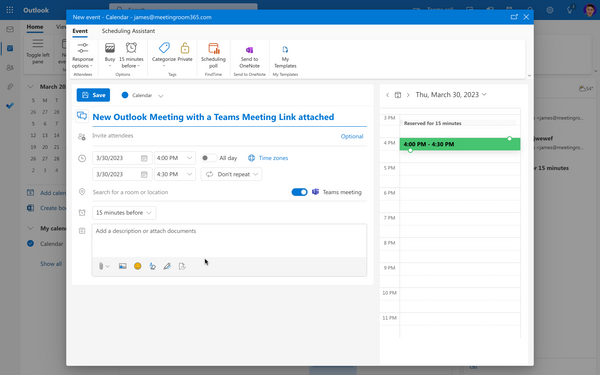 This is the toggle switch for adding a Teams meeting in Outlook Web Access or the New Outlook Desktop Client (Windows & macOS)
How to Set Up a Microsoft Teams Meeting in Outlook Web Client or New Outlook Desktop Client
To set up a Microsoft Teams meeting in Outlook’s web client, follow these steps:
- Go to Outlook’s website and log into your Microsoft Office account.
- Look for “Events,” and select “New Event Form.”
- Set up the Meeting Invitation details — type in the Meeting title, add participants to the meeting, set up the start time and end time, and more.
- Right next to the “Location” dropdown menu, you will see a toggle switch that says “Teams Meeting.”
- Toggle on the switch, and send the meeting invite — attendees will receive an email invitation to a Teams Meeting in no time.
How to Set Up a Teams Meeting in Outlook Desktop Client (Legacy Desktop Client)
To set up Teams Meetings via Outlook, we don’t need to open Microsoft Teams.
Instead, we’ll set up all the meeting details from the Outlook client, all thanks to the Outlook / Teams Add-In.
Note that the steps to set up Teams meeting invites will be different depending on the platform you use. These are the steps to set up Teams meetings via the Outlook Desktop client:
- Open Outlook and select the Calendar Icon.
- Look for the “New Teams Meeting” button and click on it.
- Fill in each feature on the screen, such as people who will attend the meeting, title, hour to begin and end the meeting, and more.
- Send the meeting invite, and the people invited to it will receive the Teams invitation to confirm their attendance.
How to Set Up Microsoft Teams Online Meeting in Outlook Mobile App (iOS and Android)
The steps to set up a Microsoft Teams meeting via Outlook iOS and Android mobile apps are the same. These are the steps you must follow:
- Open the Outlook Mobile App and tap the Calendar Icon, then select the plus icon.
- Toggle on the switch that says “Teams Meeting.”
- Set up the new Teams meeting details (attendees, title, hours, and more), and send the new meeting invite.
Why Can’t I Set Up Teams Meetings in Outlook?
Did you follow the aforementioned steps to schedule a Teams meeting in Outlook, but the process didn’t work?
In that case, Microsoft recommends a series of troubleshooting steps to get rid of problems related to scheduling a Team online meeting via Outlook.
1. Properly Add Microsoft Teams Add-In to Outlook
You must properly add Teams to Outlook by integrating the Add-In via the desktop app.
Normally, the Microsoft Teams Meeting Add-In will be automatically installed as soon as you download both platforms, but if this doesn’t happen, then follow these steps:
- Launch Outlook, look for the File Tab, open it, and go to Outlook Calendar Options.
- Scroll down until you find the option that says “Add-Ins.”
- Ensure that the Microsoft Teams Meeting Add-In is in the “Active Add-Ins” section instead of the “Disabled Add-Ins” list.
- Change the Add-In to the Active list if needed, restart Outlook, and then schedule a Teams meeting via Outlook now — it should work.
2. Update the Outlook Platform
It is important to note that the integration between Outlook and Microsoft Teams will only work if the Outlook platform is up to date.
Therefore, make sure to update Outlook to its latest version. This applies to both desktop and mobile clients of the Outlook platform.
After updating Outlook, see if you can send the Teams online meeting details now.
3. Use Microsoft Support and Recovery Assistant
If you are sure that everything is properly set up, but you still can’t set up Teams online meetings via Outlook, then use the Microsoft Support and Recovery Assistant to help you out.
The Microsoft Assistant will automatically troubleshoot and correct all the problems related to add-ins in Microsoft Office products, such as Teams and Outlook.
Download the Microsoft Support and Recovery Assistant on your computer, and run it. It will automatically perform the troubleshooting steps to get the feature to work as it should.
Wrapping Up: Setting Up a Teams Meeting in Microsoft Outlook
Using the natively integrated feature that connects Microsoft Teams to Outlook is a great way to create and set up online meetings promptly.
Let’s go over the general steps to follow if you want to schedule a Teams meeting in Outlook:
Microsoft Teams In Outlook
In Outlook, on the File tab, select Options. In the Outlook Options dialog box, select Add-ins. Confirm that Microsoft Teams Meeting Add-in for Microsoft Office is listed in the Active Application Add-ins list If the Teams Meeting Add-in is listed in the Disabled Application Add-ins list, under Manage, select COM Add-ins, and then select Go….
Fix Microsoft Teams Not Integrating With Outlook — Technipages.
In Outlook, hit the File menu item. Then select the Options menu and select Addins. In the bottom of the Addins dialog you’ll see a drop-down. Go ahead and select COM Addins and hit Go. Now check the Microsoft Teams Add in for Office entry and hit OK to close the COM Addins dialog. Return to your Outlook Calendar. Outlook add-ins developer preview for new manifest. At Build 2022, we announced the general availability of Teams JS SDK v2, which enables you to extend Teams apps across Microsoft 365 with personal tabs and search-based message extensions into Outlook using a single application and distribution model. These new capabilities complement the deep. Make sure to kill Teams from the systray or Task Manager to make sure it is really closed. Then open and sign into Teams. Once Teams is fully logged in, open Outlook. Supposedly this wilt install the plugin. You could also be running into an issue if Teams is 64-bit and Outlook is 32-bit.
How To fix Teams Add-in Not showing in Outlook? — Technoresult.
The hot desking experience on Microsoft Teams displays allows people to locate and reserve flexible workspaces in the office. Book a space from the device or in advance using Outlook or Teams and access your personal Teams calendar, chats, meetings, and more. Teams displays can be used as a standalone device or as a second screen when hot desking and upon signing out, all personal information. Navigate to File > Options. Select Add-ins from the menu. Locate Manage at the bottom and change it from COM Add-ins to Disabled Items. Enable Microsoft Teams Meeting Add-in for Microsoft Office.
How to Schedule a Teams Meeting When Button is Missing in Outlook.
To schedule a Teams meeting via Microsoft Outlook. Open Outlook from your desktop or go to Outlook on the Web. In the lower-left corner, click or tap the Calendar view icon. Calendar view appears. In the upper right. click or tap New Teams Meeting (Outlook) or New Event (Outlook on the Web). In Outlook, a meeting window appears. Set up the Microsoft Outlook trigger, and make magic happen automatically in Microsoft Teams. Zapier’s automation tools make it easy to connect Microsoft Outlook and Microsoft Teams. Come try it. It’.
Outlook Teams Add-in keeps unchecking itself.
Sending a Microsoft Teams meeting link. Now that you have ensured that Teams and Outlook are connected, follow these steps to schedule, create and send your Teams meeting invite. Open Microsoft Outlook (desktop or web). Go to your Calendar tab. Hit the New Teams Meeting button. A new Outlook meeting dialog will open up.
Quick Ways to Integrate Microsoft Teams and Outlook.
Hello Everyone, I can’t seem to get the Teams addin to show up in Outlook. I’ve tried to uninstall office and teams and reinstall them, but still no Teams Addin in outlook. I’ve also went into options then addins but as picture bellow shows no microsoft teams addin. Help please. -Interg. Further from your post, we had observed that Web-version syncing some appointment, do you mean that appointment created from Teams app and some of them are visible in Outlook Web app, if possible , request you to kindly provide us some screenshot for Teams and Outlook Web app, so we can compare the actual scenario. Microsoft is updating its Teams app with a lot of new features to take on Slack. Microsoft Teams will get much-needed Outlook integration, alongside a new files and tasks experience and Yammer.
Teams add-in is missing Outlook for Mac.
Hi All, I am relatively new to using Microsoft Flow. I am attempting to connect Outlook and Microsoft Teams, more specifically, I am looking to automate the creation of a task in microsoft planner within teams whenever I flag an email in outlook and it goes into my tasks.. Launch Outlook, go to File, and click Options. Select the Add-ins tab and make sure the Microsoft Teams Meeting Add-in for Office is visible in the list of Active Application Add-ins. If the Teams add-in is disabled, go to Manage add-ins, select COM Add-ins. Tick the checkbox next to Microsoft Teams Meeting Add-in.
Troubleshoot the Teams Meeting add-in in Outlook for Windows.
Send an email from Outlook To share a copy of an email (including attachments) to a chat or channel in Teams: While viewing an email in the Outlook desktop app, select Share to Teams located in the toolbar ribbon. In Outlook on the web (and the new Outlook for Mac), select More actions and choose Share to Teams.
Microsoft Teams — Outlook Calendar — Not Syncing.
Option 1: ‘Share email to Teams’ in Outlook. The quickest and easiest way to share your email with Teams is in Outlook. If you open an email in Outlook, you can open the ⋯ More options menu and click Share to Teams. From here, choose the channel or person you want to send the email to, decide whether you want to include attachments, and press. Team calendars can be added directly into Outlook for fast access. Follow the steps below for instructions on how to add an existing Team calendar to Outlook. Open the Microsoft Teams desktop app, select the Team that the calendar is located under, and click on the Calendar tab. Open the Teams calendar in a browser by clicking on the internet.
How to add Microsoft Teams to Outlook on Windows 11/10.
The Loops. Microsoft recently rolled out what is likely the best graphical representation (that I’ve seen) of how to use their communication-based apps. The inner loop, outer loop, and open loop are important to keep in mind when talking Teams versus Outlook. Teams is really made for your inner loop.
Hiding Teams (Office 365 Groups) from Outlook — buckleyPLANET.
Apr 23rd, 2020 at 3:08 AM. On Windows 10- Go to Settings > Apps > Default Apps. Click “Choose Default Apps by Protocol” at the right pane bottom. On the next screen, Select ‘IM’ on the Left and Click the + on the right and then select ‘Teams’. Restart both Teams and Outlook.
Outlook Teams add-in disabled; why can’t I enable it? — Microsoft Community.
“What’s new in Microsoft Teams — July Roundup” Based on customer feedback, new Office 365 Groups generated as a result of creating a team in Microsoft Teams will no longer show in Outlook by default. Since these groups are predominantly used in Teams, this change will reduce clutter by removing the entries from the Global Address Book. Launch Outlook and check if the Teams add-in is working. Enable the Teams add-in in Outlook. Open Outlook and click on ‘File’. Then select ‘Options’. From the Left hand side panel, click on ‘Add-ins’. Select ‘Go’. Select the box for ‘Microsoft Teams Meeting Add-in for Microsoft Office ‘. Click on ‘OK’. Updated. Within Outlook, go to File > Options: You will see an Account Information screen. Go to the bottom and hit Options. Once in Options, go down to Calendar and uncheck “Add online meeting to all meetings” and click OK. That will remove the setting to automatically add Teams Meetings to your calendar invites.
Outlook keeps disabling the Teams Plug-in — Microsoft Q&A.
To check the add-in, please go to Outlook File > Options > Add-ins and check whether Microsoft Teams Meeting Add-in for Microsoft Office is included in the Active, Inactive and Disabled add-ins lists. If it is in Inactive or Disabled add-ins lists, you can go to COM Add-ins or Disabled items at the bottom to enable it.
Two easy ways to share an email from Outlook to Teams.
Screenshot from Microsoft. 2. Share to Teams. This feature is the counterpart function from the first one. You can share content from Outlook to Microsoft Teams in just one click. You can search or add your recipient and type in your message. You can even include attachments if there are any. 3. Teams Meeting Options in Outlook. On the Outlook Options page, select Calendar on the left. Under Calendar options, select Add online meeting to all meetings. Outlook on the web At the top right of the screen, select Settings and then View all Outlook settings at the bottom right. Select Calendar > Events and invitations > Add online meetings to all meetings. Select Save. Hi @Marion2415 If you have a business account then Teams should connect to your Outlook calendar and you can use the Outlook add-in — see article here how to enable it in the Teams Admin Centre and steps to help if you do not see it.