Как сделать временную шкалу в PowerPoint [Самый простой способ]
Создание временной шкалы в PowerPoint поможет вам отформатировать и стилизовать иллюстрацию, а также сделает ваш проект понятным и значимым для вашей аудитории. Инструмент SmartArt презентации PowerPoint позволяет создавать временную шкалу, перечисляя краткие детали временной шкалы и применяя визуальный интерес.
Презентация PowerPoint широко используется в деловых и академических целях. Вы можете создавать презентации PowerPoint с изображениями, музыкой, веб-контентом, текстом и т. Д., А знаете ли вы, как создать временную шкалу в PowerPoint? Как вы уже знаете, шкала времени в презентации PowerPoint играет действительно важную роль. Как сделать график в PowerPoint? Вы можете следовать простому руководству, чтобы создать временную шкалу в PowerPoint.
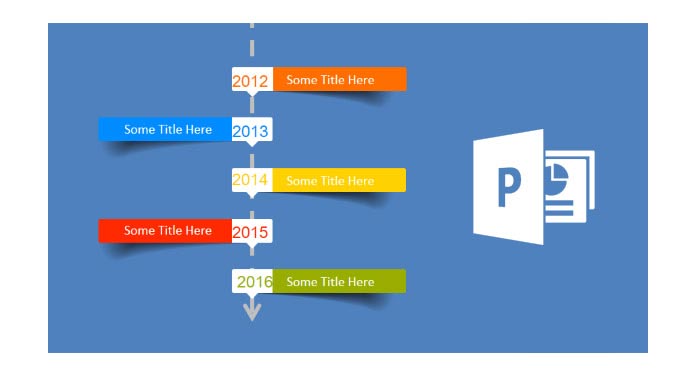
Самые легкие шаги, чтобы сделать график в PowerPoint, который вы должны попробовать
Здесь мы делаем временную шкалу в PowerPoint 2007 год. Если вы хотите создать временную шкалу в PowerPoint 2013/2010/2016, вы все равно можете использовать ее в качестве ориентира.
Создайте или откройте существующий файл PowerPoint и создайте пустой слайд
1 Откройте программу PowerPoint и откройте новая презентация. Щелкните вкладку «Вставка» на ленте, а затем щелкните «SmartArt», чтобы открыть графическое окно SmartArt.
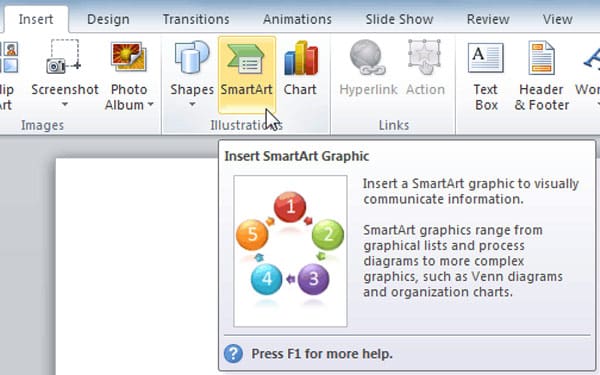
Вставьте временную шкалу из меню Smart Art
2 Нажмите «Обработка» в левом столбце, а затем выберите и дважды щелкните макет временной шкалы, чтобы скопировать этот шаблон на слайд. На ленте SmartArt Tools отобразятся вкладки «Дизайн» и «Формат». Вы можете выбрать из двух графиков SmartArt на временной шкале: «Базовая временная шкала» и «Circle Accent Timeline».
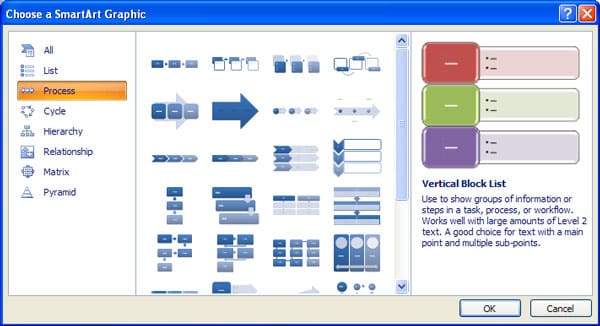
Отредактируйте события по умолчанию на временной шкале и добавьте новые события по мере необходимости
3 Нажмите «[Текст]», чтобы ввести свои данные или вставить текст в графике SmartArt.
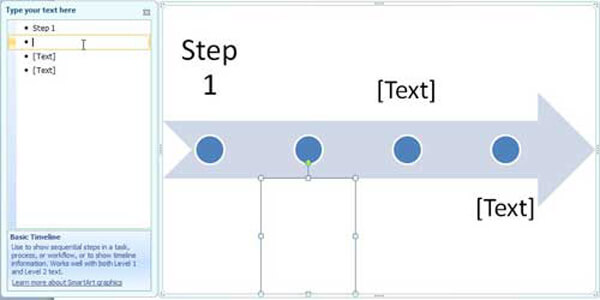
4 Нажмите «Файл»> «Сохранить»> «Сохранить как», чтобы сохранить временную шкалу в презентации PowerPoint.
Для более подробной информации, вы можете проверить «Создать график в PowerPoint»на сайте Office.
В этой статье мы в основном говорим о том, как сделать временную шкалу в PowerPoint. Если вы просто ищете способ создания временной шкалы в PowerPoint, вы можете следовать руководству, чтобы удовлетворить ваши потребности.
- Сделать PowerPoint для видео / DVD
- Два режима конвертирования из PPT в конвертирование видео — автоматический режим и расширенный режим
- Конвертировать в различные форматы, такие как WMV, MP4, AVI, FLV, MOV
- Разнообразные полезные настройки для записи DVD

Что вы думаете об этом посте.
Рейтинг: 4.8 / 5 (на основе рейтингов 285)

23 мая 2018 г. 15:00 / Обновлено Дженни Райан в PowerPoint
В этой статье показано, как создать PPT с помощью PowerPoint Maker и простой способ конвертировать PowerPoint в видео MP4 / AVI.
Как добавить аудио как музыку в PowerPoint 2016/2013/2010/2007? Вы можете прочитать этот подробный учебник, чтобы найти способ.
Хотите создать интерактивную викторину с помощью PowerPoint? В этом пошаговом руководстве показано, как создать тест в PowerPoint.
How to Create a Timeline Using PowerPoint

Welcome to our comprehensive guide on how to create a timeline using PowerPoint. Timelines are powerful visual tools that help convey information in a chronological and organized manner.
They are appealing because people find them easier to understand than complex text. Take advantage of this! Show them complex processes as a series of simpler steps on a timeline, using images and PowerPoint. Make the complex simple! This is exactly what your audience wants.
In this guide, we will walk you through the step-by-step process of creating a timeline in PowerPoint, from preparing the data to customizing the design. Get ready to captivate your audience with an engaging and informative timeline presentation!
FAQs about Using a Timeline in Presentation
What is a Timeline?
A timeline is a way of visually representing events or tasks that occur in chronological order. It is often used to organize and visualize information that includes dates, time intervals, markers, or images.
Why Use a Timeline in a Presentation?
Timeline is a versatile presentation tool that helps the audience better understand the chronology and importance of events. It can serve as a visual aid for highlighting events both in the past, such as a company’s history, and in the future, such as stages of a prospective project.
What are the Best Timelines to Use in a Presentation Slide?
There are several types of timeline layouts — horizontal or vertical — that can be used in a presentation slide. The choice depends on the theme and objectives of the specific slide. Gantt chart is also a timeline that is used to display the duration of project stages. Any of them can be the best. Most likely, you will be able to choose the best layout for the slide after structuring the information for it and determining the number of milestones.
What Do I Need to Know to Create a Timeline Using Powerpoint?
To create a timeline in Powerpoint, you will need to know how to create shapes, insert images, and use colors to display data. While Powerpoint provides a set of functions for creating timelines, knowing the basic principles of design and composition will help make your timeline more readable and understandable. Additionally, it is useful to know how to evenly arrange timeline elements on the slide. To do this, you will need skills in aligning horizontally and vertically, resizing, and positioning elements using Powerpoint.
How to Start Creating a Timeline?
Start by structuring the information based on which you will create the timeline.
- Understand the Purpose of Your Timeline
To create an effective timeline in PowerPoint, it’s important to first understand the purpose behind it. Consider why you need a timeline and what information you want to convey to your audience. Are you showcasing a project’s milestones, historical events, or a chronological sequence? Clearly defining the purpose will guide you in structuring and designing your timeline effectively. - Determine the Timeline’s Start and End Points
Identify the specific start and end points of your timeline. This could be a range of dates, a series of events, or any other relevant time frame. Knowing the start and end points will help you establish the timeline’s length and scale. It’s crucial to accurately represent the time span to provide a clear visual representation for your audience. - Choose a Suitable Horizontal Timeline Layout
PowerPoint offers various built-in timeline templates and layouts to choose from. Select a timeline layout that aligns with your content and complements the overall design of your presentation. Consider factors such as the number of events, space availability, and the level of detail you wish to include. Experiment with different layouts to find the one that best fits your needs. - Remove everything unnecessary
Shorten the descriptions to the necessary minimum. The words you leave on the slide should imprint in the minds and memories of your audience! All other words you will say yourself. - Find or create graphic images that will accompany your presentation.
Now that all the introductory words have been said, let’s start to create a timeline using Powerpoint.
Prepare the Data to Create a Timeline in Powerpoint
Firstly, since we have determined that a timeline is a chronological sequence of events, the milestones on your slide should contain brief textual information about these events:
- a title or event name,
- a timestamp or time of occurrence,
- and perhaps a brief description of the event. If a description is needed, it should contain only a few of the most important words. All other words should be spoken by the presenter, that is, you.
In addition to textual information, you will need images or icons for your milestones to make them clear and memorable. If you don’t already have these, you can find them on PoweredTemplate, Microsoft Store, or Pixabay.
Secondly, you need to determine the number of events that will make up your timeline. The best way to do this is to make a list of them.
In one of our previous posts, we wrote about How to Create a Comprehensive Project Plan. We will take a list of stages from it, which make up the creation of a project plan. It will serve as the basis for creating a timeline using Powerpoint tools. So, here is a table view of a list of six headings, arbitrary dates, and a brief description of the milestones:
- Outline the Business Case
February 6
Why the project is needed - Meet with Key Stakeholders
February 7
Discuss the project’s goals - Define Project Scope
February 8
Describe the work - Assemble a Project Team
February 9
Find skilled professionals - Determine a Project Budget
February 10
Be sure to include the costs - Set Project Goals & Objectives
February 13
Ensure that the goals are clear
These are your data. Let’s open Powerpoint and place them on a slide.
Most likely, this is not what you were expecting to see. This happened because we haven’t selected a layout for your slide yet.
Select a Timeline Layout for your PowerPoint Slide
When it comes to creating timelines in PowerPoint, you have the opportunity to unleash your creativity and choose from different design options. In this section, we’ll explore the characteristics and applications of three timeline design layouts: horizontal, vertical, and free-flowing.
Horizontal Timeline Design.
The horizontal timeline design offers a straightforward and intuitive representation of events or milestones. It presents information along a horizontal axis, allowing the audience to follow the progression from left to right. This layout is ideal for illustrating a sequence of events in chronological order. Whether you’re showcasing historical timelines, project timelines, or the evolution of a concept, the horizontal design provides a clear and organized visual representation.
Vertical Timeline Design.
If you prefer a design that emphasizes a vertical progression, the vertical timeline layout is a great choice. With this design, events or milestones are presented from top to bottom. This vertical arrangement is particularly effective when you want to highlight a hierarchical structure or show the growth and development of a project or idea over time. The vertical timeline design enables a clear representation of the timeline’s structure and allows the audience to easily grasp the passage of time.
Free Flowing Timeline Design.
For those looking to add a touch of creativity and flexibility to their timelines, the free-flowing timeline design is an exciting option. This design breaks away from the linear constraints of horizontal and vertical layouts and allows for a more dynamic and visually captivating representation. You can arrange events or milestones in any direction, connect them with shapes and connectors, and create a visually engaging narrative. The free-flowing design is perfect for showcasing interconnected events, multiple storylines, or highlighting relationships between different elements.
When deciding on a timeline design, consider the nature of your content, the story you want to tell, and the overall visual impact you wish to achieve. Each design offers its own strengths and applications, so choose the one that best aligns with your presentation objectives.
When working with a screen that has a 16:9 aspect ratio,
- horizontal timelines with 6–8 events can fit perfectly within the available space.
But this layout provides limited space for accompanying text.
In a horizontal timeline, the text can be positioned either above or below the timeline axis. - vertical timelines with 3–4 events are well-suited and can be placed perfectly within the available space. The vertical orientation allows for a clear and concise representation of the timeline’s events, and the space to the right of the axis provides an excellent opportunity to include additional details and information.
- the free-flowing layout offers a visually engaging effect by snaking around the page, making it an excellent choice for timelines with a high number of events. This layout allows for the inclusion of more events compared to a horizontal layout, providing a comprehensive overview of the timeline’s progression. However, it’s important to note that executing a free-flowing layout can be more challenging compared to other timeline layouts.
Now that we have explored the characteristics of horizontal, vertical, and free-flowing timeline designs, let’s move on to the next section. There, using a horizontal layout, we will depict the timeline we started talking about above.
Let’s Move on to Building a Timeline
There are two ways to create a timeline using PowerPoint: the easy way and the slightly more complex way. The first, which is simpler, involves using the standard PowerPoint SmartArt. But since we’re not looking for easy standard solutions, let’s go with the second method. We will create the timeline ourselves from scratch.
So, we will draw a horizontal timeline. Let’s start with an axis that will show the direction of time:
In the Insert tab, navigate to Shapes, then insert a new Line Arrow.
Hold Shift to lock the line horizontally and drag your arrow across the slide from right to left.
Go to the Format Shape window (Right Click > Format Shape) and customize the arrow: change the color, line weight, or whatever you want.
Now is the time to start adding events. We have prepared the data in advance and now we need a calculator and a little patience to evenly place events on the timeline.
First, measure the timeline. Select a row and click the Format Shape tab. The Size&Properties section will list the width — our line is 30 cm wide. This means that each event can take up 5 cm in the timeline, along with a small gap to the right.
Launch the PowerPoint software on your computer and create a new presentation or open an existing one. Then click on the “New Slide” button in the PowerPoint toolbar to add a new slide to your presentation.
Now we can choose the shape of milestones and place them on the timeline. Let’s go with a rectangle, although it’s no better than any other shape. Then, go back to the “Format Shape” tab again to input the width of the rectangle, let it be 4.5 cm. The remaining 0.5 cm will serve as the gap between neighboring rectangles.
To continue follow the next steps:
- Drag this shape over your slide so the left edge butts up against the start of your timeline
- Copy & Paste the rectangle so you have a total of six.
- Place one of these so the right edge butts up against the end of the timeline.
- Select all six and click Align Objects Middle, then Distribute Horizontally.
All 6 event containers should now be perfectly aligned and distributed on your slide.
Type the titles you prepared into each box, then change the shape fill to No Fill in the Format Shape tab. In the Size & Properties section, you can also tick Resize Shape to Fit Text, trimming down the boxes to size.
Next, select all your boxes, hold Ctrl+Shift, and drag them vertically down to duplicate all 6. Repeat this, but now drag the boxes vertically up. Write descriptions of your milestones in the lower ones, and place time markers in the upper ones. Don’t forget to reduce the font size a bit so the titles pop. As a result, you should get something like this.
Good plan, but something is missing, right? Plan events don’t look tied to the timeline, that’s the point! Let’s fix this and add some visual anchors to the timeline to make the slide look more attractive. Six small circles will be just right — one circle per timeline event!
- Insert a new Circle (Insert > Shapes > Circle) and drag to resize (holding Shift while dragging to draw a perfectly round circle).
- Select the circle, and holding Ctrl, drag the shape anywhere on the slide to make a six duplicate.
- Repeat until you have one circle per timeline event.
- Align one circle on the timeline above your first event and another at the end.
- Select all of the circles and use the Distribute Horizontallytool, followed by Align Objects Middle.
- Go back into the Format Shape tab.
- Match the Fill Colour to the slide background and add an outline that matches the timeline to look the anchors and the timeline seamless.
Well, there you go, that’s much better!
Next is really simple! We just repeated the sequence we discussed here twice: insert shape, align horizontally, and center. First, we did it with the teardrop shape, and then with the icons. As a result, we got this:
Conclusion
In conclusion, creating a timeline using PowerPoint can be a powerful way to visually represent chronological information and engage your audience. By following the steps outlined in this guide, you can effectively build a timeline that showcases events, milestones, or historical sequences in a clear and organized manner.
Remember, PowerPoint offers a range of tools and features to help you create visually captivating timelines. Experiment with different layouts, colors, fonts, and shapes to achieve the desired effect to suit your presentation needs and audience preferences.
So go ahead, start to create your timeline using PowerPoint, and unlock the potential to captivate and inform your audience with a visually stunning and engaging presentation.
Создание временная шкала в PowerPoint
ИспользуйтеГрафический элемент SmartArt, чтобы создать временная шкала с целевыми датами назначения или проекта.
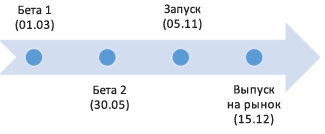
Создание временной шкалы
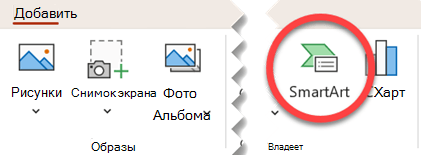
На вкладке Вставка нажмите кнопку SmartArt.
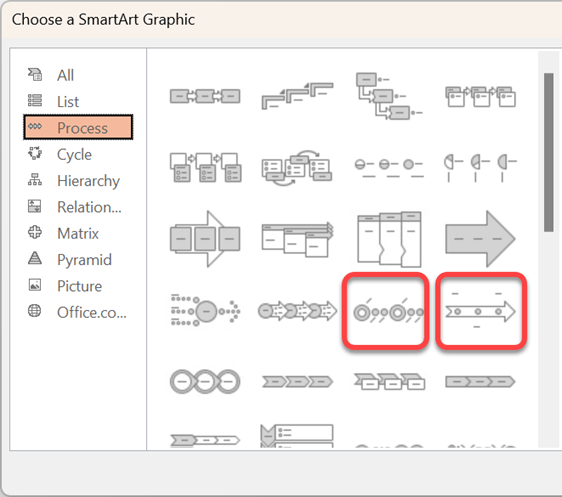
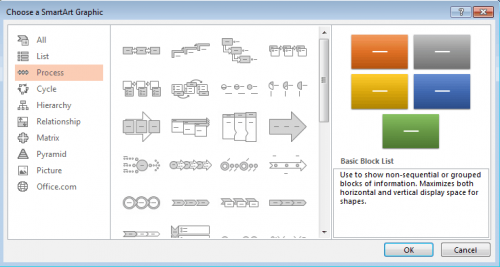
В коллекции Выбор графического элемента SmartArt выберите элемент Процесс, а затем дважды щелкните макет временной шкалы.
Совет: Существует два вида графических элементов SmartArt для временных шкал: простая временная шкала и круглая временная шкала, но вы также можете использовать любой графический элемент SmartArt, связанный с процессом.
Щелкните [Текст] и введите или вставьте текст в графический элемент SmartArt.
Примечание: Вы можете также открыть область текста и ввести текст там. Если вы не видите область текста, нажмите кнопку Область текста на вкладке Работа с рисунками SmartArtКонструктор.
Добавление дат на временную шкалу
Щелкните фигуру на временной шкале.
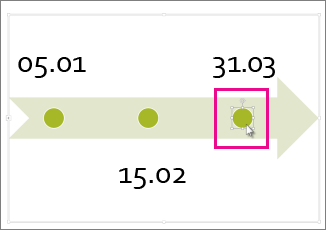
На вкладке Конструктор SmartArt выполните одно из следующих действий.
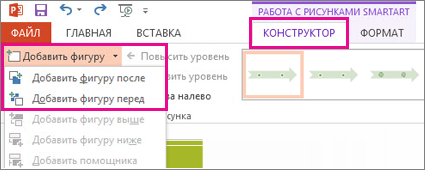
Для добавления более ранней даты нажмите кнопку Добавить фигуру и выберите Добавить фигуру перед.
Для добавления более поздней даты нажмите кнопку Добавить фигуру и выберите Добавить фигуру после.
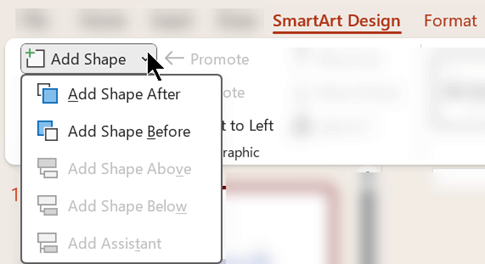
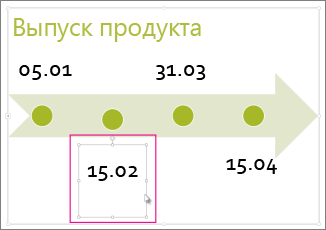
Введите нужное значение в новое поле даты.
Смещение даты на временной шкале
На временной шкале щелкните дату, которую вы хотите переместить.
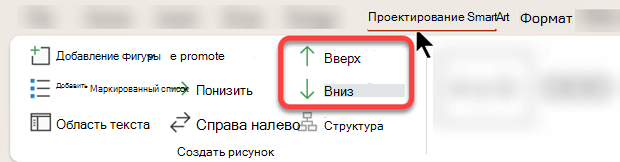
На вкладке Конструктор SmartArt выполните одно из следующих действий.
Чтобы переместить дату вперед, нажмите кнопку Вверх.
Чтобы переместить дату назад, нажмите кнопку Вниз.
Переход к другому макету временной шкалы
Щелкните графический элемент SmartArt для временной шкалы.
На вкладке Конструктор SmartArt в группе Макеты щелкните Дополнительно  .
.
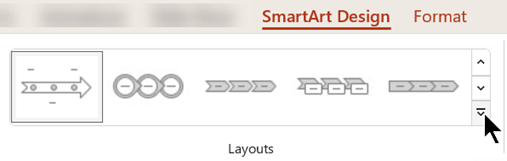
Примечание: Для просмотра макетов, связанных только с временной шкалой и процессом, в конце списка макетов нажмите Другие макеты, а затем — Процесс.
Выберите графический элемент SmartArt, подходящий для отображения временной шкалы или процесса, например один из показанных ниже.
Чтобы отобразить прогресс в временная шкала, выберите Процесс акцента.
Для создания временной шкалы с рисунками или фотографиями выберите Непрерывный список с рисунками. Фигуры в форме кругов предназначены для размещения изображений.
Изменение цветов временной шкалы
Щелкните графический элемент SmartArt для временной шкалы.
На вкладке Конструктор SmartArt выберите Изменить цвета.
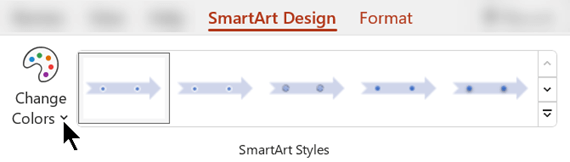
Примечание: Если вы не видите вкладку Работа с рисунками SmartArt Конструктор, убедитесь, что выбрали временную шкалу.
Выберите нужную комбинацию цветов.
Совет: Чтобы просмотреть, как будут выглядеть цвета на временной шкале, наведите указатель на нужную комбинацию.
Применение стиля SmartArt
Стиль SmartArt позволяет применять сочетание таких эффектов, как тип линии, багетная рамка и трехмерный вид, одним щелчком мыши для придания временной шкале профессионального и элегантного вида.
Щелкните временную шкалу.
На вкладке Конструктор SmartArt выберите нужный стиль.
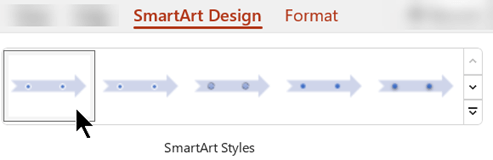
Совет: Для получения дополнительных стилей щелкните Дополнительно в правом нижнем углу поля Стили .
См. также
Создание временной шкалы
На вкладке Вставка нажмите кнопку SmartArt.
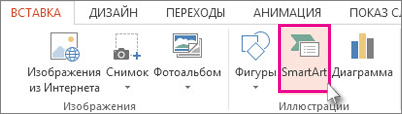
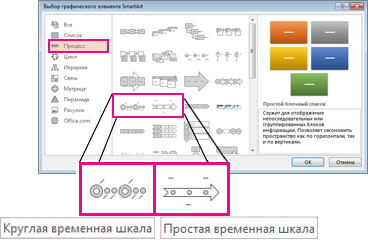
В коллекции Выбор графического элемента SmartArt выберите элемент Процесс, а затем дважды щелкните макет временной шкалы.
Совет: Существует два вида графических элементов SmartArt для временных шкал: простая временная шкала и круглая временная шкала, но вы также можете использовать любой графический элемент SmartArt, связанный с процессом.
Щелкните [Текст] и введите или вставьте текст в графический элемент SmartArt.
Примечание: Вы можете также открыть область текста и ввести текст там. Если вы не видите область текста, нажмите кнопку Область текста на вкладке Работа с рисунками SmartArtКонструктор.
Добавление дат на временную шкалу
Щелкните фигуру на временной шкале.
На вкладке Работа с рисунками SmartArt Конструктор выполните одно из следующих действий:
Для добавления более ранней даты нажмите кнопку Добавить фигуру и выберите Добавить фигуру перед.
Для добавления более поздней даты нажмите кнопку Добавить фигуру и выберите Добавить фигуру после.
Введите нужное значение в новое поле даты.
Смещение даты на временной шкале
На временной шкале щелкните дату, которую вы хотите переместить.
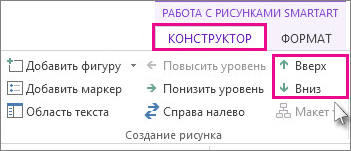
На вкладке Работа с рисунками SmartArt Конструктор выполните одно из следующих действий:
Чтобы переместить дату вперед, нажмите кнопку Вверх.
Чтобы переместить дату назад, нажмите кнопку Вниз.
Переход к другому макету временной шкалы
Щелкните графический элемент SmartArt для временной шкалы.
На вкладке Конструкторсредств SmartArt в группе Макеты щелкните Дополнительно .
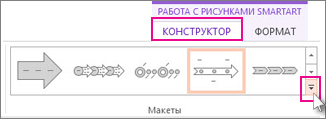
Примечание: Для просмотра макетов, связанных только с временной шкалой и процессом, в конце списка макетов нажмите Другие макеты, а затем — Процесс.
Выберите графический элемент SmartArt, подходящий для отображения временной шкалы или процесса, например один из показанных ниже.
Для отображения хода выполнения на временной шкале выберите Процесс со смещением.
Для создания временной шкалы с рисунками или фотографиями выберите Непрерывный список с рисунками. Фигуры в форме кругов предназначены для размещения изображений.
Изменение цветов временной шкалы
Щелкните графический элемент SmartArt для временной шкалы.
На вкладке Работа с рисунками SmartArtКонструктор нажмите кнопку Изменить цвета.
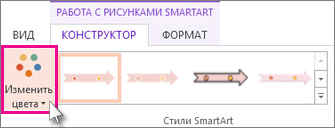
Примечание: Если вы не видите вкладку Работа с рисунками SmartArt Конструктор, убедитесь, что выбрали временную шкалу.
Выберите нужную комбинацию цветов.
Совет: Чтобы просмотреть, как будут выглядеть цвета на временной шкале, наведите указатель на нужную комбинацию.
Применение стиля SmartArt
Стиль SmartArt позволяет применять сочетание таких эффектов, как тип линии, багетная рамка и трехмерный вид, одним щелчком мыши для придания временной шкале профессионального и элегантного вида.
Щелкните временную шкалу.
На вкладке Работа с рисунками SmartArtКонструктор выберите нужный стиль.
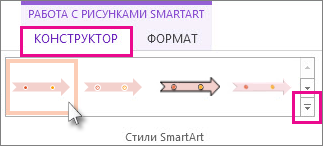
Совет: Для получения дополнительных стилей щелкните Дополнительно в правом нижнем углу поля Стили .
См. также
Создание временной шкалы
На вкладке Вставка нажмите кнопку Смарт-арт.

Выберите макет временная шкала из появиющейся коллекции, например базовую временную шкалу в разделе Список.
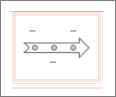
На слайде рядом с рисунком открывается текстовый редактор, который позволяет легко добавлять слова в рисунок.
В текстовом редакторе введите даты и описания, а затем нажмите клавишу ВВОД.
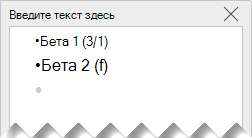
При необходимости можно создать вложенный элемент в маркированном списке, щелкнув маркер с текстом, который вы хотите использовать для вложенного элемента, и на вкладке Интеллектуальное искусство нажмите кнопку Понижение.

Изменение цвета или стиля временная шкала
Вы можете изменить цвет или стиль временная шкала рисунка. Вы также можете полностью выбрать другой графический макет.
Выберите временная шкала.
Перейдите на вкладку SmartArt на ленте, а затем выберите Изменить цвета или Стили, чтобы просмотреть меню доступных параметров для временная шкала рисунка. Выберите стиль или цвет, который нужно выбрать.

Вы также можете попробовать изменить макет, открыв коллекцию макетов слева от параметра Изменить цвета. Некоторые параметры в разделах Список и Процесс коллекции подходят для временных шкал.
Изменение размера временная шкала
Вы можете изменить размер рисунка, чтобы он лучше соответствовал слайду.
Выберите временная шкала.
Наведите указатель мыши на один из угловых маркеров изменения размера, пока не увидите двуглавую стрелку, а затем щелкните и перетащите ее, чтобы изменить размер временная шкала.
How to Make a Timeline in PowerPoint
A timeline is an essential part of your toolkit to stay on track and quickly convey important information. It lets you visualize dates and tasks as they relate to time, creating an easy-to-digest roadmap for a project or event.
This article will walk you through the steps to creating a timeline in PowerPoint from scratch. We’ve also sorted through all the PowerPoint timeline templates and found the easiest one to use, and will show you how to customize it to meet your needs.
And finally, you’ll see how to create a timeline in PowerPoint using Smartsheet and Office Timeline, speeding up this process and giving you powerful, built-in collaboration and communication features.
How would you like to create your timeline?
Time to complete: 3 minutes
Time to complete: 30 minutes
Download Our Free PowerPoint Timeline Template
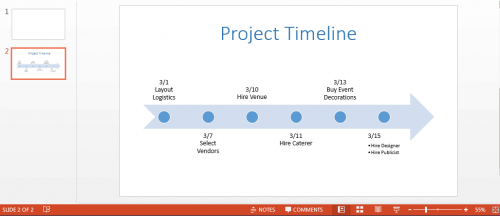
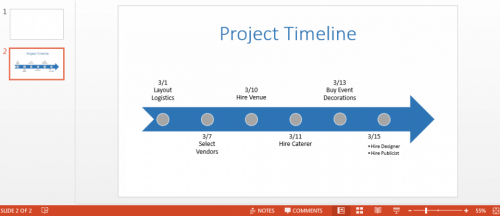
To add your own information, simply double-click on the text in the slide and enter your own dates and tasks. If you want to change the timeline graphic, double-click on the arrow and in the Layouts group, scroll through the other types of timelines.
To change the colors of the timeline template, read the “How to Customize Your Timeline in PowerPoint” section below.
How to Make a Timeline in PowerPoint
With SmartArt Graphics, you can quickly insert a timeline image into your PowerPoint slide and add your own information. You can either include the timeline as part of your PowerPoint presentation or export it as a .PDF to include elsewhere.
Before you start, make sure you have a list of all the dates and information you want to add to the timeline.
Note: We are using Windows running PowerPoint 2013 in this example.
Inserting a Timeline in PowerPoint
- Open PowerPoint and create a new presentation. You can open a blank presentation and customize the colors yourself or choose an online template. For this example, we’ll use a blank presentation.
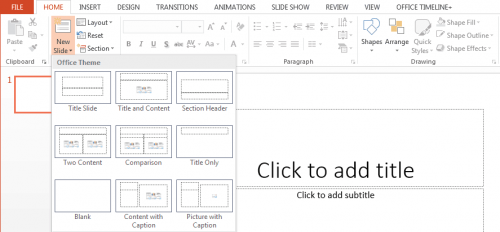
- If you choose a blank presentation, you will only see a title slide when you open the file. If you choose a template, there will be a number of slides in the presentation. Either way, click New Slide in the Home group and add a Title and Content slide.

Adding Your Project Information to the PowerPoint Timeline
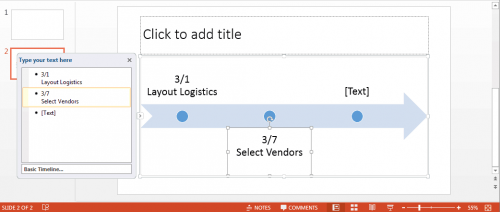
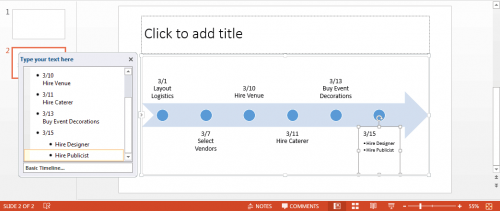
- Add your dates and project information to the timeline. You can either double-click on the [Text] blurbs in the slide or type in the floating text box.
How to Customize Your Timeline in PowerPoint
Now that you have created the framework for your timeline, you can change the colors, adjust font size, and even add your company logo.
-
Double-click the title field to add a title to your timeline. In the Font group, you can adjust the font size or color, and in the Paragraph group, you can change the alignment of the text.

Use a Smartsheet Template to Create a Robust Timeline
Smartsheet is a spreadsheet-inspired work management tool with powerful collaboration and communication features. You can easily collect and organize all your project information in Smartsheet and collaborate with team members, then integrate with Office Timeline to easily create a visual timeline.
Here’s how to use Smartsheet and Office Timeline to create a timeline in PowerPoint:
Pick a Timeline Template in Smartsheet
- First, log in to your Smartsheet account or start a free, 30-day trial.
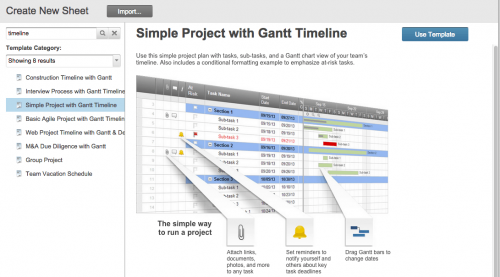
Add Your Own Timeline Information
A pre-built template will open, with all the sections, sub-tasks, date fields, and Assigned To fields filled out with sample content.
If you need to delete or add a row, right-click on the cell and select Delete Row or Insert New Row.
- To delete the yellow box at the top, click on the row, right-click, and select Delete Row.
- Under the Task Name column, double-click on cells to add your own timeline information. Use the cells titled Section 1, Section 2, and Section 3 to establish hierarchy (read this post to learn more about hierarchy).
Integrate with Office Timeline to Create a Beautiful Project Timeline
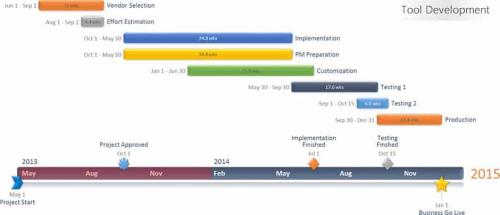
With the Smartsheet and Office Timeline integration, you can visually highlight the most important parts of your project in a beautiful timeline. You can use filters to remove unnecessary data, customize the timeline with colors and shapes, and easily share the timeline with others as an image, .PDF, or PowerPoint slide.
Note: Office Timeline requires Windows and PowerPoint. Mac users will need to run Windows and Office using a virtual machine like Parallels Desktop, VMware, Fusion, or VirtualBox.
-
(it’s free to download a 15-day trial). After the trial period, you will need to purchase a license in order to use the Office Timeline and Smartsheet integration.
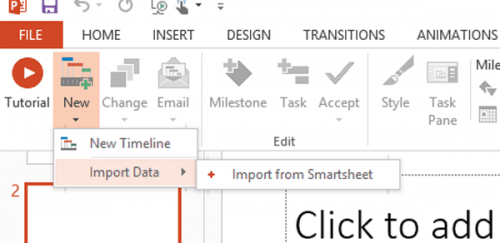
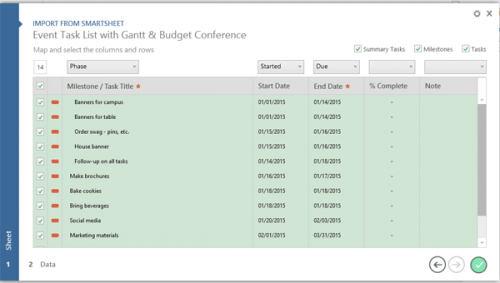
Open PowerPoint and create a new slide. Select the Office Timeline tab and click New > Import Data > Import from Smartsheet.
Improve Visibility with Real-Time Work Management in Smartsheet
From simple task management and project planning to complex resource and portfolio management, Smartsheet helps you improve collaboration and increase work velocity — empowering you to get more done.
The Smartsheet platform makes it easy to plan, capture, manage, and report on work from anywhere, helping your team be more effective and get more done. Report on key metrics and get real-time visibility into work as it happens with roll-up reports, dashboards, and automated workflows built to keep your team connected and informed.
When teams have clarity into the work getting done, there’s no telling how much more they can accomplish in the same amount of time. Try Smartsheet for free, today.