How to Cut an Audio Message in WhatsApp
When you have a lot to say and don’t want to spend an eternity typing, you send a voice message. Or, maybe you’re out and about and can’t stop to create a text message. But, what if you receive a voice message you want someone to hear, but you don’t want them to hear the end of it?
The good news is that you can cut the audio, so the receiver only hears that part you want them to hear. To do this, you’ll need the help of a third-party app since WhatsApp doesn’t allow its user to do this. The app you’ll need is free, so if it’s not what you’re looking for, you don’t have to deal with the refund process.
How to Edit Any WhatsApp Audio Message
To edit audio in WhatsApp, you’re going to need an app called Audio Cutter and Ringtone Maker. Once you have the app installed, it’s time to look through your WhatsApp audio and choose one to edit. When you open the app, choose the Select audio files option. It’s the first one on the list.

After that, you should see a list of all your audios, including your WhatsApp audios. Before you go ahead and cut it, you’ll find various options of what you can do with the audio if you tap on the dropdown menu. For example, you can:
- Edit
- Share
- Delete
- Set as default ringtone
- Assign ringtone to contact
- Assign ringtone to all contacts
- Set as default notification
- Only set as ringtone
- Set as notification
- Only set as alarm
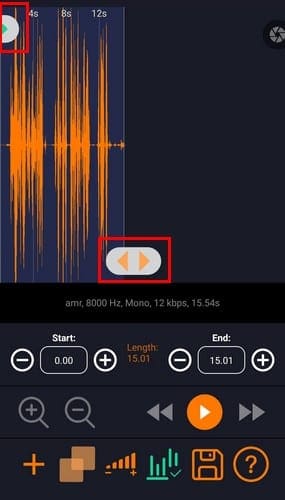
If you’re not interested in any of these options and only want to edit the WhatsApp audio, tap on the scissor icon to continue. On the next page, you’ll see two pill-shaped icons with arrows pointing to each side. The top needs to be set where you want the audio to begin, and the bottom one where you want the audio to end.
Additional Options
If you’re playing the audio when you move these options, you’ll need to stop and audio and play it again to hear the part of the audio you’re going to keep. You may want to start or end the audio at a specific time. For example, you may want to start the audio at 2.23 and end it at 10.45. As you can see in the image above, it’s easy to set it since the start and end times are clearly labeled. Make sure to think of a good name since you’ll have to name your file at the end.
If you don’t see the start or end times of the audio, simply swipe to the right or left to see more. As long as you’re there, you can also mix another audio to the one you’re editing. Tap on the copy symbol that looks like two squares slightly touching and choose the other audio. Once you’re back to where you were, the audio will play the mix you just created. If the audio is too small, there’s an option to adjust the volume as well.
Conclusion
Thanks to this audio cutter, you can send that audio without the other person hearing the part that wasn’t meant for them. Besides editing any WhatsApp audio, you can also mix two completely different audios together. Do you think you’ll be using this app often? Let me know in the comments below. Also, don’t forget to share the article on social media so others can benefit as well.
How to Cut an Audio Message in WhatsApp?
WhatsApp allows you to cut an audio message in two ways: by selecting the message and pressing the “cut” button, or by dragging the message’s thumbnail to the trash can icon at the bottom of the screen.
how to cut recorded audio in android phone
how to save whatsapp voice message in android
WhatsApp allows users to trim audio from messages by selecting the message, tapping on the three lines in the top left corner, and selecting “Trim Audio.
There are a few ways to cut voice notes. You can use a voice recorder app on your phone, or you can use a computer with a microphone. You can also use a voice note app on your phone to record your voice and then cut the note using the app.
There are a few ways to trim a voice message on WhatsApp. You can either tap and hold on the message, or drag it to the left or right. Once it’s trimmed, you can save it or delete it.
Yes, you can edit a WhatsApp voice message before sending. To do this, open the voice message and tap on the three lines in the top left corner. Then, tap on the ‘Edit’ button.
There are a few ways to trim audio on Android. One way is to use the MediaTrimmedManager class. This class allows you to trim audio by time, duration, or position. You can also use the AudioManager class to trim audio files.
To edit a message on WhatsApp, open the message and tap on the three lines in the top left corner. Then, tap on “Edit Message.
To trim a voice message on your iPhone, open the voice message and select the “Trim” option from the menu bar.
To crop a voice memo on iPhone, open the voice memo and tap on the speaker icon in the top left corner. Then, drag the blue line to select the area you want to crop and release it.
There are a few ways to edit audio in mobile. One way is to use a third-party app like Audacity or Sound Studio. Another way is to use the built-in voice recorder on your phone or tablet.
Yes, you can edit a voice note. However, if the note is very long or has many changes, it may not be able to be edited easily.
There are a few ways to change your voice message. You can use the Settings app on your iPhone or iPad, go to Messages and tap on the Voice Messages button, or open the Messages app and type in a new message.
There are a few ways to edit audio on an iPhone. The most common way is to use the built-in audio editing features of the app, which include trimming, splitting, and merging clips. You can also use third-party apps that offer more robust audio editing features.
There are a few ways to edit messages in WhatsApp. You can:
Open the message and tap on the three lines at the top. This will open the message’s compose window.
Tap on the three lines at the bottom of the screen and select “Edit Message.”
To quickly edit a text message, double-tap on it.
Yes, you can edit your WhatsApp status after posting. To do this, open the app and tap on the three lines in the top left corner of the main screen. Then, tap on “Status.” On the “Status” screen, you can edit your post by tapping on the text box and then typing new content.
There are a few ways to edit a voice recording. One way is to use a voice recorder app on your phone or computer and then edit the recordings there. Another way is to use a voice editing software program like Adobe Audition or Pro Tools. You can also use a microphone to record your voice and then edit it in a separate audio editor.
How to Cut an Audio Message in WhatsApp on Android Phones
When there are lots of things to say and you don’t want to waste your time all day typing, you send a voice message. Or, maybe you hate texting But, what if you get a voice message and you want someone else to hear it as well, but you don’t want them to hear the end of it?
The good news is that you are in the right place, in this guide you will learn how to cut an audio message in WhatsApp on Android devices, so the receiver only hears that part you want them to hear. To do this, you’ll need the help of a third-party app, known as ‘MP3 Cutter and Ringtone Maker’ since WhatsApp doesn’t allow its user to do this. The app you’ll need is free, so if it’s not what you’re looking for, you don’t have to deal with the refund process.
Table of Contents
How to edit any WhatsApp audio message on Android phones
To edit or cut an audio message in WhatsApp on Android phones, you will need an app called MP3 Cutter and Ringtone Maker. Install it from Play Store and run it. Next, tap on the “MP3 Cutter” and choose the voice message you want to cut. Now, cut it and you are all done!
Let me show how you can do it step-by-step:
- Go to Play Store, Search for ‘Audio Cutter and Ringtone Maker,’ and install it on your Android phone.
- Now, open the app and tap on the ‘MP3 Cutter’, and to select your audio file first you need to allow the app to access your files.
- Next, you will see a list of all your audios, including your WhatsApp audios. Select a WhatsApp voice message that you want to edit or cut. And, tap on three dots in front of the audio file and tap on ‘cut’ to edit your WhatsApp voice message.
- On the next page, you’ll see two pill-shaped icons with arrows pointing to each side. The top needs to be set where you want the audio to begin, and the bottom one where you want the audio to end. When you are done, tap on the ‘tick’ icon in the top-right corner.
- Next, you can select the format, bitrate, and volume, and tap on ‘CONVERT’ to save the process.
- At last, you see options that you can use if you want to set the audio for ringtones, alarms or you want to share with people.
That’s it. Now you can let other people listen to the voice message without worrying.
Additional Options
If you are playing audio when you move these options, you must stop and play the audio to hear the portion of the audio that will be preserved. You may need to begin or end the audio at a particular time. For example, you may want to begin the audio at 2.23 and end it at 10.45. As you can see from the picture above, it is easy to set it up because the start time and end time are marked. Make sure to provide a good name, as you will have to name your file last.
If you don’t see the audio start or end time, swipe right or left to see more information. It’s there and you can mix other audio into the audio you’re editing. Tap the copy symbol where the two squares appear to touch lightly to select another audio. When you return to the original position, the created mix will be played back by audio. If the audio is too quiet, you have the option to adjust the volume as well.
Conclusion
That’s how you can edit and cut an audio message in WhatsApp on Android phones, and with the help of this audio cutter, you can send audio without requiring others to hear parts that are not suitable for them. Besides editing any WhatsApp audio, you can also mix two completely different audios. Do you think you will use this application often? Let me know in the comments below.
Как редактировать голосовые сообщения в Ватсапе
В мессенджере WhatsApp есть возможность редактировать отправленные сообщения. Это позволяет исправить опечатки или добавить дополнительную информацию. В данной статье рассмотрим различные способы редактирования голосовых сообщений в приложении WhatsApp.
Как в Ватсапе редактировать уже отправленное сообщение
- Кликните на отправленное сообщение, которое необходимо отредактировать.
- Выберите пункт «Редактировать» из контекстного меню.
- Исправьте текст сообщения или добавьте необходимую информацию.
- После редактирования у сообщения появится пометка «Изменено», которую увидят все собеседники в чате.
Важно: Время, в течение которого можно редактировать сообщение, ограничено и составляет 15 минут после отправки. По истечении этого времени, сообщение будет невозможно отредактировать.
Можно ли обрезать голосовое сообщение
Да, в WhatsApp есть возможность обрезать голосовые сообщения. Данный функционал позволяет выделить нужную часть звуковой записи и удалить ненужные фрагменты.
Для обрезки голосового сообщения выполните следующие действия:
- Выберите голосовое сообщение, которое необходимо обрезать.
- Нажмите на пункт «Обрезать» в контекстном меню.
- Дважды коснитесь экрана для выделения начала или конца выделения.
- Удерживайте палец на экране и потяните, чтобы настроить обрезку.
- Подтвердите изменения.
Как исправить ошибку в тексте в Ватсапе
Если вы обнаружили ошибку в тексте сообщения, отправленного в WhatsApp, но уже не можете его отредактировать, вам потребуется следовать следующим шагам:
- Зажмите нажатие на сообщение, в котором нужно исправить ошибку.
- Дождитесь появления контекстного меню.
- Выберите пункт «Изменить».
- Внесите необходимые правки в текст сообщения.
- После внесения изменений, пометка «Изменено» появится у сообщения и будет видна всем собеседникам в чате.
Важно: История внесения исправлений не отслеживается в WhatsApp. Таким образом, нельзя просмотреть, какие изменения были внесены в сообщение.
Как в Ватсапе голосовое сделать текстом
WhatsApp не имеет встроенной функции для преобразования голосовых сообщений в текст. Однако, существуют сторонние приложения, позволяющие осуществить данную конвертацию.
Для перевода голосового сообщения в текст в WhatsApp на Android, выполните следующие шаги:
- Установите приложение Transcriber из магазина Google Play.
- Зайдите в чат с голосовым сообщением, которое нужно сконвертировать.
- Зажмите голосовое сообщение, чтобы появилось дополнительное меню.
- Выберите опцию «Конвертировать в текст» в меню приложения Transcriber.
Теперь вы сможете видеть текстовую версию голосового сообщения прямо в чате WhatsApp.
Полезные советы и выводы
- Использование функции редактирования в WhatsApp позволяет вносить изменения в уже отправленные сообщения, что удобно для исправления ошибок или добавления дополнительной информации.
- Обрезка голосовых сообщений может быть полезна, если вы хотите выделить нужную часть звуковой записи или удалить ненужные фрагменты.
- Если вы обнаруживаете ошибку в тексте уже отправленного сообщения, вы можете внести правки, нажав на сообщение и выбрав опцию «Изменить».
- Для преобразования голосовых сообщений в текст в WhatsApp на Android рекомендуется использовать стороннее приложение Transcriber.
В итоге, редактирование голосовых сообщений, обрезка записей, исправление ошибок и конвертация голоса в текст — все эти функции в WhatsApp позволяют обеспечить более комфортное и удобное общение пользователям.
Как убрать скрепку в Ватсапе
Чтобы убрать закрепленный чат в WhatsApp на iPhone, нужно провести пальцем вправо по закрепленному чату и затем нажать на кнопку «Открепить». Это можно сделать, чтобы освободить место в верхней части списка чатов и убрать чат из раздела с закрепленными. Если у вас Android, то для того чтобы открепить чат, нужно нажать и удерживать пальцем на закрепленном чате, а затем выбрать опцию «Открепить чат». После этого чат больше не будет закрепленным и переместится в обычную часть списка чатов. Таким образом, вы можете легко убрать скрепку в WhatsApp и насладиться свободным просмотром чатов без ограничений.
Как сделать копию группы в Ватсапе
Чтобы сделать копию группы в WhatsApp, необходимо выполнить следующие действия. Сначала откройте приложение WhatsApp на своем устройстве. Затем откройте групповой чат, который вы хотите скопировать. Нажмите на кнопку «Другие опции», которая обозначается тремя точками в верхнем правом углу экрана. В выпадающем меню выберите «Настройки». Затем перейдите в раздел «Чаты». В разделе «Резервная копия чатов» найдите пункт «РЕЗЕРВНОЕ КОПИРОВАНИЕ» и нажмите на него. Теперь у вас будет создана копия вашей группы в WhatsApp. Обратите внимание, что функцию экспорта истории чатов можно использовать не только для групповых чатов, но и для индивидуальных переписок. Для экспорта индивидуального чата откройте соответствующий чат и в выпадающем меню выберите «Ещё», а затем «Экспорт чата».
Как выкладывать видео в Ватсап без потери качества
Чтобы выложить видео в Ватсап без потери качества, нужно нажать на иконку отправки файла, которая расположена внизу экрана. Вместо того, чтобы выбирать опцию «Фото/видео», нужно выбрать опцию «Документ». После этого откроется приложение «Файлы», где можно выбрать нужное видео. Выбранное видео отправится в оригинальном размере, без сжатия. Этот метод позволяет сохранить качество видео при его передаче через Ватсап. Таким образом, если вам важно, чтобы видео было выложено в оригинальном качестве, следует использовать данную опцию.
Как сделать маленький смайлик в Ватсапе
Язык кода в WhatsApp можно использовать для создания многообразных смайликов и эмодзи. Однако, некоторые пользователи могут быть раздражены размерами смайлов и хотят использовать маленькие и привычные изображения. Сегодня я случайно открыл способ сделать размер смайла маленьким. Оказывается, если вы заключите смайл в символы тильды (
), то он будет отображаться в обычном, уменьшенном виде. Просто наберите в сообщении
, а затем заключите ваш смайл в тильды, и у вас появится привычный, маленький смайлик. Вот таким простым способом вы можете изменять размеры смайлов в WhatsApp и наслаждаться использованием маленьких смайликов в ваших сообщениях.
Для редактирования голосовых сообщений в приложении WhatsApp необходимо выполнить следующие шаги. Вначале, необходимо открыть личную переписку или групповой чат, в котором находится нужное сообщение. Далее, нужно найти голосовое сообщение, которое требуется исправить, и кликнуть на него. После этого, появится всплывающее окно с различными опциями, среди которых будет и вариант «Редактировать». Нажав на эту опцию, можно будет внести изменения в текст голосового сообщения. Планируется, что данную функцию добавят и в версию приложения WhatsApp для устройств на базе iOS и Android. Таким образом, пользователи смогут исправлять и улучшать текстовую составляющую голосовых сообщений, делая общение более удобным и легким.
Все права защищены © 2023.
WhatsApp — это мгновенные сообщения и голосовая связь, которые позволяют пользователям обмениваться сообщениями и звонить по всему миру. Он предоставляет простой и удобный способ связи с друзьями, семьей и коллегами через интернет, и позволяет обмениваться текстовыми сообщениями, фотографиями, видео и документами. Благодаря своей широкой популярности и доступности на различных платформах, WhatsApp стал одним из самых популярных мессенджеров в мире.