Советы по разблокировке BitLocker без пароля и ключа восстановления

Предположим, вы забыли свой пароль BitLocker или, что еще хуже, свой ключ восстановления на диске. Что бы вы сделали? В этом руководстве вы узнаете, как разблокировать BitLocker без пароля и ключа восстановления, чтобы знать, что делать, сталкиваясь с такой проблемой.
В этой статье:
Как разблокировать BitLocker без пароля?
При шифровании диска Windows вам передается текстовый файл, содержащий код под названием Ключ восстановления, который вы сохранили в своей системе. Сохранение этого файла является необходимым шагом в шифровании диска, чтобы впоследствии вы могли найти этот файл с помощью простого поиска в системе.
Если вы забыли пароль к заблокированному диску, вы можете использовать этот код чтобы получить доступ к диску следующим образом:
- Шаг 1. Нажмите дважды, чтобы открыть окно пароля, или нажмите правой кнопкой мыши и выберите Разблокировать диск.

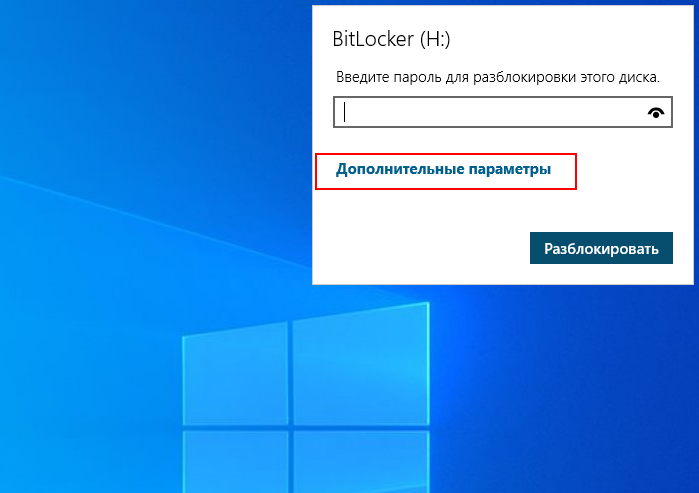
- Шаг 2. Нажмите Дополнительные параметры.
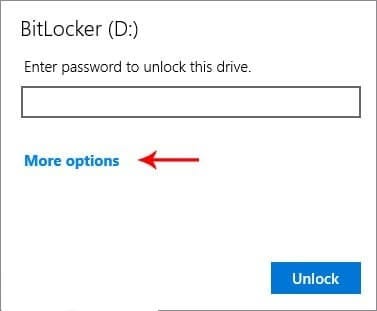
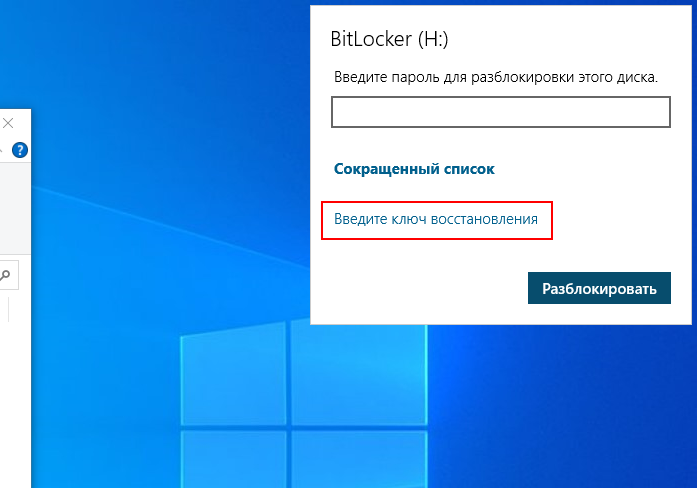
- Шаг 3. В открывшемся окне вы увидите два варианта. Нажмите Ввести ключ восстановления.
Меньше параметров: Открывает и закрывает параметры в окне в виде сворачивания.
Введите ключ восстановления: Вы можете ввести свой код восстановления в это поле.
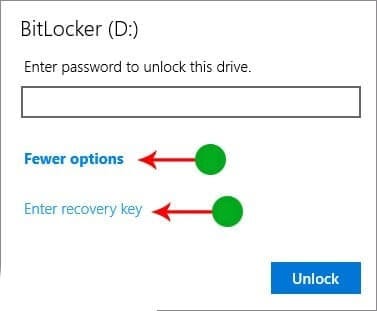
- Шаг 4. Чтобы разблокировать BitLocker, скопируйте код, который вы ранее сохранили, в текстовый файл и введите его в качестве ключа восстановления.

Если вы забудете пароль BitLocker, у вас должен быть доступ к ключу восстановления, чтобы иметь возможность разблокировать диск BitLocker. Этот код восстановления был сохранен в вашей системе как текстовый файл, поскольку диск был зашифрован. Если у вас нет доступа к этому коду, вы не сможете расшифровать свой диск с помощью метода, упомянутого выше, и вам нужно сразу перейти к разделу, как разблокировать BitLocker без ключа восстановления в этом руководстве.
- Шаг 5. Наконец, нажмите Разблокировать. Диск Windows будет разблокирован, и затем вы можете получить к нему доступ.

Что следует учитывать при попытке разблокировать BitLocker с помощью ключа восстановления:
- У вас должен быть доступ к файлу, содержащему ключ восстановления.
- Если у вас нет этот код, вы можете найти файл с именем ключ восстановления BitLocker.txt.
- После расшифровки диск разблокируется и больше не будет запрашивать пароль при входе в систему. Если вы должны повысить уровень безопасности после расшифровки, рекомендуется установить другой пароль. Но на этот раз постарайтесь запомнить его.
Как разблокировать BitLocker без пароля и ключа восстановления?
Если вы потеряли не только пароль BitLocker, но и ключ восстановления, разблокировать диск BitLocker без потери всех данных не получится. Вам необходимо отформатировать зашифрованные диски, чтобы удалить BitLocker.
Узнайте больше: Как найти ключ восстановления BitLocker?
1. Отформатируйте жесткий диск или USB-накопитель, чтобы разблокировать BitLocker
В Windows для форматирования диска необходимо сначала подключить запоминающее устройство к системе. Убедитесь, что USB-кабель или USB-порт не повреждены, а затем выполните следующие действия:
- Подождите, пока Windows обнаружит диск.
- Нажмите и удерживайте Win + E, чтобы запустить Проводник.
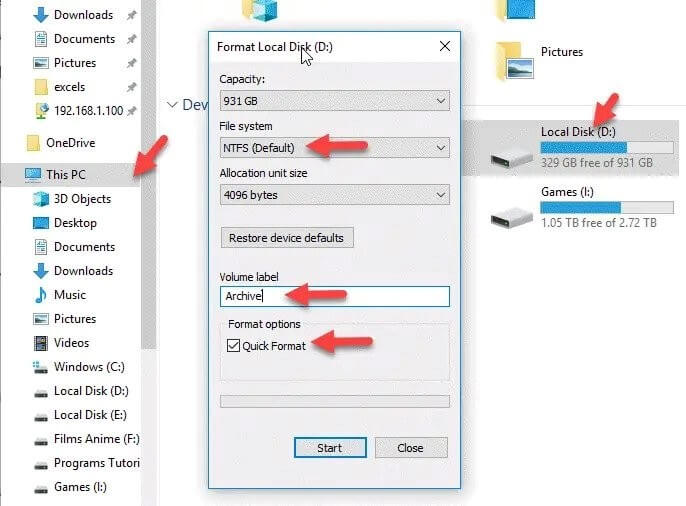
- Нажмите Этот компьютер на боковой панели.
- Нажмите правой кнопкой мыши диск и выберите Форматировать.
- Вы можете выбрать формат диска в раскрывающемся меню Файловая система во всплывающем окне.
- В Метке тома введите название диска.
- Чтобы быстро отформатировать диск установите флажок Быстрое форматирование.
- Наконец, нажмите Пуск.
2. Чтобы разблокировать BitLocker отформатируйте USB-Накопитель с помощью CMD
Форматирование флэшки займет некоторое время, в зависимости от емкости накопителя и объема хранимой на нем информации. Чтобы отформатировать флешку с помощью CMD, вам необходимо выполнить следующие шаги:
- Запустите Командную строку от имени Запуск от имени администратора.
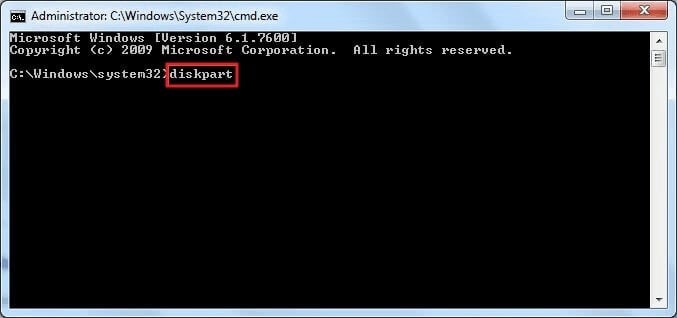
- После запуска Командной строки введите команду diskpart и нажмите клавишу ввода.
(Обратите внимание, что форма подсказки автоматически изменится после ввода этой команды и нажатия клавиши ввода.)
- Чтобы отобразить список дисков в вашей системе введите команду listdisk.
(Убедитесь, что флэшка USB подключен к системе.)
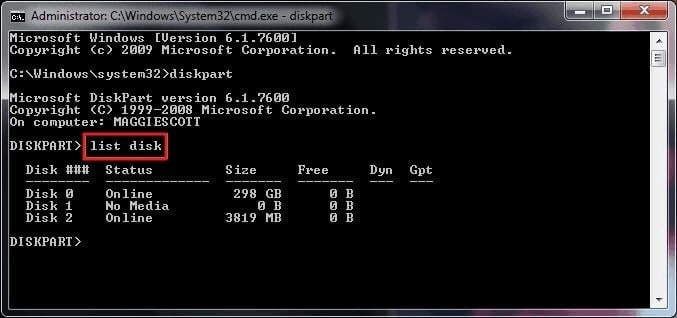
- Проверьте, какой номер связан с вашим USB-накопителем.
(Например, здесь цифра 2 — это флешка. Затем вам необходимо ввести команду selectdisk 2.)
Определите номер диска вашей флешки из списка и введите его.
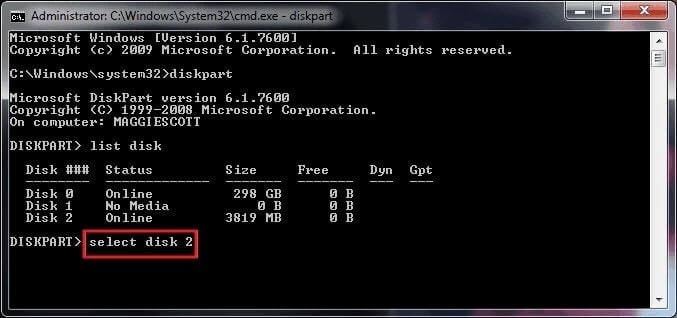
- Введите команду clean и подождите, пока все на диске будет удалено.
- Когда вы используете эту команду для привода или диска, любой раздел или том на диске будет отформатирован. Вот так простое слово в Diskpart полностью удаляет все разделы на диске и форматирует его.
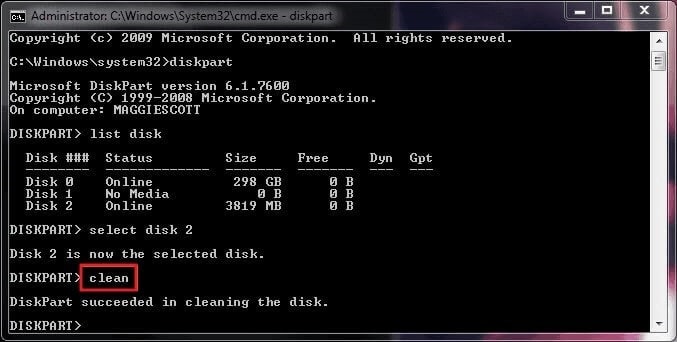
- Как только вы увидите в нижней строке этой команды сообщение Удалось очистить диск, это означает, что данные с флешки были полностью удалены, а накопитель отформатирован.
- Теперь введите create partition primary и нажмите клавишу ввода.

- После того, как diskpart успешно создаст указанный раздел, format fs = ntfs и нажмите войти.
- Этот процесс может занять несколько минут, в зависимости от емкости вашего USB-накопителя, так как это будет выполняться в обычном, а не в Быстром формате. Если вы хотите, чтобы это было сделано быстрее, используйте быструю команду format fs=ntfs вместо format fs=ntfs

- Теперь вам нужно назначить букву диска тому разделу, который вы создали, а затем отформатировали.
- Для этого введите команду assign и войдите.

- Следуя вышеперечисленным командам, вы можете отформатировать жесткий диск компьютера, внешний жесткий диск или любое другое запоминающее устройство, а также флешки.
3. Разблокируйте диск BitLocker без пароля и ключа восстановления на Mac
Вот как отформатировать и разблокировать диск BitLocker, если вы используете Mac:
- Запустите Дисковую утилиту. Перейдите в Приложения > Утилиты или нажмите Команда + Пробел и введите Disk Utility.
- После открытия Дисковой утилиты слева вы увидите список доступных дисков. Выберите диск, который необходимо отформатировать. Обратите внимание, что все его содержимое диска будет удалено при форматировании.

- Из четырех вариантов в главном окне нажмите Стереть.
Дисковая утилита автоматически выберет формат для вас. Этот формат может быть APFS или, в зависимости от текущего формата диска, а также от того, используете ли вы macOS High Sierra или более старую версию операционной системы, это может быть Mac OS Extended (с журналированием). Если вы хотите использовать другой формат, нажмите Форматирование, чтобы открыть всплывающее окно. В зависимости от того, как вы планируете использовать отформатированный диск, выберите формат, который соответствует вашим потребностям.
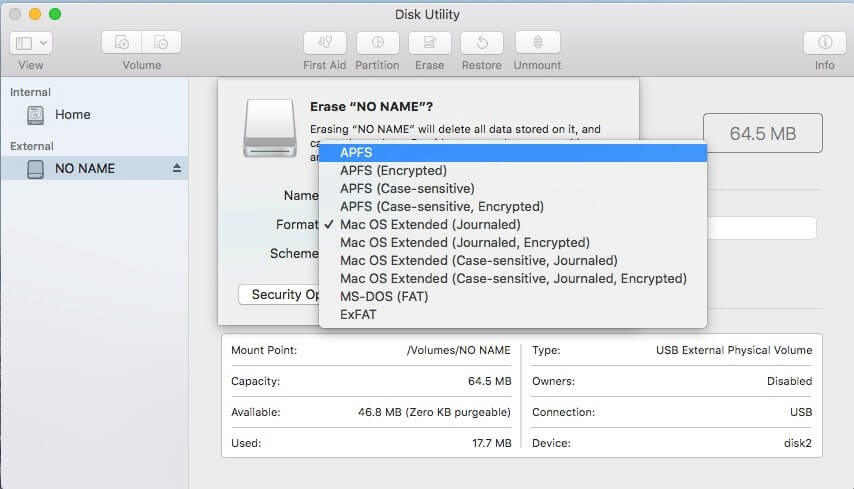
- Следующим шагом будет присвоение название диску. Название может быть каким угодно, но рекомендуется выбрать конкретное название, описывающее содержимое диска.
- Нажмите Параметры безопасности. Откроется другое окно, в котором вы сможете выбрать способ форматирования диска с помощью ползунка от Самый быстрый до Наиболее безопасный. Это важный этап, если вы хотите убедиться, чтобы все текущие файлы на диске будут удалены.
- Самый быстрый удаляя лишние данные, очищает данные диска, но исходные файлы остаются нетронутыми, хотя и остаются скрытыми. Это означает, что вы или кто-то другой можете легко восстановить файлы с помощью программа для восстановления данных, что не обязательно является хорошей идеей. Переместите ползунок ко второму варианту, где указано, что Этот параметр записывает один проход нулей по всему диску. Эта опция перезапишет весь диск.
- Для дополнительной безопасности продолжайте перемещать ползунок вправо. Следующий шаг дает вам возможность перезаписать диск три раза. Переместите ползунок в нижнюю часть ползунка до параметра Наиболее безопасный, что приведет к перезаписи диска семь раз. Но вам придется долго (в зависимости от размера диска) ждать, пока он станет доступен для повторного использования.

- Нажмите Стереть и подождите, пока содержимое диска будет очищено и диск будет готов к использованию. Индикатор выполнения показывает, где находится форматирование вашего диска и сколько времени займет завершение процесса.

Заключительное слово
Не знать, как разблокировать BitLocker без пароля и ключа восстановления, может быть довольно сложно. Хорошей новостью является то, что с помощью ключа восстановления вы можете разблокировать диск BitLocker, если вы забыли пароль. Плохая новость заключается в том, что если у вас нет доступа к ключу восстановления, единственное другое решение — просто отформатировать весь диск.
Forgot BitLocker Password & Recovery Key? Try the 6 Ways Now!
Many users forgot BitLocker password after encrypting their hard drives. If you also forgot BitLocker recovery key, try the following 6 ways posted by MiniTool. In addition, it helps you recover if you lost BitLocker recovery key accidentally.
Frequently Asked Questions About BitLocker Password & Recovery Key
When searching for the subject of BitLocker password and recovery key, you may find many frequently asked questions. To help fix the BitLocker recovery key lost issue, it’s necessary to figure out these questions.
What Is BitLocker Recovery Key
If you encrypted a hard drive with BitLocker, it will generate a special set of 48-digit numerical passwords. That is BitLocker password or BitLocker recovery key. It is very important to remember and store the password in a safe location. You can’t unlock and access the encrypted hard drive once you lost or forgot BitLocker password. Besides, you may encounter various issues, such as “BitLocker not showing for USB“, “BitLocker Fatal Error“, “BitLocker recovery key not working“, etc.
Where to Find the BitLocker Recovery Key
Where to find the BitLocker recovery password? As you might know, the recovery key can be stored in different places, including your Microsoft account, USB flash drive, a TXT file, and even a paper document. If you forgot BitLocker recovery key accidentally, you can try finding it from these places first.

Can BitLocker Recovery Password Key Be Bypassed
Can the BitLocker recovery key be bypassed? Usually, the BitLocker drive encryption doesn’t ask for the recovery key on a normal startup. However, you may be stuck on the BitLocker recovery screen on startup after motherboard hardware changes or a system crash. In this case, you can try these methods by reading this post to bypass the BitLocker recovery key.
Can Data Be Recovered After Formatting the BitLocker Drive
Some people reported that they still can’t find the BitLocker password and recover key. So, they want to format the BitLocker encrypted drive. Can data be recovered after the formatting? Unfortunately, the answer is “No”.
This is because the BitLocker encryption is a full-disk encryption method that only can remove the password, but the formatted data is still encrypted and needs the BitLocker recovery password to be decrypted. Moreover, the data you recovered from the formatted drive is just certain incomprehensive texts.
How to Fix If You Forgot BitLocker Password & Recovery Key
What to do if you forgot BitLocker recovery key? After analyzing extensive user reports and technical references, we summarized the following 6 accessible methods. Let’s try them in order.
# 1. Search for the BitLocker Recovery Key on Your Computer or USB Drive
As mentioned above, the BitLocker Pin recovery key can be stored in different locations. If you just forgot BitLocker password but you have backed it up to someplace, it’s possible to find the password back. Here you can try finding it from your Microsoft account. If not here, check if it is stored in your USB flash drive or written on a paper document.
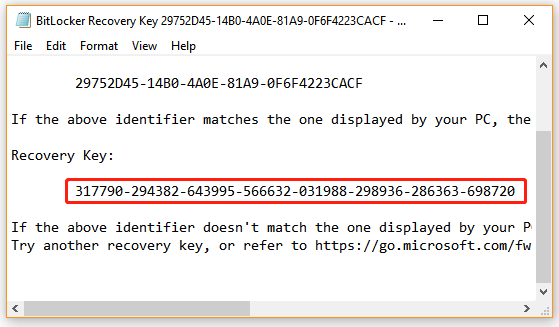
In addition, the BitLocker password can be stored on your local computer in a BEK file named BitLocker Recovery Key. To find that, you can press Win + E keys to open the Windows File Explorer, then type *.bek in the search box and hit Enter, and wait for the scan to complete. Then you can check the search results to see if the recovery key is found.
# 2. Try Accessing with Your Usual Passwords
Although BitLocker warns users to set a unique and strong password for the encrypted drive, some people may reuse their familiar passwords or commonly used passwords. So, if you forgot BitLocker recovery key, try recalling all these usual passwords, including Microsoft account password, Google login password, email password, etc. If luckily, you can find the correct BitLocker recovery password to unlock the encrypted drive.
# 3. Use a Professional BitLocker Password Cracking Tool
An unconventional method to solve the “BitLocker recovery key lost Windows 10” issue is to use a professional BitLocker password cracking tool. Here we summarize several useful tools for you:
BitCracker: It is the first open-source BitLocker recovery password cracking tool for different storage media like hard disks, USB flash drives, SD cards, etc. It can try to find the correct BitLocker password or recovery through a dictionary attack.
Passware Kit: It is an easy-to-use password cracking tool that can decrypt password-protected documents and full disk encryption. In addition, it can decrypt various types of file formats and reveal browser, mail, and network passwords.
Thegrideon Software: It is an advanced password recovery utility for BitLocker encrypted drives as well as BitLocker to Go protected removable devices. This tool uses several password search attacks to get its job done, including dictionary attacks with modifications, brute-force attacks, and advanced mixed attacks.
# 4. Perform a Force Recovery Using CMD
Some users reported that they find the BitLocker Pin recovery by performing a force recovery through the CMD. Here you can try this on a local computer or remote computer. Choose one according to your situation.
Perform a force recovery on a local computer:
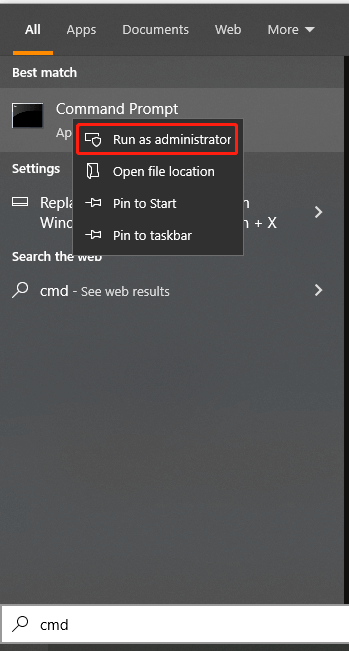
Step 1. Type cmd in the Search box, and then right-click the Command Prompt app from the top result and select Run as administrator. Then click on Yes when you are prompted to access the admin privilege.
Step 2. In the elevated Command Prompt window, type the following command and hit Enter. Here you need to replace the <Volume> with your encrypted drive.
manage-bde -forcerecovery <Volume>
Perform a force recovery for a remote computer:
If you were a domain administrator, you can try performing a force recovery for a remote computer. For that:
Step 1. Open the elevated Command Prompt window just as we explained above.
Step 2. Type the following command and hit Enter.
manage-bde -ComputerName <ComputerName> -forcerecovery <Volume>
# 5. Reset the BitLocker Pin Recovery Key or Password
If you forgot the BitLocker Pin recovery or password on Windows 10, you can try changing or resetting it. There are 2 ways to change/reset the BitLocker Pin recovery or password. Let’s try:
Way 1. Change/Reset BitLocker Pin via File Explorer
Step 1. Press Win + E keys to open the File Explorer, and then right-click the system drive or other BitLocker encrypted drive and select Change BitLocker PIN.
Step 2. In the pop-up window, click on the Reset a forgotten PIN link. It will allow you to set up a new password without asking for the current PIN.

If this method can’t help you reset the BitLocker Pin or password, you can try the next way.
Way 2. Change/Reset BitLocker Pin via Command Prompt
Step 1. Open the elevated Command Prompt window.
Step 2. To change your current BitLocker PIN, type the following command and hit Enter. Then type the new PIN when you’re prompted and hit Enter.
You need to replace C: with the drive letter that you encrypted with BitLocker.
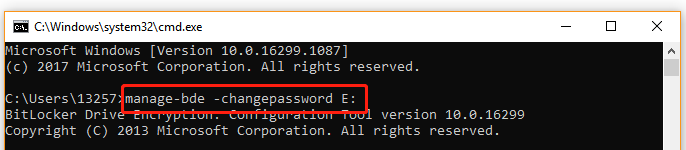
Step 3. To change the BitLocker Password, you can run the following command. Here we take E drive for example.
manage-bde -changepassword C:
# 6. Reformat the BitLocker Drive
If you have confirmed that there is no important data on the encrypted drive, then the fast way to remove BitLocker encryption is to reformat the drive. Here’s a tutorial for you.
Step 1. Open the elevated Command Prompt window again.
Step 2. In the elevated Command Prompt window, type the following commands in order and hit Enter after each one.
- diskpart
- list disk
- select disk * (replace * with the disk number that contains the BitLocker encrypted drive)
- list partition
- select partition * (replace * with the partition number of your encrypted drive)
- format fs=ntfs quick

However, if the BitLocker encrypted drive stored important data that you can’t afford to lose, recovering the lost recovery key is your only hope. How to recover if your BitLocker recovery key lost Windows 10? Let’s keep reading.
How to Recover the Lost BitLocker Recovery Key
What to do if you forgot BitLocker password and the BitLocker recovery key is lost due to accidental deletion? Don’t be alarmed! As mentioned above, the BitLocker recovery key can be stored as a document file on your local computer or USB flash drive. If this scenario applies to you, then you are lucky. It’s very possible to recover the deleted/lost BitLocker recovery key document file with a professional data recovery tool.
MiniTool Partition Wizard is a powerful data recovery tool that can recover deleted files/partition/drive from Desktop, Recycle Bin, unallocated space, and different storage devices easily. In addition, it can help you recover data with MiniTool Partition Wizard Bootable Edition even when you can’t boot into the system.
Here’s how to recover the lost BitLocker recovery key with MiniTool Partition Wizard.
Step 1. Launch the MiniTool software to enter its main interface and click on Data Recovery from the top toolbar.
Step 2. Select the location where the BitLocker recovery key document file is stored and click on Scan. If you stored the file in the USB flash drive, make sure you plug it into your computer first. Here we take the Desktop location for example.

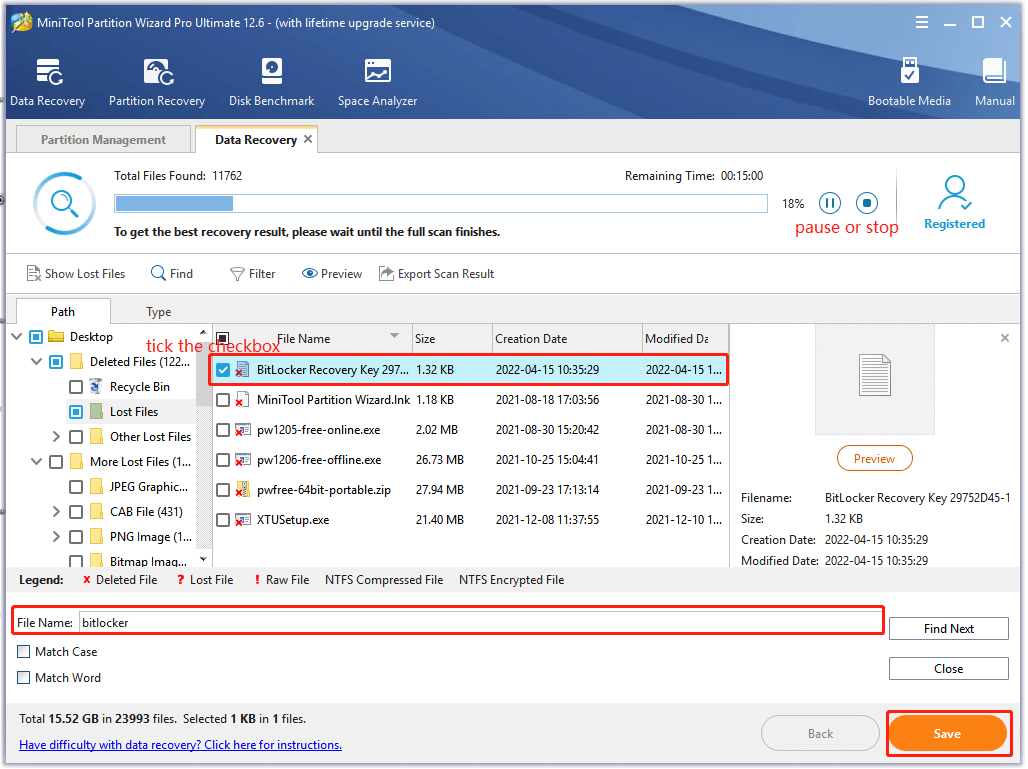
Step 3. Then this tool will start scanning your selected location. If you have found the BitLocker document file, click on the Pause or Stop icon to suspend the process, tick the checkboxes next to the file and click on Save. Also, you can click on the Find button, then type BitLocker in the search field and click on Find to find the file quickly.
Step 4. Select a directory to store the recovered file in the pop-up wizard and click on OK to confirm the location. Then follow the on-screen prompts to finish this process.
Don’t save the recovered data on its original drive. Instead, pick another drive to store it. Otherwise, the lost or deleted data could be overwritten.

Step 5. Now, you can open the directory that you just stored the recovered file in and use the BitLocker recovery key to unlock the encrypted drive.
What’s Your Opinion
This post writes 6 accessible solutions to deal with the forgotten BitLocker recovery password issue. In addition, you can try using MiniTool Partition Wizard to recover a lost BitLocker recovery key. Of course, if you have better solutions to this problem, leave them in the comment area. You also can send us an email via [email protected] when you have difficulty using the MiniTool software.
About The Author
Ariel has been working as a highly professional computer-relevant technology editor at MiniTool for many years. She has a strong passion for researching all knowledge related to the computer's disk, partition, and Windows OS. Up till now, she has finished thousands of articles covering a broad range of topics and helped lots of users fix various problems. She focuses on the fields of disk management, OS backup, and PDF editing and provides her readers with insightful and informative content.
Как разблокировать BitLocker Windows 10
Функция BitLocker впервые появилась в Vista максимальной и корпоративной редакций, а затем успешно была унаследована всеми последующими версиями операционной системы Windows. BitLocker представляет собой средство шифрования данных на локальном диске, а также службу, обеспечивающую защиту этих данных без непосредственного участия пользователя. В Windows 10 BitLocker поддерживает шифрование с использованием алгоритма AES 128 и AES 256, для защиты данных служба может использовать работающий в связке с данными учётной записи текстовый пароль, а также специальный набор данных, хранящийся на внешнем устройстве — так называемой смарт-карте или токене, которые, между прочим, также используют защиту паролем, в роли которого выступает пин-код.
↑ Как разблокировать BitLocker Windows 10
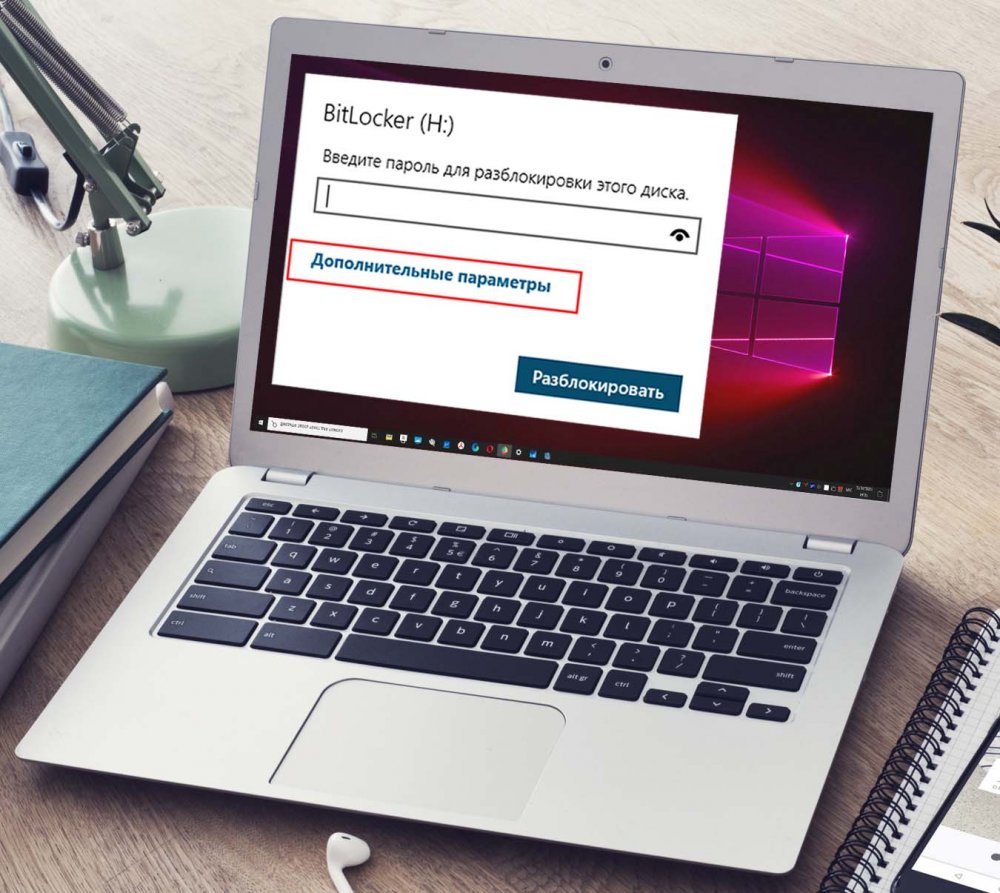 При активации BitLocker перед процедурой шифрования создаётся идентификатор и ключ восстановления — строка из 48-символов, с помощью которой можно разблокировать доступ к зашифрованному тому в случае утере утери пароля или смарт-карты. После того как том будет заблокирован, получить к нему доступ можно будет только подключив к ПК токен и введя его PIN-код или введя обычный пароль либо воспользовавшись ключом восстановления, если токен или пароль были утеряны. Процедура проста и не требует никаких технических навыков.
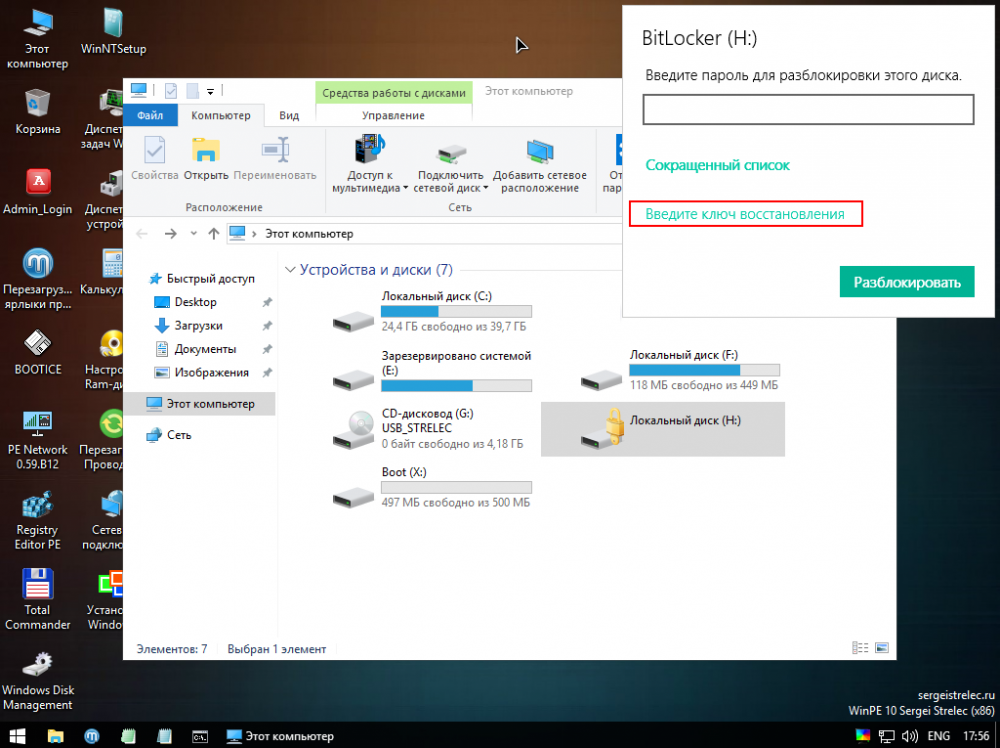
Кликните дважды по заблокированному разделу, а когда в верхнем правом углу появится приглашение вести пароль, нажмите в окошке «Дополнительные параметры» → «Введите ключ восстановления».
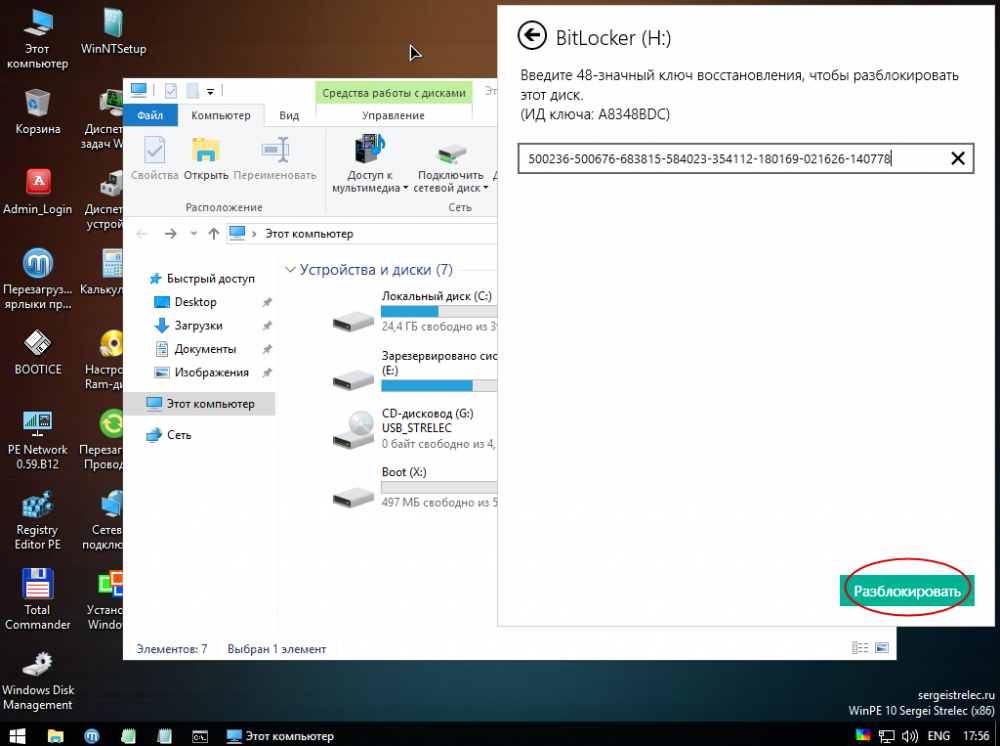
 Скопируйте из файла «Ключ восстановления BitLocker» 48-значный ключ, вставьте его в соответствующее поле и, убедившись, что первые восемь символов ID ключа совпадают с первыми восьмью символами идентификатора ключа в файле «Ключ восстановления BitLocker», нажмите «Разблокировать».
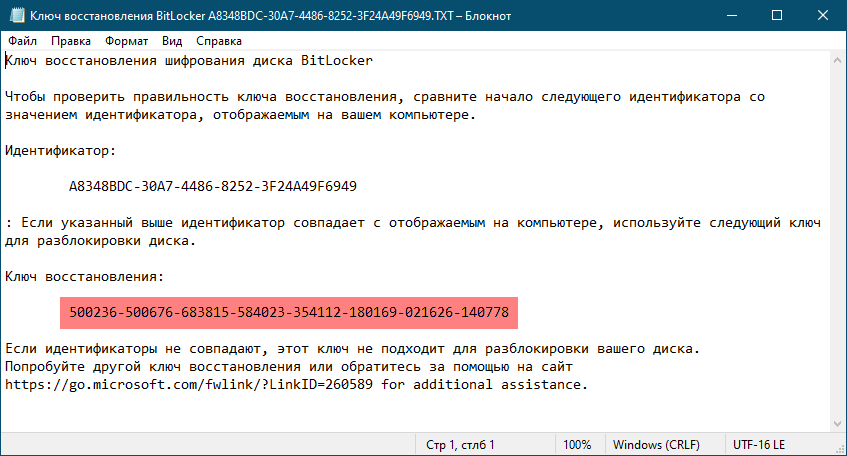
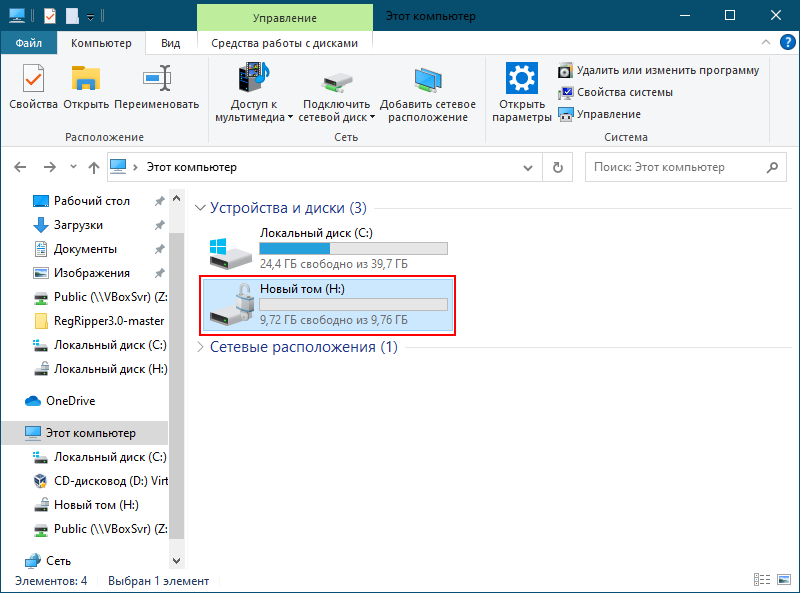
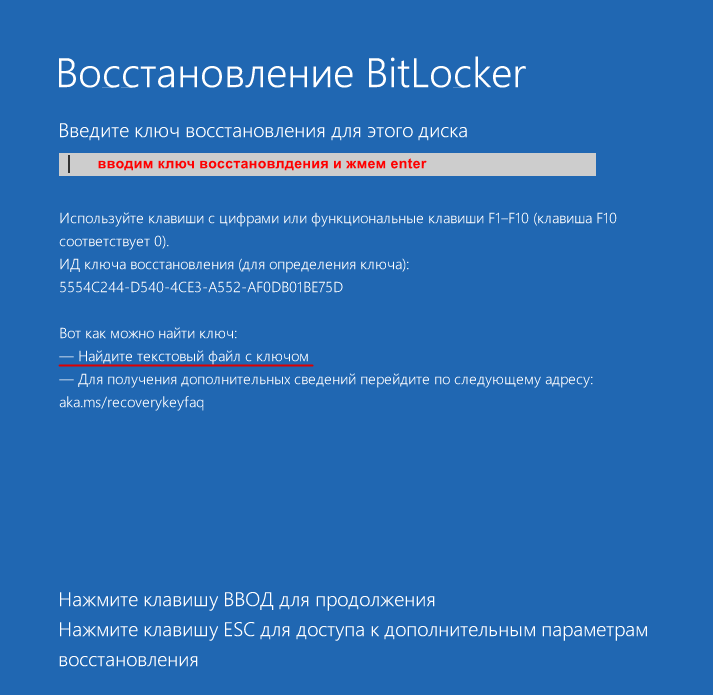
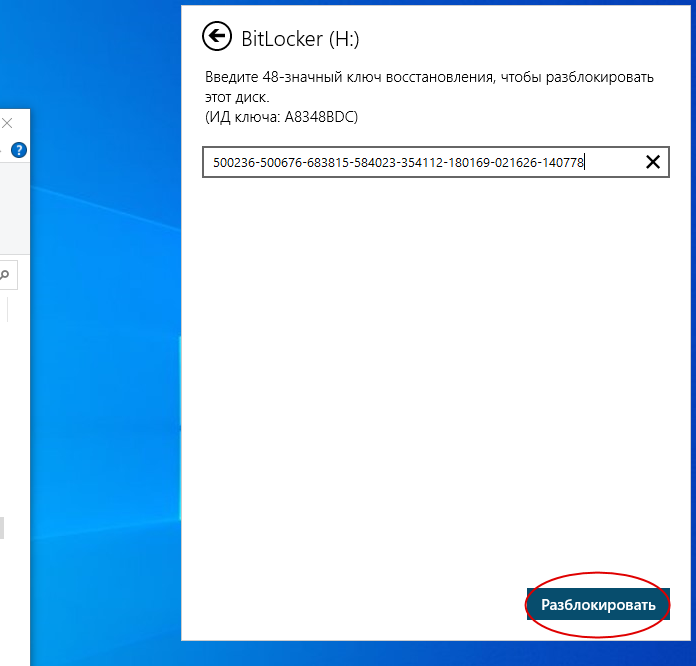 Раздел будет разблокирован точно так же, как если бы вы ввели пароль или воспользовались токеном. Если вы зашифровали системный том, на экране ввода пароля нужно будет нажать клавишу ECS и ввести в ключ восстановления.
↑ Как разблокировать BitLocker, если система не загружается
До этого мы имели дело с работающей системой, но давайте представим, что по какой-то причине Windows не может загрузиться, а получить доступ к данным нужно. В этом случае можно воспользоваться спасательным диском на базе WinPE, тем же WinPE 10-8 Sergei Strelec, о котором мы уже не раз писали. Всё очень просто. Загрузившись с диска, выполняем те же действия, что и в рабочей Windows: 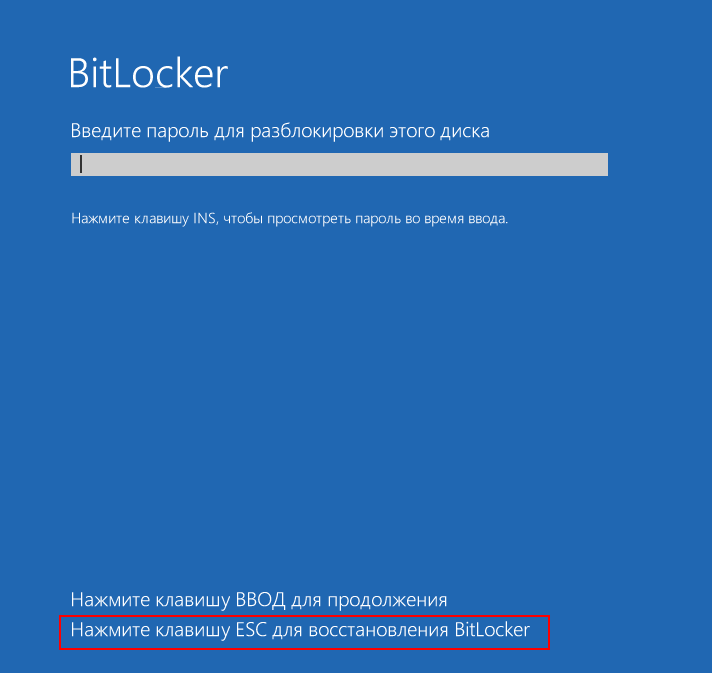 кликаем дважды по зашифрованному диску, жмём «Дополнительные параметры» → «Введите ключ восстановления», вводим ключ и нажимаем «Разблокировать».
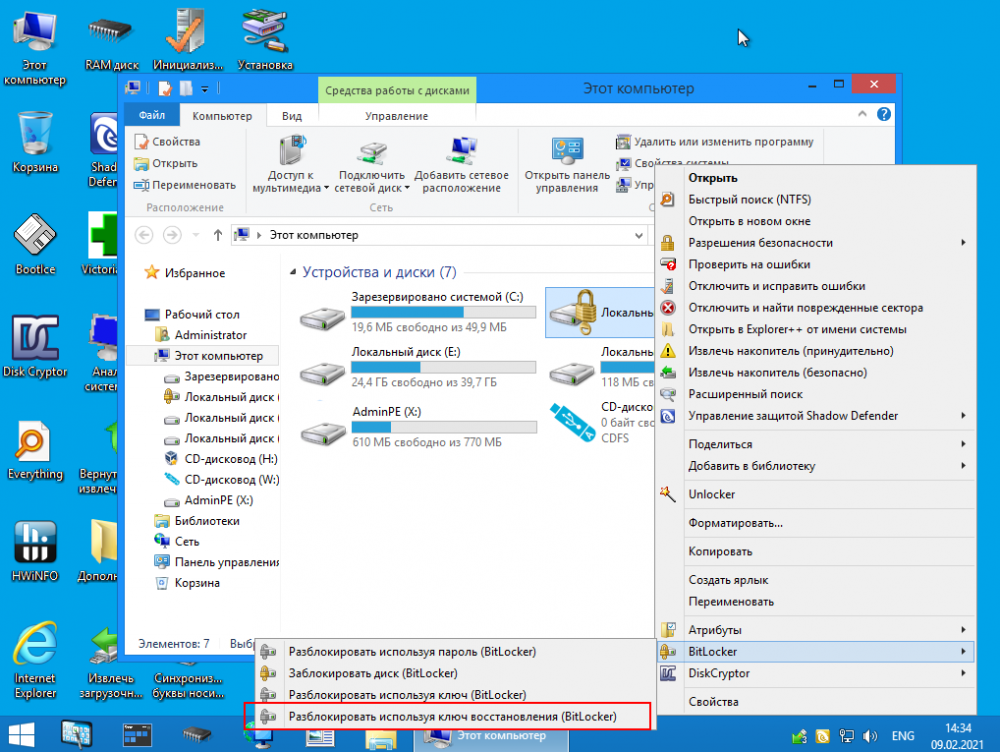
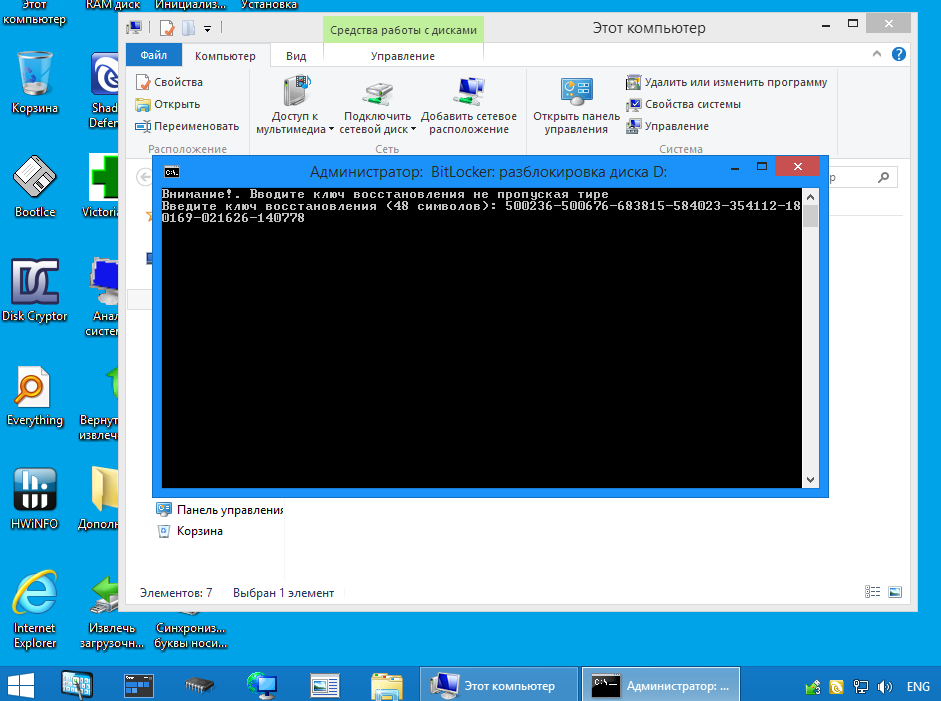
 В другом спасательном диске — AdminPE для разблокировки BitLocker в контекстном меню предусмотрена опция «Разблокировать, используя ключ восстановления».
↑ Можно ли взломать BitLocker
Да, можно, но для этого вам всё равно понадобятся ключи шифрования, для извлечения которых хакеры пользуются уязвимостями, которые оставила в криптографической система сама Microsoft, сознательно пойдя на компромисс между надёжностью и удобством. Например, если ваш ПК присоединён к домену, ключи BitLocker автоматически отправляются в Active Directory на случай их утери. Кстати, получение копий ключей из учётной записи или Active Directory является основным способом взлома BitLocker.
А ещё открытые копии ключей сохраняются в оперативной памяти компьютера, а значит и в файле дампа ОЗУ, и в файле гибернации, из которых их также можно извлечь, получив физический доступ к жёсткому диску. Получается так, что каким бы ни был надёжным сам алгоритм шифрования, весь результат его работы нивелируется организацией работы с ключами. Поэтому пользоваться BitLocker есть смысл только вместе с другими механизмами безопасности, в частности, с шифрованной файловой системой и службой управления правами доступа.
How to Recover BitLocker Password on Windows PC

Almost all of us store sensitive information on our PC. Which is why it is a good option to encrypt the hard drive using an encryption program like BitLocker. This provides the much needed security and safety to your data.
However, the problem occurs when you forget the password with which you have locked your hard drive using BitLocker. This is because without the password you will not be able to access your own data unless you can reset or recover it. In this tutorial, we will show you the method of recovering your BitLocker password on your Windows 11 PC.
What is BitLocker
In simple terms, BitLocker is an encryption program from the stable of Microsoft offered with a select few versions of Windows operating system. Following are the flavors of Windows with which BitLocker is available:
· Windows Vista and Windows 7: Ultimate and Enterprise editions;
· Windows 8 and Windows 8.1: Pro and Enterprise editions;
· Windows 10 : Pro, Enterprise, and Education editions.
· Windows 11: Pro, Enterprise, and Education editions.
To check if your device supports BitLocker encryption, click Start and search for “Manage BitLocker” (without the quotes).
In case it doesn’t support BitLocker, you can use Windows Device Encryption instead. To check if you can use Device Encryption, click Start and search for System Information, once found click on Run as administrator. In the System Information window, locate Device Encryption Support and check if it says Meets prerequisites.
How to Check if BitLocker is Enabled or Not
Now that you know whether your device supports BitLocker, you need to check whether it is enabled on your device already. To check the status of BitLocker on your device, please follow the below method:
1. Click Start and search for CMD, once found click on the option that says Run as administrator.
2. Once the Command Prompt window opens, use the below command to check the status of all drives on your PC. Don’t forget to press Enter once you have typed in this command.
manage-bde -status
3. If the drive is encrypted with BitLocker, then under it would show under Protection Status.
If you want to check the BitLocker status for any particular drive, you can use the manage-bde -status <Drive>: command instead. Don’t forget to replace <Drive> with the drive letter of the drive for which you are checking the status.
Forgot BitLocker Password? Here is How to Recover BitLocker Password
In case you have the hard drive of your PC encrypted and you have forgotten the password, you can recover it using the below method:
1. Open This PC from your desktop.
2. Once open, right clicked on the locked drive, then click on the option that says Unlock Drive.
3. This will bring up the BitLocker Drive Encryption window from which you need to click on the I forgot my password link.
4. On the next window, there would be 2 options; to get the key from a USB flash drive, and to type the recovery key. Click on the second option to type in the recovery key.
5. Now it will ask you to type in the Recovery Key. This is available in the file downloaded during the creation of the BitLocker key. Copy and paste the BitLocker Recovery key from that file into this window and click Next.
6. In the next window, click Manage BitLocker.
7. Now you will get a number of options out of which you need to click on the option that says Change password to unlock the drive.
8. Next, it will ask you to enter the new password, twice. Enter the same and click Next.
9. That should generate a new set of recovery key. You’ll now have the option to save this new recovery key as a file like you did the last time. Click on Save the recovery key to a file option and click Next.
10. Now you should be able to unlock the drive using this new BitLocker password.
How to disable BitLocker
If you are prone to forgetting password, its best if you disable BitLocker on your hard drive. Here’s how to disable BitLocker on your computer.
1. Click Start and search for Manage BitLocker. Once found, click Open.
2. To turn off BitLocker on a drive that is unlocked, click on the option that says Turn off BitLocker beside it.
3. In case your hard drive is locked with BitLocker, click on Unlock device beside that drive. You will need to type in the BitLocker password. In case you don’t remember it, go through the previous section of this post to know how to recover the password.
4. It will give you a warning on whether you really want to Turn off BitLocker, click on that option and you would have successfully disabled BitLocker on your PC.
Hope this tutorial helps you in recovering your BitLocker password. You might even consider disabling it on your PC.