VMware Workstation Player


О программе
Что нового
Новое в VMware Workstation Player 17
Новое в версии 17.0.2 (25.04.2023):
- Обновление безопасности: исправление уязвимость CVE-2023-20869 и CVE-2023-20870.
Новое в версии 17.0.0 (18.11.2022):
Поддержка новых гостевых операционных систем
Microsoft Windows 11
Microsoft Windows Server 2022
Новый TPM 2.0
Теперь Workstation Pro предлагает виртуальный доверенный платформенный модуль (версия 2.0) для поддержки Windows 11 и других операционных систем, для которых требуется TPM.
Новые функции полного или быстрого шифрования
Теперь вы можете выбирать между параметрами безопасности (полный) и производительности (быстрый) для шифрования.
Улучшенная поддержка графики: OpenGL 4.3
Workstation Pro теперь поддерживает OpenGL 4.3 для виртуальных машин на Windows 7 и выше и Linux с Mesa 22.0.0 и ядром Linux 5.16.0.
Поддержка WDDM 1.2
Workstation Pro теперь поддерживает WDDM (модель драйвера дисплея Windows) версии 1.2 для виртуальных машин.
Новое в VMware Workstation Player 16
Новое в версии 16.2.5 (12.13.2022):
- Исправлено: уязвимость CVE-2022-31705.
- Исправления ошибок.
Новое в версии 16.1.0 (20.11.2020):
- Добавлена поддержка Windows 10 20H2
- Добавлена поддержка Ubuntu 20.10
- Добавлена поддержка Fedora 33
- Добавлена поддержка RHEL 8.3
- Обновлено vctl kind для поддержки KIND v0.9.0
- Улучшения производительности, исправления ошибок и обновления безопасности
Новое в версии 16.0.0 (15.09.2020):
- Поддержка контейнеров и кластеров Kubernetes.
- Поддержка новых гостевых операционных систем: RHEL 8.2, Debian 10.5, Fedora 32, CentOS 8.2, SLE 15 SP2 GA, FreeBSD 11.4 и ESXi 7.0.
- Поддержка DirectX 11 и OpenGL 4.1 в гостевой системе.
- Поддержка Vulkan для Linux Workstation.
- Изолированная графика.
- Поддержка контроллера USB 3.1.
- Поддержка до 32 виртуальных процессоров, до 128 GB виртуальной памяти и до 8 GB видео памяти.
- Поддержка тёмного режима в Windows 10 (версии 1809 или выше).
- Поддержка vSphere 7.0.
- Улучшения производительности.
- Улучшенная поддержка специальных возможностей.
Новое в VMware Workstation Player 15
Новое в версии 15.5.7 (20.09.2020):
Новое в версии 15.5.5 (29.05.2020):
Новое в версии 15.0.0
Это один из крупнейших релизов, включающие новые функции и многочисленные улучшения для разработчиков и системных администраторов.
Среди ключевых изменений: добавление поддержки 4K и HiDPI мониторов, совершенно новый REST API, DirectX 10.1 и функция «One-Click-SSH» для виртуальных машин Linux.
Новое в VMware Workstation Player 14
Новое в версии 14.1.8 (12.11.2019):
Системные требования
Операционные системы:
- Windows 11 / 10 / 8
- Windows Server 2022 / 2019 / 2016 / 2012
- Linux
- Ubuntu
- Red Hat Enterprise Linux
- CentOS
- Oracle Linux
- openSUSE
- SUSE Linux Enterprise Server
Актуальные сведения о поддержке ОС см. в руководстве VMware по совместимости.
* Начиная с версии VMware Workstation 16, Windows 7 больше не поддерживается
* Для VMware Workstation 15 Pro требуется 64-разрядный процессор и 64-разрядная ОС узла
* ЦП Intel Nehalem и более ранние не поддерживаются этим выпуском.
Поддерживаются все системы с процессорами, выпущенными в 2011 г. и позднее, кроме следующих.
- Процессоры Intel Atom на базе микроархитектуры 2011 Bonnell (например, Atom Z670/Z650; Atom N570)
- Системы с процессорами Intel Atom на базе микроархитектуры 2012 Saltwell (например, Atom S1200, Atom D2700/D2500, Atom N2800/N2600)
- Системы с процессорами AMD на базе микроархитектур Llano и Bobcat (например, Hondo, Ontario, Zacate, Llano)
Кроме того, поддерживаются следующие модели.
- Системы с процессорами на базе микроархитектуры 2010 Westmere (например, Xeon 5600, Xeon 3600, Core i7-970, Core i7-980, Core i7-990)
- Тактовая частота 1,3 ГГц или выше
- Минимум 2 Гбайт ОЗУ; рекомендуется 4 Гбайт или более
Гостевые операционные системы
Поддерживаются более 200 операционных систем, в том числе следующие.
- Windows 11
- Windows 10
- Windows 8.X
- Windows 7
- Windows XP
- Ubuntu
- RedHat
- SUSE
- Oracle Linux
- Debian
- Fedora
- openSUSE
- Mint
- CentOS
Полный список поддерживаемых гостевых ОС и ОС узла см. в руководстве VMware по совместимости.
Полезные ссылки
Подробное описание
VMware Workstation Player (ранее VMware Player)- виртуальная система для запуска нескольких операционных систем одновременно на вашем компьютере.
Благодаря интуитивно понятному интерфейсу, VMware Workstation Player позволяет легко установить и попробовать Windows 10 и другие версии, Chrome OS или последние сборки Linux,создавать изолированные виртуальные машины для безопасного тестирования новых программ и просмотра веб-страниц.
VMware Workstation Player также может быть использован для запуска виртуальной копии старого компьютера.
Основные возможности VMware Workstation Player
Модернизированная среда виртуализации для организаций
VMware Workstation Player (ранее известный как Player Pro) является модернизированным приложением для виртуализации, которое позволяет запускать одну или несколько операционных систем на одном и том же компьютере без перезагрузки. С помощью простого пользовательского интерфейса, непревзойденной поддержки большинства ОС и портативности, IT-специалисты могут еще проще организовывать корпоративные рабочие среды.
Простая виртуализация для Windows и Linux
VMware Workstation Player содержит модернизированный пользовательский интерфейс, служащий для создания, запуска и оценки операционных систем и приложений в виртуальных машинах на Windows или Linux. В VMware Workstation Player пользователь может легко взаимодействовать и обмениваться данными между приложениями, запущенными в виртуальной машины и в реальной системе. Благодаря интуитивному интерфейсу и простой установке, VMware Workstation Player является самым простым способом для развертывания виртуальных машин для работников, исполнителей и заказчиков.
Непревзойденная поддержка различных систем для максимальной совместимости
Workstation Player поддерживает сотни гостевых операционных систем — старых и новых — поэтому Вы можете продолжить запускать требуемые приложения в виртуальной машине на протяжении неограниченного времени. Поддержка последних версий Linux и Windows, включая Windows 10, а также поддержка распространенных ОС, таких как Windows XP и Windows 7 превращают обычный компьютер с VMware Workstation Player в универсальное рабочее пространство. VMware Workstation Player — лучший способ для запуска нескольких операционных систем и корпоративных рабочих столов в изолированной и защищенной среде на базе современного оборудования.
Портативность виртуальных машин
В VMware Workstation Player полные окружения рабочих столов, включая операционные системы, приложения и пользовательские конфигурации могут располагаться в контейнерах в виртуальной машине и могут быть доступны для обмена. Вместо покупки дополнительного оборудования, сохраните средства за счет подключения к VMware Workstation Player виртуальной машины, содержащей защищенный образ рабочего стола.
Запускайте ограниченные виртуальные машины
Workstation Player имеет возможность для запуска ограниченных виртуальных машин, созданных VMware Workstation для VMware Fusion Pro. Ограниченные виртуальные машины представляют простой способ для защиты корпоративных рабочих столов с встроенным шифрованием данных, парольной защитой от запуска, ограничения доступа USB, изоляцией между гостевой и хост-системами и лимитированием временных интервалов. Workstation Player упрощает процесс соблюдения корпоративных условий с помощью ограниченных виртуальных машин.
Утилизация старых ПК
Еще никогда не было так просто группировать и утилизировать старые компьютеры. Используйте бесплатную утилиту VMware vCenter Converter, доступную из меню Workstation Player, для превращения существующих систем на базе Windows и Linux в виртуальные машины и устранения необходимости переустаналивать и повторно настраивать текущие ОС и приложения. После преобразования используйте Workstation Player для управления и запуска виртуальных машин на новом оборудовании.
Workstation Player разработан для:
Специалистов IT-отрасли
VMware Workstation Player позволяет IT-специалистам эффективно создавать и развертывать виртуальные рабочие столы для работников, исполнителей и клиентов. Запускайте корпоративные виртуальные машины, экспериментируйте с новыми ОС и безопасно тестируйте новое ПО в изолированной виртуализированной среде на Windows или Linux.
Преподавателей и научных сотрудников
VMware Workstation Player позволяет преподавателям и научным сотрудникам быстро развертывать комплексные виртуальные рабочие столы для студентов с заранее заготовленными уроками, приложениями и инструментами, необходимыми для курса с повышенным контролем и безопасностью.
VMware Workstation 12 Player Free для личного использования
Лицензия Workstation 12 Player предусматривает использование в коммерческих целях, а также есть возможность запуска ограниченных виртуальных машин. Если Вы хотите поближе познакомиться с виртуальными машинами или запустить виртуальную машину на домашнем ПК в некоммерческих целях, Вы можете использовать Workstation 12 Player бесплатно.
VMware Player для Windows
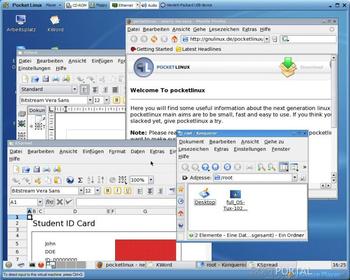
VMware Player — бесплатная программа, которая позволяет запускать на одном компьютере сразу несколько виртуальных машин. Таким образом для работы с виртуальными операционными системами не требуется устанавливать на каждый компьютер довольно громоздкую версию основного ПО.
VMware Player поддерживает виртуальные машины, созданные в VMware Workstation, GSX Server, ESX Server и Microsoft Virtual PC, а также Symantec LiveState Recovery формата.
- Исправлены ошибки
- Обновления безопасности
- Улучшения производительности
VirtualBox — приложение, которое позволяет пользователю создавать виртуальные машины с.
VMware Workstation — приложение для одновременного запуска на ПК нескольких операционных систем.
Эмулятор контроллера Xbox 360 для использования геймпада Sony DualShock 4 во многих компьютерных.
Android SDK — универсальная оболочка для моделирования и разработки различных программных продуктов под операционную систему Android.
BlueStacks App Player — бесплатный эмулятор, с помощью которого можно легко запустить на настольном.
Производительный эмулятор Android, который позволяет пользователю играть в любимые.
Отзывы о программе VMware Player
pollex про VMware Player 16.1.2 build 17966106 [18-08-2021]
исправьте, ОС 8+, на 7-ке не идёт
1 | 4 | ОтветитьАлександр про VMware Player 15.5.1 build 15018445 [17-02-2020]
Зачем обманываете людей?
Начиная с 12 (а может и раньше) версии нет поддержки Windows XP.
А в 15-х версиях и подавно
3 | 13 | ОтветитьБАН про VMware Player 14.1.1 build 7528167 [09-04-2018]
Что за тупые люди здесь А?
8 | 5 | ОтветитьБорис про VMware Player 12.5.2 Build 4638234 [18-01-2017]
Кто-нибудь. Подскажите где есть виртуалки с поддержкой 64-бит.
9 | 30 | Ответитьnikitastepanov про VMware Player 7.0.0 Build 2305329 [11-12-2014]
Vm player for windows 10 64 bit

Jun 03, 2022 · VMware Workstation Player is a completely free-to-use version of its desktop VM software, Workstation Pro. There are differences between the two, and there are some useful features, like snapshots,. A compatible 64-bit x86/AMD64 CPU launched in 2011 or later * 1.3GHz or faster core speed 2GB RAM minimum/ 4GB RAM or more recommended General Host OS Requirements VMware Workstation Pro and Player run on most 64-bit Windows or Linux host operating systems: Windows 10 Windows Server 2019 Windows Server 2016 Windows Server 2012 Windows 8 Ubuntu. VirtualBox is a powerful x86 and AMD64/Intel64 virtualization product for enterprise as well as home use. Not only is VirtualBox an extremely feature rich, high performance product for enterprise customers, it is also the only professional solution that is freely available as Open Source Software under the terms of the GNU General Public License (GPL) version 3.
Install Windows 10 as Virtual Machine in VMware Player.
Download VMware Player for Windows for free. Run other virtual Operating System on your PC…. access local network or Internet from the virtual machine or emulate 32-bit systems…. Windows 8 (64 bits) The new Windows is here, discover all of its new features! Universal USB Installer. Create your own Linux installer. Run both 32 and 64 bit virtual machines. Leverage 2-way Virtual SMP. Use 3rd-party virtual machines and images. Share data between host computer and virtual machine. Broad host and guest operating system support. Support for USB 2.0 devices. Get appliance info at start-up. Gain easy access to virtual machines via intuitive home page interface. Oracle VM VirtualBox Base Packages — 6.1.36 Freely available for Windows, Mac OS X, Linux and Solaris x86 platforms under GPLv2: You might want to compare the SHA256 checksum or the MD5 checksum to verify the integrity of downloaded packages. Oracle VM VirtualBox Extension Pack.
How to Install VMware Workstation Player on Windows 10 — YouTube.
VMware Player install on the Windows 7 64-bit machine went well — as did the Vmware Converter install. I tried setting up a test Windows XP machine from scratch and it all went well. No problems. 3. I did have trouble with VMware Converter recognizing a Norton Ghost backup of the XP machine, so I tried creating an image of my Windows 7. End users can create virtual machines with the Windows 10 Creators Update or by installing VMware Workstation 12 Pro on a Windows 10 Creators Update operating system. Bug fixes and security. Workstation 16 Pro improves on the industry defining technology with DirectX 11 and OpenGL 4.1 3D Accelerated graphics support, a new dark mode user interface, support for Windows Hyper-V mode on Windows 10 version 2004 and greater hosts, a new CLI for supporting containers and Kubernetes clusters: ‘vctl,’ support for the latest Windows and Linux operating systems, and more.
Solved: 64 Bit VMware player — VMware Technology Network VMTN.
Here are the Details >>> VMware Player and Player Plus for Windows 32-bit and 64-bit operating systems. Enter a license key into the VMware Player user interface to enable the VMware Player Plus features.
How to Install Windows XP on VMware — SYSNETTECH Solutions.
To add the Windows XP SP2 ISO image to the virtual machine, right-click on the DVD device and click Settings. Step 2. With the CD/DVD device selected, click the Browse button to add the SP2 ISO location to the Use ISO Image File section. Step 3. Select the Windows XP SP2 I file and click the Open button. # New Support for 32-Bit and 64-Bit Operating Systems # New Features in VMware Player * Virtual Machine with Easy Install — Create a virtual machine and install any supported guest operating system with Easy Install…. However, only Windows XP virtual machines install the XPDM graphics driver by default. To switch graphics drivers in the. This tutorial will show you how to install either the 32-bit or 64-bit version of Windows 10 as a virtual machine in VirtualBox. Here’s How: 1 If you have not already, download and install the latest version of VirtualBox for your host computer (ex: Windows hosts). Download. 2 If you have not already, download a Windows 10 ISO file, and save it.
VMware Workstation Player — Free download and software reviews — CNET.
You can download the VM images here. The VM images are available for Windows 7, Windows 8/8.1/ and Windows 10. You can’t select if you get a VM image for Windows 10 Home or Windows 10 Pro. Instead, you have to select which version of Microsoft Edge you want to test and download a VM image accordingly. Microsoft offers the official Windows 10 ISO for VirtualBox, VMware, Hyper-V, Parallels, and Vagrant. This VM runs the Windows 10 x64 1809 system and has MSEdge installed. To get the Windows 10 ISO for VMware/VirtualBox, you should: Go to this Microsoft Edge Developer page. Under the Virtual Machines section, select the Windows 10 option. Download VMware Workstation Pro latest version free for Windows 10 PC/Laptop. 64 bit and 32 bit safe Download and Install from. VMware Workstation 16 Player free download for Windows 11, 10, , 8, 7 & Linux OS.
Windows VM | Workstation Pro | VMware.
Jul 08, 2010 · VMware Player 16.2.4 is free to download from our software library. The tool can also be called “VMWare-Player_2.0.2–59824_EN_v1.0.0”, “VMWare Player Installer”, “VMware Player Englisch”. The file size of the latest downloadable installer is 134.6 MB. The latest version of the program can be installed on PCs running Windows XP/Vista/7/8/10/11. Step 1: Launch VMware Workstation and then click “ Create a New Virtual Machine “. Then, select “ Typical (recommended) “ and click “ Next “ button. Step 2: Choose a Windows version. In the New Virtual Machine wizard, click “ Browse… “ to select the Windows 10 ISO file and click “ Next “. Select “ Microsoft Windows “ as.
Oracle VM VirtualBox — Downloads.
Requirement applies only to older 64-bit CPUs produced before 2006. n Updated Prepare the Host System to Use 3D Accelerated… Using VMware Workstation Player for Windows VMware, Inc. 10. Disk Drive Requirements for Host Systems Host systems must meet certain disk drive requirements. Guest operating systems can reside on physical. #Vmware player for windows 10 64 bit torrent upgrade# This release of VMware Workstation Player is a free upgrade for all VMware Workstation 15 Player users. Open VM Tools is the default VMware Tools for applicable Linux virtual machine. Jumbo frame support: Virtual networks can now be configured with MTU sizes of up to 9000 bytes.. Vm player for windows 10 64 bit — Wakelet Tammy @Tammy678 1 item Vm player for windows 10 64 bit With VM software, you can run a Windows instance on macOS or vice versa, as well as other OS combinations that include Chrome OS, Linux, and Solaris. H No items have been added yet!.
VMware Workstation Player — VMware Customer Connect.
Vm player download for windows 10 64 bit. Press Windows + R, type “ OptionalF “ in the dialogue box and press Enter. Once the Optional Features are opened, search for the option of Hy.
VMware Player 16.2.4 Download | TechSpot.
Windows. Mac; Web Apps; Android; En. Deutsch; Español; Français;… VMware Workstation Player 12.0.1 Released: 12th Oct 2022 (a few seconds ago) VMware Workstation Player 12.0.0 Released: 12th Oct 2022 (a few seconds ago) VMware Workstation Player 7.1.2 Released: 12th Oct 2022 (a few seconds ago). VMware Workstation Player runs on most 64-bit* Windows or Linux host operating systems: Windows 10; Windows 8; Windows Server 2019… openSUSE; SUSE Linux Enterprise Server; Please visit this KB article for the most up to date operating system support. * VMware Workstation 16 Player requires a 64-bit Processor and 64-bit Host Operating System.
Download a Windows virtual machine — Windows app development.
Step 3: Installing Windows 10. Once you’re ready to begin installing, click on “Power on this virtual machine.”. From here on, the install should begin. Installing Windows as a virtual. Java Runtime Environment 64bit 10.0.2 Java Runtime Environment (JRE) (64-Bit) provides the libraries, the Java Virtual Machine, and other components to run applets and applications written in the Java programming language. In addition, two key deployment technologies… Freeware tags: JRE x64, Java x64, Sun Microsystems Inc. x64, applet x64. VLC Media Player 64-bit VLC Media Player is a free media player that lets you play audio and video content on computers, laptops, mobile phones, and tablets. The freeware lets you launch different media types: devices, discs FL Studio FL Studio is a comprehensive digital audio workstation (DAW) designed by Image-Line.
VMware Player for Windows — Download it from Uptodown for free.
Jul 22, 2022 · VMware Player can be used by anyone to run 32- and 64-bit guests in virtual machines on a Windows or Linux PC. VMware Player makes it quick and easy to take advantage of the security, flexibility, and portability of virtual machines. VMware Player can be used by anyone to run a virtual machine shared by a colleague or friend. For example. Product installation including VMware Tools for all operating systems. File size: 495.52 MB ; File type: exe ; Read More. VMWare Workstation 12 is 64 bit only. It requires a 64 bit CPU and host OS. In fact, there is no 32 bit version of VMWare Workstation 12 available. Why do you think that VMWare Workstation is being installed as 32 bit? Because it places its installation files in the \Program Files (x86)\ directory?.
All versions of VMware Workstation Player for Windows — FileHippo.
Feb 15, 2016 · Install VMware Player. Double-click the downloaded file VM to start the installation. The installation location is “E:\Software\Tools\VirtualMachines\VMware\VMwarePlayer”. The detailed installing processes and steps are omitted… 4. Run VMware Player.
Take Control of Your
Multi-Cloud EnvironmentGive developers the flexibility to use any app framework and tooling for a secure, consistent and fast path to production on any cloud.
Connect & Secure Apps & Clouds
Deliver security and networking as a built-in distributed service across users, apps, devices, and workloads in any cloud.
Run Enterprise Apps Anywhere
Run enterprise apps and platform services at scale across public and telco clouds, data centers and edge environments.
Automate & Optimize Apps & Clouds
Operate apps and infrastructure consistently, with unified governance and visibility into performance and costs across clouds.
Access Any App on Any Device
Empower your employees to be productive from anywhere, with secure, frictionless access to enterprise apps from any device.
Anywhere Workspace
Access Any App on Any Device Securely
App Platform
Build and Operate Cloud Native Apps
Cloud & Edge Infrastructure
Run Enterprise Apps Anywhere
Cloud Management
Automate and Optimize Apps and Clouds
Desktop Hypervisor
Manage apps in a local virtualization sandbox
Security & Networking
Connect and Secure Apps and Clouds
Run VMware on any Cloud. Any Environment. Anywhere.
On Public & Hybrid Clouds
On Private & Local Clouds
Solutions
Anywhere Workspace
Access Any App on Any Device Securely
App Platform
Build and Operate Cloud Native Apps
Cloud Infrastructure
Run Enterprise Apps Anywhere
Cloud Management
Automate and Optimize Apps and Clouds
Edge Infrastructure
Enable the Multi-Cloud Edge
Networking
Enable Connectivity for Apps and Clouds
Security
Secure Apps and Clouds
By Industry
VMware AI Solutions
Accelerate and ensure the success of your generative AI initiatives with multi-cloud flexibility, choice, privacy and control.
For Customers
For Partners
Working Together with Partners for Customer Success
See how we work with a global partner to help companies prepare for multi-cloud.
Tools & Training
Services
Support
Marketplace
Videos
Blogs & Communities
Customers
Events
Local Virtual Machines VMware Workstation Player
Easily run multiple operating systems as virtual machines on your Windows or Linux PC with VMware Workstation Player.
Run Virtual Operating Systems on One PC
Simple, Powerful Local Virtualization
With more than 20 years of development and sharing the same hypervisor platform as vSphere, Workstation Player is one of the most mature and stable solutions for local desktop virtualization.
The Perfect Tool for Learning
Running virtual operating systems on a desktop PC allows students to explore software delivery, operating systems and application development in safe, accurately simulated, local sandboxes.
Your Path to ‘Work from Anywhere’
Isolate corporate desktops to user-owned devices by running secure virtual containers on nearly any Windows or Linux PC, with management capabilities compatible with services like Workspace ONE.
Safe Web Browsing in a Secure Sandbox
Run a second desktop in a secure and isolated environment with different privacy settings, tools and networking configurations to keep your host system safe while browsing online.
Multiple Operating Systems at Your Fingertips

Workstation Player Education Discount
Claim your savings on VMware Workstation for university or college students, prospective students, parents, faculty and more.
Use Cases

Education Solutions
Today’s technology landscape is evolving at an incredible pace, and VMware’s virtualization tools not only lead the pack but allow you to test this technology in a virtual sandbox on your existing PC. Students benefit from a simple environment for exploring new operating systems, and faculty can distribute repeatable lab environments for classroom activity without the need for an internal cloud.

Business Solutions
Workstation Player enables businesses to embrace “Work from Anywhere” by providing a corporate desktop image that can run managed or unmanaged on an end user’s laptop or desktop PC. Users get easy access to corporate desktops and apps, while IT admins get the ability to centrally manage and enforce security policies when used with VMware Workspace ONE.
Tech Specs
System Requirements
VMware Workstation runs on standard x86-based hardware with 64-bit Intel and AMD processors, and on 64-bit Windows or Linux host operating systems. For more detail, see our System Requirements documentation.
System Requirements
- A compatible 64-bit x86/AMD64 CPU launched in 2011 or later *
- 1.3GHz or faster core speed
- 2GB RAM minimum/ 4GB RAM or more recommended
General Host OS Requirements
VMware Workstation Pro and Player run on most 64-bit Windows or Linux host operating systems:
- Windows 10
- Windows Server 2019
- Windows Server 2016
- Windows Server 2012
- Windows 8
- Ubuntu
- Red Hat Enterprise Linux
- CentOS
- Oracle Linux
- openSUSE
- SUSE Linux Enterprise Server
Note that Windows 7 hosts are no longer supported, Workstation 16 will not function on them.
Workstation Pro installation:
- 1.2 GB of available disk space for the application.
- Additional hard disk space required for each virtual machine
- Please refer to vendor’s recommended disk space for specific guest operating systems
Supported Guest Operating Systems
VMware Workstation 16 supports hundreds of 32-bit and 64-bit guest operating systems.
Here is a list of the most popular:
- Windows 10
- Windows 8
- Windows 7
- Windows XP
- Ubuntu
- RedHat
- SUSE
- Oracle Linux
- Debian
- Fedora
- openSUSE
- Mint
- Solaris, FreeBSD, and various other Linux Distros
See the VMware Compatibility Guide for a complete list of supported host and guest operating systems.
For Hyper-V Enabled Hosts:
CPU Requirements:
- Intel Sandy Bridge or a newer CPU
- AMD Bulldozer or a newer CPU
Host Operating Systems:
- Windows 10 2004
Minimum Requirements to Run Container Runtime on workstation Windows Host Operating Systems:
- Windows 10 1809 or higher
Minimum Requirements to Dark Theme support on Workstation Windows Host Operating Systems:
- Windows 10 1809 or higher
For 3D Hardware Accelerated Graphics Support:
Hardware Requirements:
- For Windows hosts, a GPU that supports DirectX 11 is required.
- For Linux hosts, the latest NVIDIA proprietary drivers are required.
- For Linux hosts, AMD devices are not supported
Software Requirements:
64-bit Host Operating System:
- Windows 8 or higher
- GNU/Linux with NVIDIA drivers that support OpenGL 4.5 and above
Guest Operating System
- Windows 7 or higher
- GNU/Linux with vmwgfx
*With exception, the following CPUs are not supported:
- Intel Atom processors based on the 2011 “Bonnell” micro-architecture (e.g. Atom Z670/Z650; Atom N570)
- Systems using Intel Atom processors based on the 2012 “Saltwell” micro-architecture (e.g. Atom S1200, Atom D2700/D2500, Atom N2800/N2600.
- Systems using AMD processors based on the “Llano” and “Bobcat” micro-architectures (e.g. code-named “Hondo”, “Ontario”, “Zacate”, “Llano”)
In addition, the following CPUs are supported:
- Intel processors based on the 2010 “Westmere” micro-architecture (e.g. Xeon 5600, Xeon 3600, Core i7-970, Core i7-980, Core i7-990)
For a complete list of supported host and guest the operating systems visit the VMware Compatibility Guide.
Related Products
VMware Workstation Pro
Virtual machines for Windows and Linux
VMware Fusion
Virtual machines for Mac
vSphere
Server virtualization software
Workstation Player or Workstation Pro — Choose the Right Version for You
General
Workstation Player
Workstation Pro
Create Large VMs (32CPU, 128GB RAM)
Convert PC into a virtual machine
Host Guest Integration
Workstation Player
Workstation Pro
Host/Guest File Sharing
One-Click SSH to Linux VM
Run VMs with Different View Modes
Unity View Mode (Windows guests only)
Graphics
Workstation Player
Workstation Pro
3D graphics with DX11 and OpenGL 4.1 support
Large Graphics Memory: 8GB
Device Support
Workstation Player
Workstation Pro
4K / 5K / Retina Display Support
Support a Wide Range of Virtual Devices
USB Smart Card Reader Support
USB 3.1 Device Support
Assistive Device Support (Section 508 Compliant)
Multi-Language Keyboard Support
Virtual Trusted Platform Module Device
Virtual NVMe Device
Security Features
Workstation Player
Workstation Pro
Microsoft Virtualization Based Security (Guest) Support
Virtual Trusted Platform Module (vTPM)
UEFI Boot Support
UEFI Secure Boot Support
GPU Sandbox Renderer
Create/Manage Encrypted VM
Guest Operating Systems
Workstation Player
Workstation Pro
Over 200 Supported OSs (Linux, older Windows, BSD)
Windows 10 Guests
Windows Host Specific Features
Workstation Player
Workstation Pro
Windows 10 or 11 Hosts
DX11 Rendering Engine
Hyper-V Mode Support (Device Guard, WSL2)
Linux Host Specific Features
Workstation Player
Workstation Pro
Vulkan Rendering Engine
Host Support — Ubuntu, CentOS, Debian, Fedora, RHEL, SUSE, openSUSE
Advanced Features
Workstation Player
Workstation Pro
Command Line Operation: vmrun and VIX
vCenter Server Appliance Easy Deploy
"Nautilus Container Engine"
Virtual Network Customization (NAT, network rename)
Virtual Network Simulation (Packet Loss, Latency, Bandwidth)
Connect to Remote vSphere Hosts
Create Linked Clones
Create Full Clones
Licensing
Workstation Player
Workstation Pro
Free for Personal Use
Product
VMware Workstation Player (formerly known as Player Pro) is a desktop hypervisor application that delivers local virtualization features and is available for free for personal use. A Commercial License can be applied to enable Workstation Player to run Restricted Virtual Machines created by VMware Workstation Pro and Fusion Pro.
VMware Workstation Player is free for personal, non-commercial use (business and nonprofit use is considered commercial use). If you would like to learn about virtual machines or use them at home, you are welcome to use VMware Workstation Player for free. Students and faculty of accredited educational institutions can use VMware Workstation Player for free if they are members of the VMware Academic Program.
Installation
No. VMware Workstation Player is not designed to co-install with other VMware products. If an installation of VMware Workstation Pro or VMware Server is detected on a machine where Workstation Player is being installed, the Workstation Player installation will display an error message and abort. However, if you purchase and install Workstation Pro, a version of Workstation Player that will work is included with your purchase.
For a typical host system, we recommend that you have a 1 GHz or faster 64-bit processor (2GHz recommended) and 2GB RAM minimum (4GB RAM recommended). You must have enough memory to run the 64-bit host operating system, plus the memory required for each guest operating system and for applications on the host and guest. See your guest operating system and application documentation for their memory requirements. VMware Player requires approximately 150MB of disk space to install the application. For more details on minimum PC requirements, see the VMware Player Documentation.